
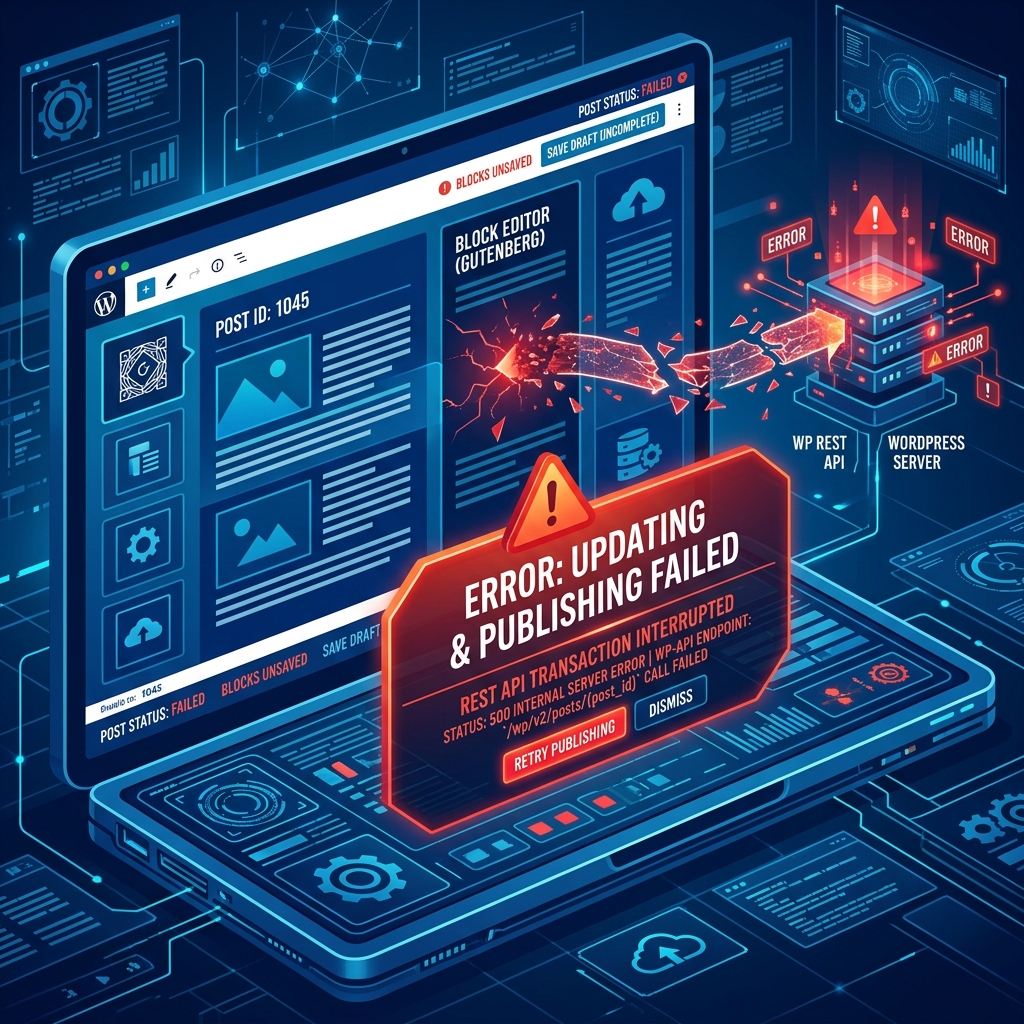
If you use the modern WordPress Block Editor (Gutenberg), you have likely grown accustomed to its seamless, asynchronous saving process. Unlike the old Classic Editor, which required a full page reload to save changes, the Block Editor quietly saves your work in the background.
It achieves this modern magic using the WordPress REST API. Every time you click “Update,” “Publish,” or even when autosave triggers, your browser sends a JSON data packet to the WordPress REST API endpoint on your server.
However, if that invisible communication bridge between your browser and the server is broken, blocked, or timed out, the Block Editor panics. It will display a stark red banner at the top of your screen: “Updating failed. The response is not a valid JSON response” or simply “Publishing failed. You are probably offline.”
This error is incredibly frustrating because it prevents you from saving your hard work. Here is the technical workflow to diagnose and restore your REST API connection.
1. Diagnose the REST API via Site Health
Since the “Updating Failed” error is almost exclusively a REST API issue, your first step should be to confirm if the API is actually functioning across your site.
- Leave your broken post open in another tab (so you don’t lose your work).
- Open a new tab and navigate to your WordPress dashboard.
- Go to Tools > Site Health.
- Look for a critical issue that says: “The REST API encountered an unexpected result.”
If you see this error, it confirms that something on your server is actively blocking API requests. This is usually caused by an overzealous security plugin (like Wordfence or Solid Security) that has mistakenly flagged the Gutenberg editor’s JSON payload as a malicious script injection. Deactivate your security plugins one by one to see if the “Updating Failed” error disappears.
2. Fix SSL and Mixed Content Warnings
Modern web browsers (like Chrome and Firefox) have strict security protocols regarding background data transfers. If your WordPress admin dashboard is loaded over a secure HTTPS connection, but the REST API endpoint is attempting to route through an insecure HTTP connection, the browser will forcefully block the request.
This is a textbook Mixed Content Error.
The Fix:
- Check the padlock icon in your browser’s address bar. If it says “Not Secure,” you have an SSL routing issue.
- Go to Settings > General in your WordPress dashboard.
- Ensure that both the WordPress Address (URL) and the Site Address (URL) begin with
https://(nothttp://). - Install a plugin like Really Simple SSL to forcefully rewrite any lingering HTTP database links to HTTPS, ensuring the REST API can communicate securely.
3. Check Server Firewalls and Cloudflare (WAF)
If your plugins are fine and your SSL is perfect, the blockage is likely happening at the server level.
Web Application Firewalls (WAFs), such as Cloudflare or your hosting provider’s ModSecurity, inspect every packet of data sent to your server. Occasionally, the text you write in a blog post (especially if you are writing a technical post containing code snippets or SQL examples) triggers a false positive in the firewall. The firewall assumes you are attempting an SQL Injection attack and instantly drops the connection, leading to an Error 414 Request URI Too Large or an “Updating Failed” block.
The Fix: If you use Cloudflare, log into your Cloudflare dashboard and toggle Pause Cloudflare on Site (Development Mode). Go back to your WordPress post and click “Update.” If it saves successfully, you know Cloudflare’s WAF was blocking the payload. You will need to review your Cloudflare Firewall Events log and whitelist your own IP address.
Eliminate False Positives with Intelligent Hosting
Fighting with generic server firewalls that constantly block your own publishing attempts is a massive waste of time.
Nextgen’s WordPress Hosting in Pakistan utilizes an intelligent LiteSpeed Web Application Firewall that is specifically tuned for WordPress and the Gutenberg REST API. It accurately distinguishes between a legitimate administrator saving a blog post and a malicious bot attempting a remote code injection. This ensures you can write, code, and publish your content smoothly without ever seeing an “Updating Failed” error again.
Manage files and .maintenance lockouts easily via Nextgen Hosting’s cPanel web hosting.
