
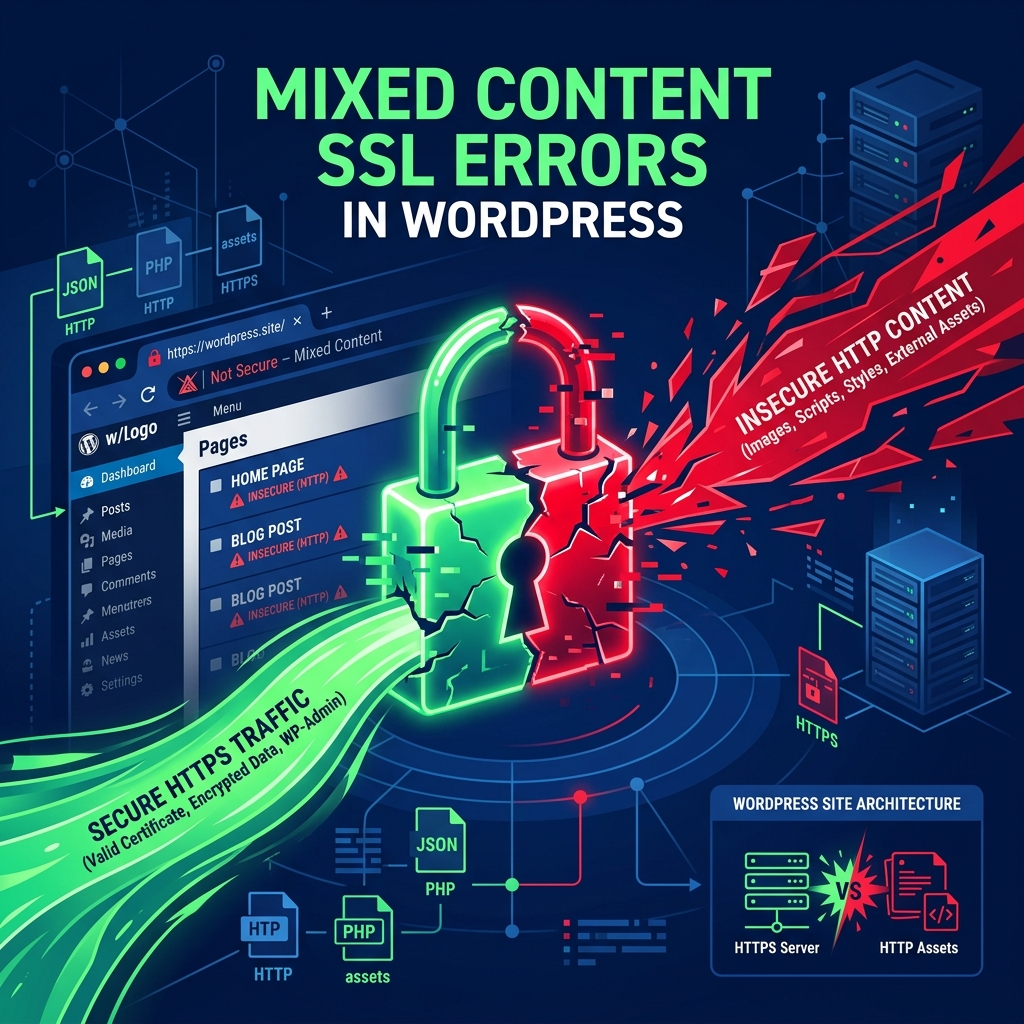
You have just purchased and installed a brand-new SSL certificate. You load up your WordPress website, expecting to see the reassuring green padlock icon in the browser’s address bar. Instead, you are greeted with a broken padlock or a warning icon, and the browser boldly states: “Your connection to this site is not fully secure.”
This is known as a Mixed Content Error.
It occurs when your primary HTML page is securely loaded over an encrypted HTTPS connection, but some of the assets on that page (such as images, CSS stylesheets, JavaScript files, or embedded iframes) are still being pulled using an insecure HTTP connection. Browsers view this “mix” of secure and insecure elements as a massive security vulnerability, as hackers could potentially intercept the insecure assets and inject malicious code into your otherwise secure page.
Here is a step-by-step technical guide to identifying and permanently resolving mixed content errors in WordPress.
1. Identify the Insecure Assets
Before you can fix the problem, you need to know exactly which files are loading insecurely. Modern browsers make this incredibly easy.
- Open your website in Google Chrome (or Firefox).
- Right-click anywhere on the page and select Inspect (or press
F12to open the Developer Tools). - Click on the Console tab at the top.
- You will see several warnings highlighted in yellow or red that explicitly state:
“Mixed Content: The page at
https://yourdomain.comwas loaded over HTTPS, but requested an insecure elementhttp://yourdomain.com/wp-content/uploads/image.jpg. This request has been automatically blocked.”
Take note of these URLs. Usually, it is a hardcoded logo in your theme’s header, or a batch of old images inserted into blog posts before you installed your SSL certificate.
2. The Quick Fix: “Really Simple SSL” Plugin
If the issue spans hundreds of images across dozens of blog posts, fixing them manually is not feasible. The fastest, non-destructive way to resolve this is by using a dynamic rewrite plugin.
- Install and activate the Really Simple SSL plugin from the WordPress repository.
- The plugin will automatically detect your SSL certificate.
- It will dynamically intercept all outgoing requests from your server and force them to use
https://instead ofhttp://on the fly.
This method is incredibly safe. Unlike editing .htaccess manually (which can easily trigger a 500 Internal Server Error if done incorrectly), this plugin handles the redirects seamlessly at the PHP level.
3. The Permanent Fix: Database Search and Replace
While plugins are great, relying on them to dynamically rewrite URLs on every page load adds a tiny bit of processing overhead. The cleanest, most professional way to fix mixed content is to permanently alter the URLs stored in your MySQL database.
Warning: Always take a full database backup before running a search and replace.
- Install the Better Search Replace plugin.
- Navigate to Tools > Better Search Replace.
- In the Search for field, enter your old, insecure URL exactly:
http://yourdomain.com(do not include a trailing slash). - In the Replace with field, enter the secure version:
https://yourdomain.com. - Select all the tables in your database.
- Uncheck “Run as dry run” and click Run Search/Replace.
This will permanently update every single image link, internal link, and hardcoded asset in your entire database to HTTPS.
4. Cloudflare’s Automatic HTTPS Rewrites
If you use Cloudflare to manage your DNS and CDN, you can solve mixed content errors without touching your WordPress dashboard at all.
- Log into your Cloudflare account.
- Navigate to the SSL/TLS app, and select the Edge Certificates tab.
- Scroll down to the Automatic HTTPS Rewrites toggle and turn it ON.
Cloudflare’s edge servers will scan the HTML of your website as it passes through their network and automatically upgrade any insecure http:// links to https:// before sending the page to the visitor’s browser. This is an excellent failsafe and helps prevent other routing issues like 522 Connection Timed Out errors caused by bad protocol handshakes.
Ensure Long-Term Security with Premium Hosting
Managing SSL certificates can be a headache. If your certificate expires or fails to renew, your entire site instantly goes offline with a massive security warning.
Nextgen’s WordPress Hosting infrastructure eliminates this stress completely. All our hosting packages come with Auto-Renewing Premium SSL Certificates via Let’s Encrypt or Sectigo. Our LiteSpeed web servers are hard-coded at the server level to force HTTPS connections, ensuring that from the very first day you launch your site, your data—and your visitors’ data—remains perfectly encrypted and completely free of mixed content warnings.
For automated SSL certificate management and instant HTTPS redirection, view shared hosting plans.
