
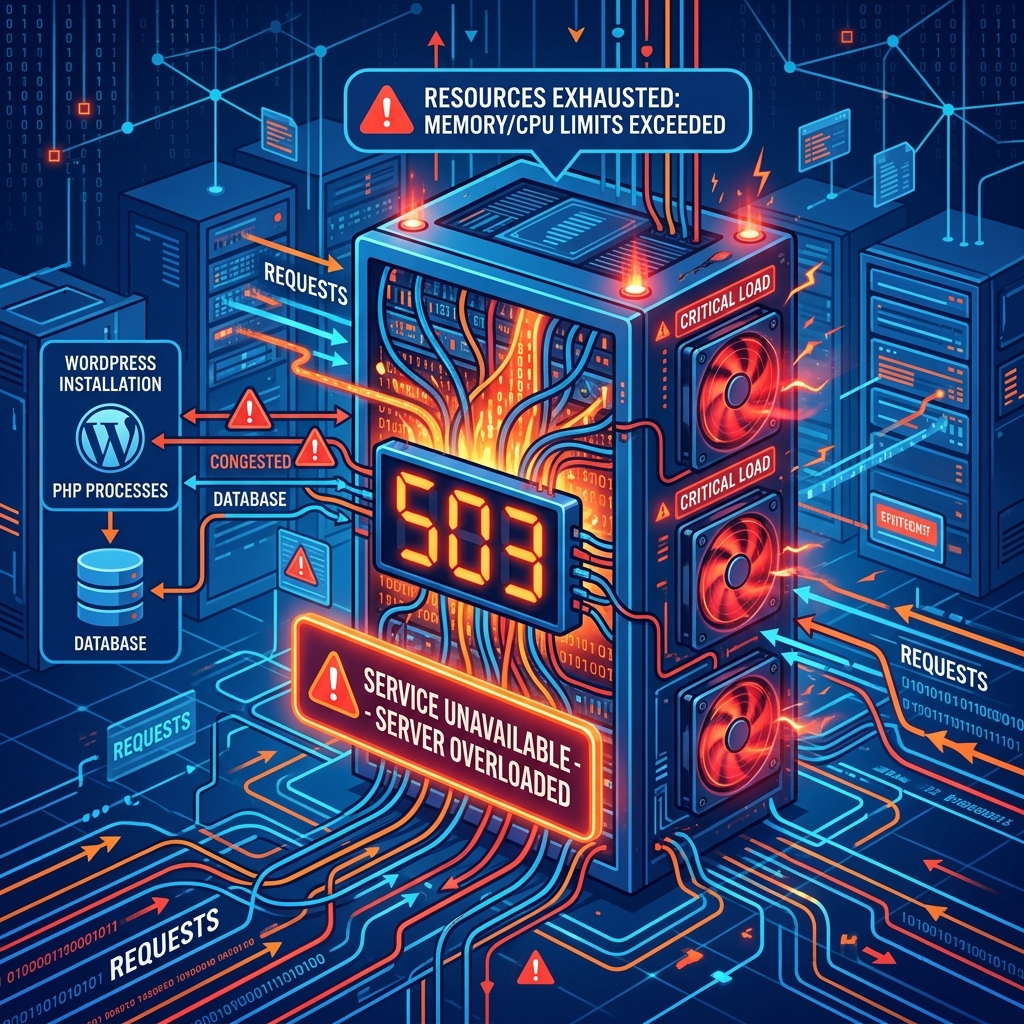
The 503 Service Unavailable error is one of the most dreaded HTTP status codes you can encounter on a WordPress website. Unlike a 404 error (where a specific page is missing) or a 500 Internal Server Error (where a specific script has crashed), a 503 error is a macroscopic, server-level rejection.
When your browser receives a 503 code, the server is essentially saying: “I am online, I am functioning, but I am currently too overloaded to process your specific request right now.”
This bottleneck occurs when your web server runs out of PHP Workers (the background processes responsible for executing PHP code and rendering your WordPress pages). It is conceptually very similar to the Cloudflare 522 Connection Timed Out error, but instead of a network timeout, it is a localized resource exhaustion. Here is how to methodically diagnose and fix the bottleneck.
1. Isolate Rogue Plugins
The most frequent culprit behind a sudden 503 error is a rogue plugin script that has entered an infinite loop or is making too many external API calls, consuming all available PHP workers.
Since the 503 error prevents you from logging into the WordPress admin dashboard, you must disable the plugins manually via the file system.
- Log into your hosting control panel (cPanel) or connect via FTP.
- Navigate to your root directory and open
wp-content. - Locate the
pluginsfolder and rename it toplugins_disabled. This instantly deactivates every plugin on your site. - Open a new incognito window and visit your website.
If the site loads (albeit looking broken), you have confirmed a plugin is the root cause. Rename plugins_disabled back to plugins. Then, go inside the folder and rename each individual plugin folder one by one until you identify the specific plugin that triggers the 503 error when active.
2. Eliminate Theme-Based Infinite Loops
If your plugins are clean, your WordPress theme might be executing a heavy custom script (like a poorly coded image slider or a broken database query) that is causing a Memory Exhausted Error behind the scenes, leading to a 503 cascade.
- In your File Manager, navigate to
wp-content/themes. - Locate the folder of your currently active theme (e.g.,
astraoroceanwp). - Rename the folder (e.g.,
astra_old). - If you have a default WordPress theme (like Twenty Twenty-Four) installed, WordPress will automatically fallback to it.
If the site loads successfully with the default theme, you need to contact your premium theme’s developer for a patch, or roll back to a previous version of the theme.
3. Enable WP_DEBUG for Stack Traces
If neither plugins nor themes are the issue, you are flying blind. You need to force WordPress to generate a technical error log (a stack trace) to tell you exactly which file is overloading the server.
- Open your
wp-config.phpfile in the root directory. - Scroll down until you find the line
define( 'WP_DEBUG', false );. - Replace that single line with the following block of code:
define( 'WP_DEBUG', true );
define( 'WP_DEBUG_LOG', true );
define( 'WP_DEBUG_DISPLAY', false );- Refresh your website to trigger the 503 error again.
- Go to your
wp-contentfolder and open the newly generateddebug.logfile.
The bottom of this log will contain the exact PHP fatal error or timeout that is causing the worker exhaustion, allowing you to pinpoint the exact line of code causing the failure.
Upgrade to Enterprise-Grade Infrastructure
If your logs are clean, your plugins are optimized, and your theme is lightweight, but you are still getting 503 errors during traffic spikes, you have simply outgrown your hosting plan.
Budget shared hosting limits you to a very small pool of PHP Workers (often just 2 or 4). If 10 people visit your site simultaneously, the server drops the remaining requests, resulting in 503 errors for your customers.
To run a serious business, you need serious infrastructure. Nextgen’s WordPress Hosting in Pakistan utilizes LiteSpeed Web Servers and allocates a massive, dedicated pool of PHP Workers to your account. This enterprise-grade architecture ensures your website can seamlessly absorb massive traffic spikes without ever buckling under the pressure, keeping your business online 24/7.
Build resilient eCommerce portals that prevent server crashes with Nextgen Web Development Services.
