
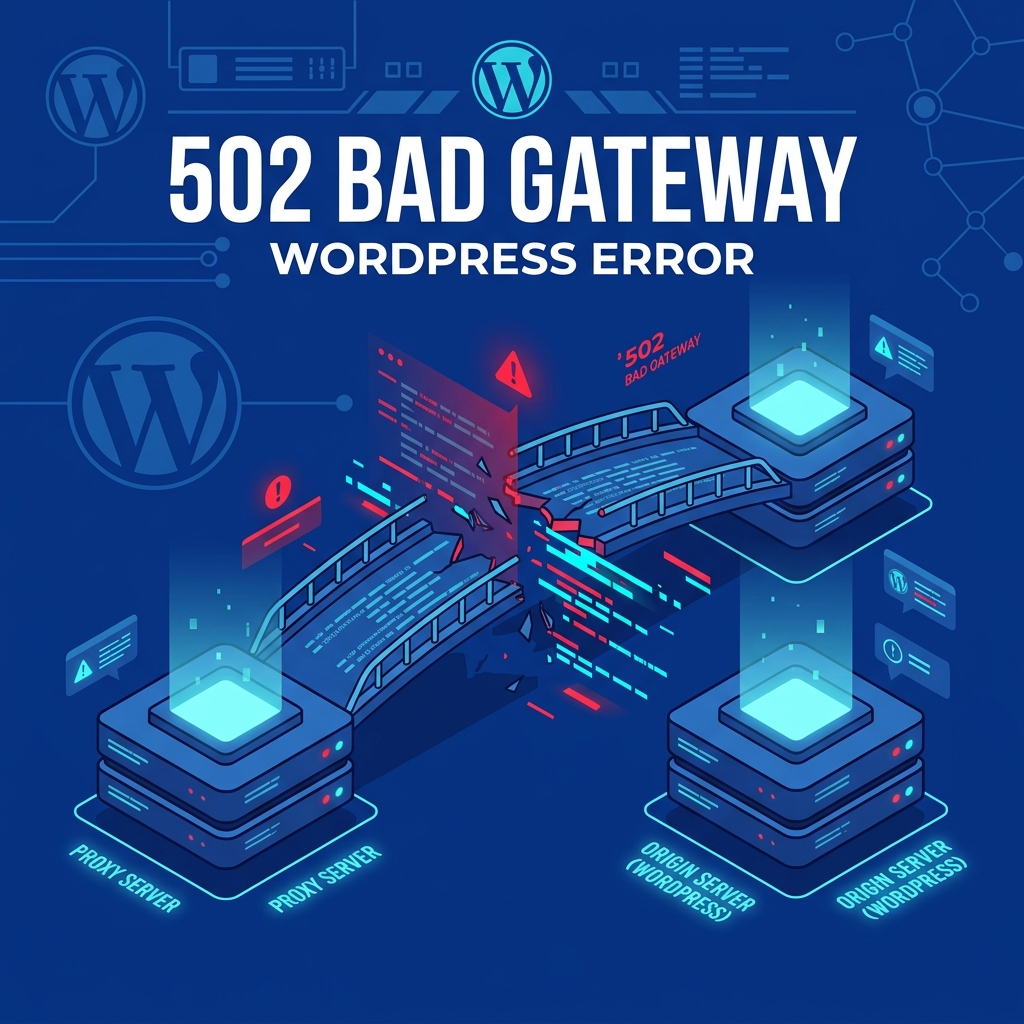
The 502 Bad Gateway error is a classic networking problem that can instantly halt traffic to your WordPress website. Unlike an error that originates purely within your WordPress code (such as a syntax error), a 502 error indicates a breakdown in communication across the internet’s infrastructure.
When you see a 502 error, your browser is telling you: “I successfully connected to the edge server (or proxy), but when that proxy tried to fetch the website data from the origin hosting server, it received an invalid, incomplete, or severely delayed response.”
This issue is highly prevalent on websites utilizing Content Delivery Networks (CDNs) like Cloudflare or website firewalls like Sucuri. It shares the same root causes as the Cloudflare 522 Connection Timed Out error. Here is a technical, step-by-step approach to diagnosing and resolving a 502 Bad Gateway error.
1. Eliminate Local and Proxy Cache Variables
Before diving into complex server diagnostics, you must rule out cached data holding onto an old, invalid connection state.
- Browser Cache: Force a hard refresh on your browser (
Ctrl + F5on Windows orCmd + Shift + Ron Mac). Alternatively, open the site in an Incognito window. If the site loads, the issue was merely local browser caching. - DNS Cache: Your operating system caches IP routes. Open your command prompt (Terminal) and type
ipconfig /flushdns(Windows) orsudo dscacheutil -flushcache; sudo killall -HUP mDNSResponder(Mac). - Proxy Cache: If you use Cloudflare, log into your dashboard. Navigate to Caching > Configuration and click Purge Everything. Cloudflare will drop its cached version of your site and force a brand new request to your origin server. If the origin server is healthy, the 502 error will vanish.
2. Check for DNS Propagation Issues
If you recently migrated your website to a new hosting provider or updated your domain’s Nameservers, you will almost certainly experience intermittent 502 errors over the next 24 to 48 hours.
During DNS propagation, global proxy servers might route traffic to the old IP address, which no longer hosts your website. The proxy attempts to connect, fails to find a valid web server, and throws a 502 Bad Gateway.
You can use a free tool like whatsmydns.net to verify if your domain’s A-record is pointing to the correct, new IP address across global nodes. If the map shows a mix of old and new IP addresses, you simply have to wait for the propagation to finish.
3. Diagnose PHP Execution Timeouts
If your DNS is correct and Cloudflare is functioning properly, the fault lies entirely with your origin server. A 502 error frequently occurs when a PHP script (usually from a heavy plugin or a complex theme) takes too long to execute.
The proxy server (Cloudflare) usually waits about 60 to 100 seconds for a response. If your server is bogged down running a massive WooCommerce database query, the proxy will lose patience, drop the connection, and display the 502 error. This is symptomatically identical to a 500 Internal Server Error.
To diagnose this:
- Log into your hosting control panel (cPanel) or connect via FTP.
- Navigate to
public_html/wp-content/. - Rename the
pluginsfolder toplugins_disabled. - Check your website. If the 502 error is gone, rename the folder back to
plugins. Then, systematically rename individual plugin folders inside it until you locate the specific plugin causing the massive PHP timeout.
4. Review Server Error Logs for Resource Limits
If disabling plugins does not work, your server might be hitting hard hardware limits (running out of RAM or CPU cycles), causing the web service (Apache/Nginx/LiteSpeed) to forcefully terminate connections.
- Open your cPanel and locate the Errors or Raw Access Logs module.
- Look for entries indicating
MaxRequestWorkerslimits reached, or out-of-memory (OOM) kills.
If your server is consistently killing processes because it lacks the hardware to handle the traffic volume, no amount of WordPress tweaking will permanently solve the 502 error.
The Solution: Next-Generation Architecture
Frequent 502 errors are a symptom of a weak origin server failing to keep up with the demands of a high-speed proxy network. Budget shared hosting plans heavily throttle your PHP execution times and simultaneous connections to artificially preserve server health.
Nextgen’s WordPress Hosting in Pakistan is engineered specifically to handshake perfectly with global CDNs like Cloudflare. Our LiteSpeed architecture provides generous PHP execution limits and dedicated PHP workers, ensuring that even during intense traffic spikes or heavy database queries, your origin server always delivers a rapid, valid response to the proxy—keeping your website online and completely free of gateway errors.
Ensuring your Nginx and PHP-FPM gateways remain stable is seamless when powered by reliable budget web hosting in Pakistan.
