
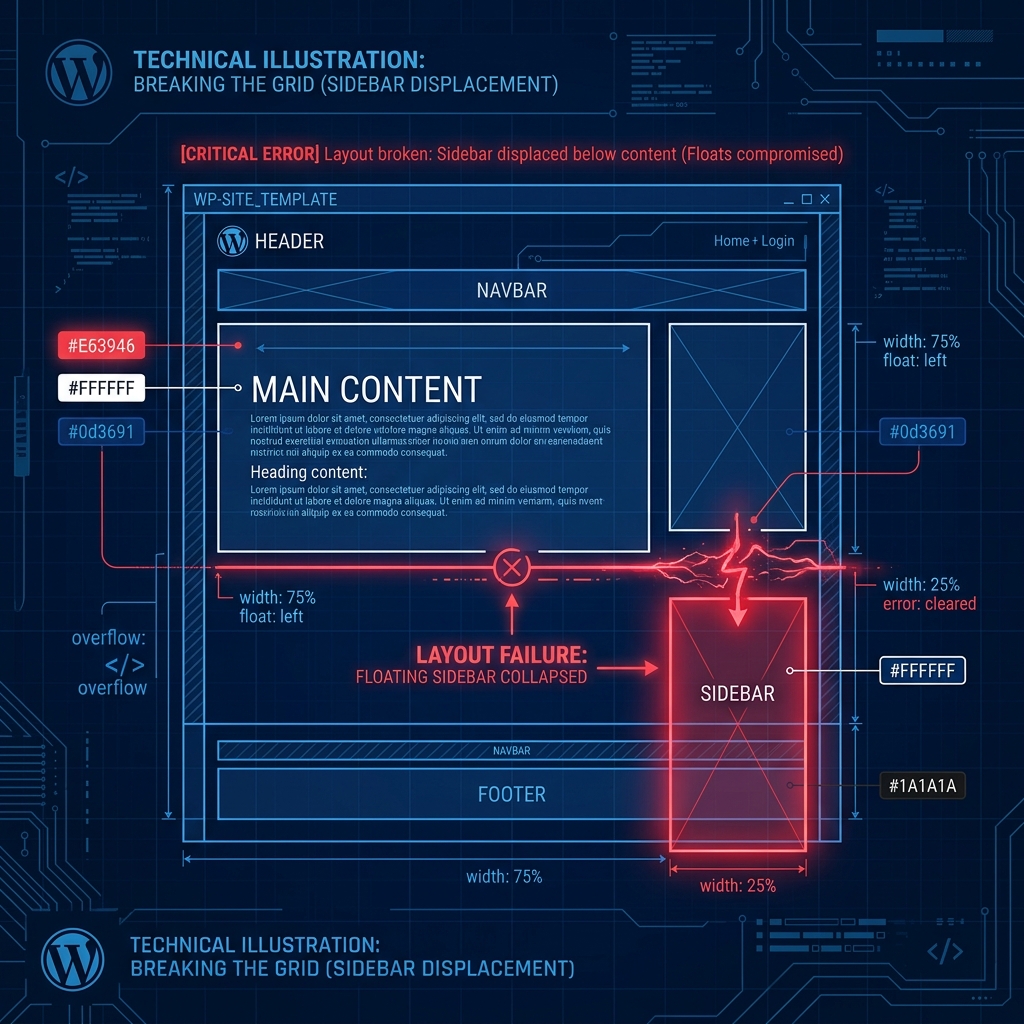
One of the most visually jarring issues you can encounter on a WordPress site is the Sidebar Below Content error. Instead of your neatly designed sidebar sitting flush on the left or right side of your articles, it completely breaks out of the layout grid and drops all the way down to the bottom of the page, below your main content and comments section.
Unlike server-side errors that cause a White Screen of Death, this error does not mean your website is fundamentally broken. It is purely an issue with the “structural blueprint” of your page—specifically, the HTML and CSS.
Here is exactly how to diagnose and fix the issue.
1. The Primary Culprit: Unclosed <div> Tags
In 90% of cases, the sidebar drops to the bottom of the page because of a single, tiny typo: an unclosed HTML <div> tag.
A WordPress theme is built using <div> elements that act as invisible boxes holding your content. If you open a box with <div> but forget to close it with </div>, the web browser gets confused. It assumes your sidebar is supposed to be inside your main content box, rather than sitting next to it. Since it doesn’t fit, it gets pushed to the bottom. This is the HTML equivalent of a fatal PHP Syntax Error.
The Fix: Did this happen immediately after you published a new blog post or added a custom HTML widget? If so, the unclosed tag is likely inside that specific post.
- Open the recent post in the WordPress editor.
- Switch from the Visual editor to the Text (HTML) editor.
- Look for any custom code snippets you pasted and ensure every opening
<div>has a matching closing</div>.
Pro Tip: Use the free W3C Markup Validation Service. Paste your page URL into it, and the tool will highlight exactly which line of code has an unclosed HTML tag, saving you hours of manual searching.
2. Incorrect CSS Widths and Margin Calculations
If you recently edited your theme’s style.css file to make your content area slightly wider, you might have mathematically broken the layout grid.
Web layouts rely on strict math. If your total website container is 1000 pixels wide, and you set your Main Content to 700px and your Sidebar to 320px (totaling 1020px), they physically cannot sit side-by-side. The browser’s only option is to wrap the sidebar and drop it below the content.
The Fix:
- Open your
style.cssfile (preferably in your Child Theme). - Check the widths of
#content(or.main-content) and#sidebar. - Reduce the width of one of them. Don’t forget to account for CSS
paddingandmargin, as these add extra width to the elements.
Additionally, ensure your elements are using the correct float properties (e.g., float: left for the content and float: right for the sidebar) or that your CSS Flexbox/Grid properties are correctly configured.
3. Clear Your Caching Plugins
If you have already fixed the missing <div> tag or corrected your CSS widths, but the sidebar is still broken, you are likely looking at a cached version of the page.
If you use a caching plugin like LiteSpeed Cache, W3 Total Cache, or WP Rocket, you must purge all caches. You should also clear your browser cache or view the page in an Incognito window to see the live, updated layout.
Secure Your Codebase with Automated Backups
Troubleshooting CSS and HTML layout grids can involve a lot of trial and error. Before editing core theme files like style.css or header.php, you should always have a restoration point.
Nextgen’s WordPress Hosting in Pakistan features automated JetBackup cloud snapshots generated daily. If you accidentally mangle your theme’s CSS and cannot remember how to fix it, you can instantly restore your entire theme folder to a previously working state with a single click, completely eliminating the stress of debugging.
When theme CSS issues arise from slow stylesheet loading, Nextgen’s shared hosting.
