
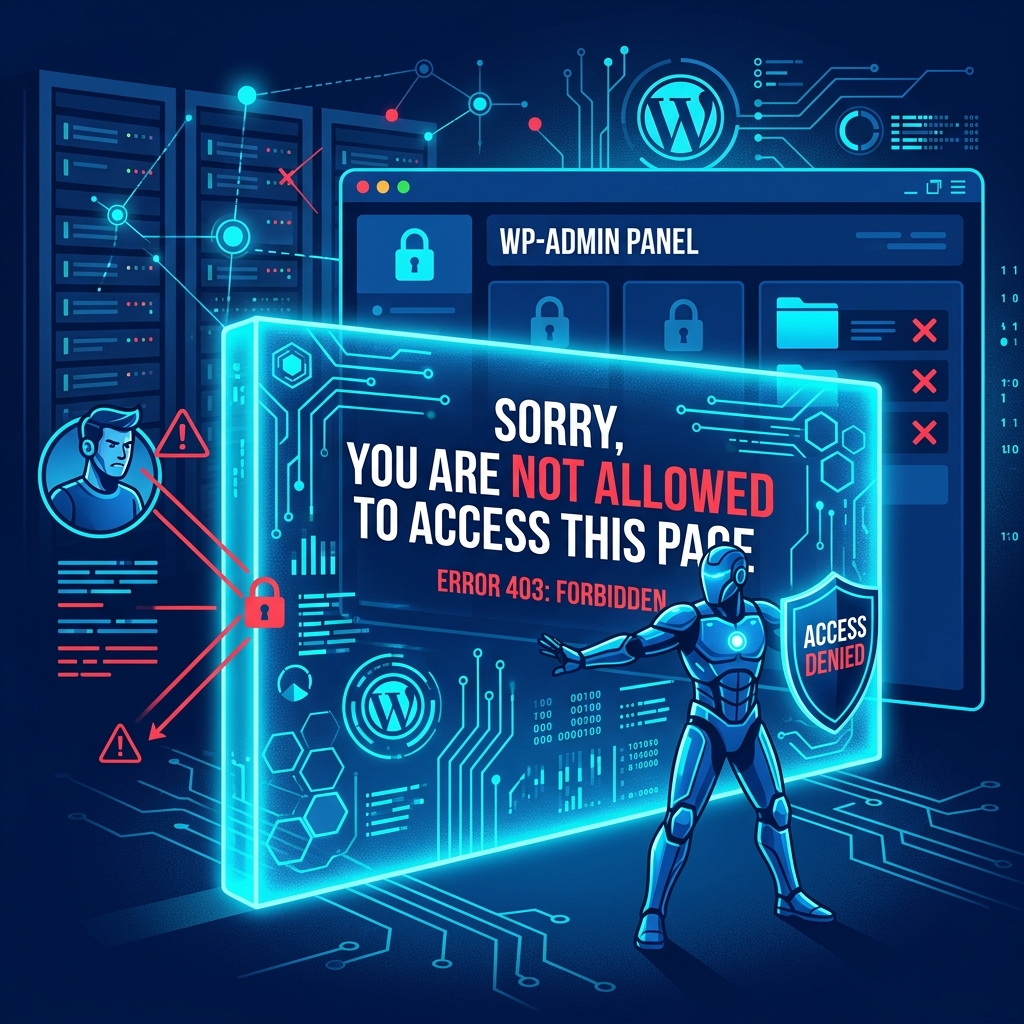
One of the most perplexing errors in the WordPress ecosystem occurs right after a successful login. You type in your correct username and password, hit enter, and instead of seeing your familiar admin dashboard, you are greeted by a stark, mostly blank page containing a single line of text: “Sorry, you are not allowed to access this page.”
This is fundamentally an issue of User Roles and Capabilities. It differs from being completely Locked Out of the Admin Dashboard (where you cannot log in at all). In this scenario, WordPress knows who you are, but the underlying database or security system has stripped your account of its administrative privileges.
This error usually triggers after a botched site migration, a security plugin update, or an incomplete database search-and-replace. Here is the highly technical workflow to diagnose and permanently resolve the permission blockage.
1. Fix Database Prefix Mismatches in usermeta
If you recently migrated your website to a new host, or if you used a security plugin to change the default wp_ database prefix to something harder to guess (like wp7x_), this is almost certainly the cause of your error.
WordPress stores your user privileges (like the fact that you are an “Administrator”) in the usermeta database table. Crucially, the “keys” that define these privileges contain the database prefix itself. If you changed the table prefix to wp7x_, but the meta keys inside the table still say wp_capabilities, WordPress will look at your account, fail to find the wp7x_capabilities key, and assume you are a user with zero permissions.
The Fix:
You must manually update the usermeta keys directly in the database. (Note: Always take a backup before doing this, just like you would when troubleshooting an Error Establishing a Database Connection).
- Log into your hosting cPanel and open phpMyAdmin.
- Select your WordPress database.
- Click on the
usermetatable (e.g.,wp7x_usermeta). - Click on the SQL tab and run the following query to find the broken keys (replace
wp7x_with your actual new prefix):
SELECT * FROM `wp7x_usermeta` WHERE `meta_key` LIKE '%wp_%';- You will see results like
wp_capabilities,wp_user_level, andwp_dashboard_quick_press_last_post_id. - Click Edit on each of these rows, and change the
wp_part of themeta_keyto match your new prefix (e.g., changewp_capabilitiestowp7x_capabilities). - Save the changes and refresh your WordPress dashboard. You should instantly have your admin rights back.
2. Deactivate Rogue Security Plugins via FTP
If you haven’t touched your database prefix, the next most likely culprit is a rogue plugin—specifically, a security firewall or a membership plugin that restricts access based on user roles. A bad update can cause these plugins to accidentally lock out the Administrator role.
Because you cannot access the dashboard to disable the plugin, you must do it via the file system.
- Connect to your server using FTP or the cPanel File Manager.
- Navigate to
public_html/wp-content/plugins/. - Locate the folder for your security plugin (e.g.,
wordfence,ithemes-security, ormembers). - Rename that specific folder (e.g.,
wordfence-deactivated). - Refresh your
wp-adminpage. If you are granted access, you have found the culprit. You can then delete the plugin and reinstall a fresh, working version.
3. Verify Server File Permissions
If WordPress cannot physically read the PHP files that render the dashboard, it will default to showing you a permissions error. This often happens if you manually uploaded WordPress core files via FTP and the transfer corrupted the file attributes.
- Open your File Manager.
- Ensure that all Directories (Folders) are set to
755. - Ensure that all Files (especially
wp-config.phpand files insidewp-admin) are set to644.
If a critical file like wp-admin/index.php is accidentally set to 000 or 444, the server will block WordPress from executing it, triggering the “not allowed to access” message.
Never Fear Broken Databases Again
Manually running SQL queries in phpMyAdmin to fix broken user capabilities is a high-risk operation. If you accidentally delete the wrong row in the usermeta table, you can permanently destroy your user account.
With Nextgen’s WordPress Hosting in Pakistan, you never have to take that risk. Our platform includes fully automated daily backups powered by JetBackup. If a security plugin update locks you out, or a database migration goes wrong and strips your admin privileges, you can simply click “Restore” in your client area. Within seconds, your entire database and file system will be rolled back to a perfectly working state, completely bypassing the need to touch any code.
Establish high-trust agency websites with Nextgen’s professional website design.
