
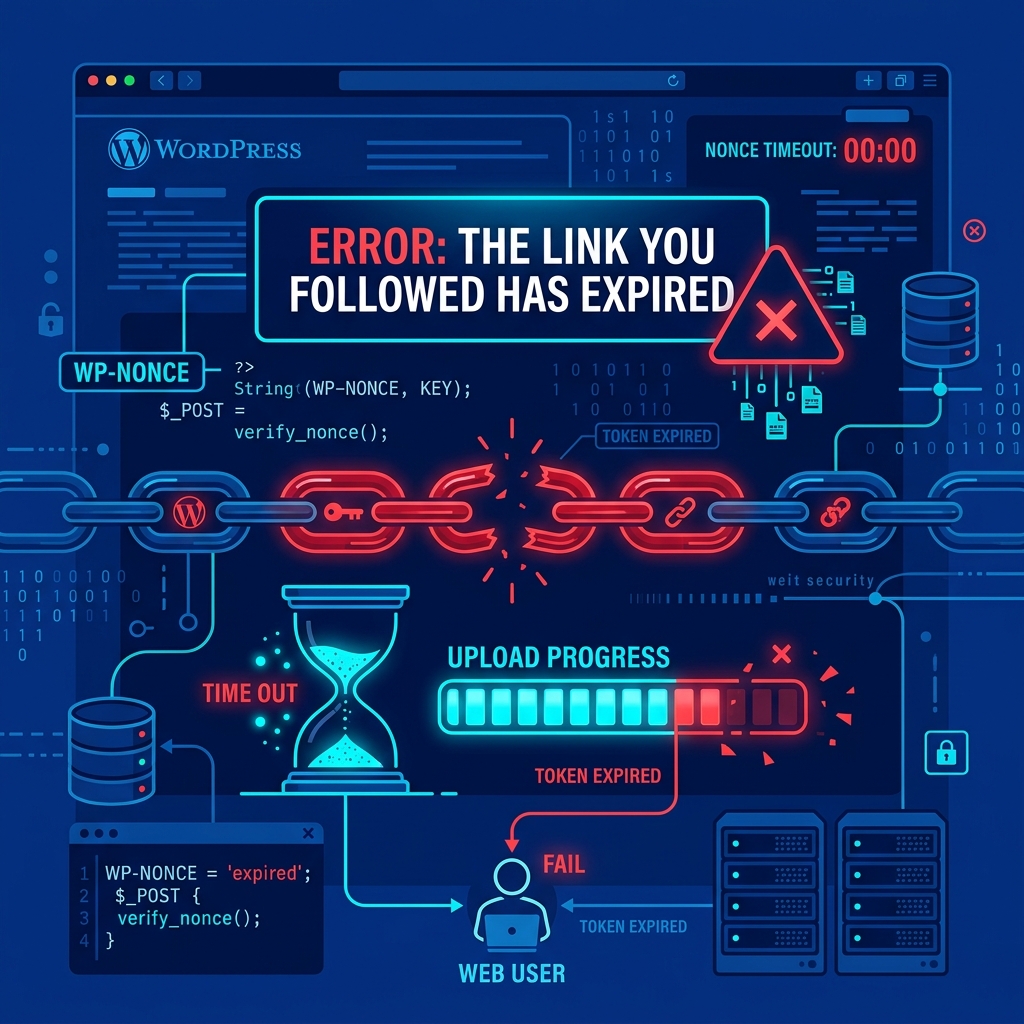
The WordPress error message “The link you followed has expired” is incredibly vague. It gives you no error codes, no technical details, and leaves most beginners completely confused. You typically encounter this error right in the middle of uploading a heavy premium theme or a large backup plugin via the WordPress dashboard.
Despite what the message says, this is not an issue with broken hyperlinks or expired passwords. This error is fundamentally a PHP execution and upload limit conflict that triggers a WordPress security timeout.
WordPress uses hidden security tokens called “nonces” (numbers used once) to verify that an admin action (like a file upload) is legitimate and hasn’t been intercepted. However, if you are uploading a massive 30MB file on a slow internet connection, or if your server only allows scripts to run for 30 seconds, the upload process will stall. By the time the file actually finishes transferring, the security nonce has expired, and WordPress aggressively rejects the file.
This error is effectively a combination of an upload_max_filesize restriction and a maximum execution timeout. Here is how to configure your PHP environment to permanently resolve it.
1. Modify PHP Constraints via cPanel (Recommended)
If your web hosting provides cPanel, you can bypass coding entirely and visually adjust the constraints that are causing the nonce to expire.
- Log into your cPanel.
- Locate the Software section and click on MultiPHP INI Editor.
- Select your WordPress domain from the dropdown menu.
- You must increase three distinct variables to ensure a smooth, uninterrupted upload:
upload_max_filesize: Increase this from the default2Mor8Mto256M. This dictates the sheer physical size of the file you can upload.post_max_size: This must be equal to or strictly greater than the upload max filesize. Set it to256M.max_execution_time: This is the variable causing the expiration. Increase it from30to300seconds. This gives your browser a full 5 minutes to complete the upload before PHP forcefully kills the script.
- Click Apply or Save, and try your WordPress upload again.
2. Override Timeouts via the .htaccess File
If your host does not provide a visual PHP editor, but your server runs on Apache or LiteSpeed architecture, you can force the server to accept longer execution times by adding directives to your hidden .htaccess file. (This same methodology is frequently used to cure the Memory Exhausted Error).
- Connect to your server via the cPanel File Manager or an FTP client like FileZilla.
- Ensure you have “Show Hidden Files” enabled, and locate the
.htaccessfile in your rootpublic_htmldirectory. - Edit the file, and paste the following snippet at the very bottom:
php_value upload_max_filesize 256M
php_value post_max_size 256M
php_value max_execution_time 300
php_value max_input_time 300
Save the file. The max_input_time addition ensures that the server gives your browser ample time to parse the data payload before triggering an expiration timeout.
3. The Bypass Method: Upload via FTP
If you are hosted on a restrictive, low-tier shared hosting platform, the administrators may have hard-coded locks on the php.ini file, meaning both cPanel changes and .htaccess overrides will be completely ignored.
If you absolutely must get a theme installed right now, you can completely bypass the WordPress dashboard and its security nonces.
- Extract your downloaded Theme or Plugin
.zipfile on your local computer. You should now have a standard folder (e.g.,divi-theme). - Log into your server via FTP.
- Navigate to
wp-content/themes/(orwp-content/plugins/). - Upload the extracted folder directly into the directory.
- Once the upload finishes, log into your WordPress dashboard, go to Appearance > Themes (or Plugins), and you will see it sitting there, ready to be activated.
Host with Zero Artificial Limits
Constantly running into “Link Expired” errors, memory exhaustion, and upload limits is the hallmark of an overcrowded shared server attempting to conserve resources at your expense.
Nextgen’s WordPress Hosting in Pakistan is engineered for unrestricted developer workflows. Our optimized LiteSpeed environments provide generous default execution times and massive upload limits right out of the box. Whether you are migrating a 5GB database or uploading a massive Elementor template kit, our servers ensure your connections stay active, secure, and lightning-fast—without ever expiring halfway through.
Upload large media and themes smoothly with cPanel Hosting in Pakistan.
