
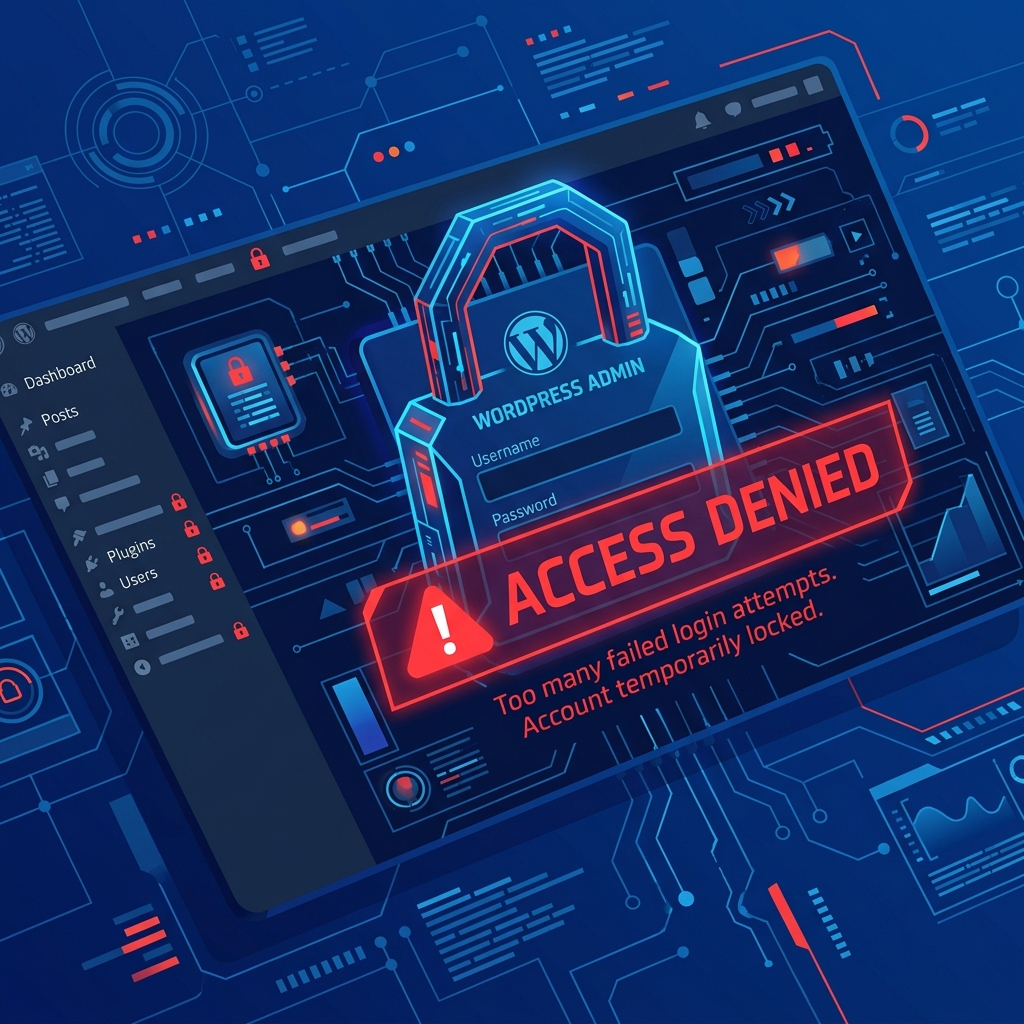
The sudden realization that you are completely locked out of your own WordPress admin dashboard (wp-admin) is a uniquely stressful experience. You try your password, and it fails. You try to reset it, and the email never arrives. You are effectively locked out of your own digital house.
Whether you’ve triggered an aggressive firewall block, fallen victim to a database corruption, or are stuck in a frustrating Login Redirect Loop, the situation is highly fixable.
As long as you still have access to your web hosting control panel (like cPanel) or FTP, you hold the master keys to the server. Here are the most effective technical methods to force your way back into a locked WordPress dashboard.
1. Bypass Security Plugin Lockouts
If you are using security plugins like Wordfence, Sucuri, or Limit Login Attempts Reloaded, they are designed to automatically block IP addresses that fail to log in after a certain number of attempts. If you accidentally typed your password wrong three times, your own plugin likely banned you.
The Fix: Deactivate via File Manager Since you cannot access the WordPress dashboard to unblock yourself, you must disable the plugin at the server level.
- Log into your hosting control panel and open the File Manager (or connect via FTP).
- Navigate to your website’s
public_html/wp-content/plugins/directory. - Locate the folder of the security plugin responsible for the block (e.g.,
wordfence). - Rename that folder to something else (e.g.,
wordfence-deactivated).
WordPress will instantly fail to load the plugin, lifting the IP ban. You can now log into your dashboard.
2. Force a Password Reset via phpMyAdmin
If your issue isn’t a plugin block, but rather a genuinely forgotten password—and your server isn’t sending the password reset email—you will need to bypass the WordPress interface entirely and change your password directly inside the MySQL database.
This process involves interacting directly with the database tables, similar to troubleshooting an Error Establishing a Database Connection.
The Fix:
- In your hosting control panel, open phpMyAdmin.
- From the left sidebar, select your WordPress database.
- Find and click on the
wp_userstable (the prefix might be different, likewpab_users, depending on your security setup). - Locate your username in the list and click Edit.
- Find the
user_passrow. - Under the Function column for that row, select MD5 from the dropdown. (This encrypts your password so it isn’t stored in plain text).
- Under the Value column, delete the long string of random characters and type your new password.
- Scroll to the bottom and click Go to save.
You can now navigate back to wp-admin and log in with your newly minted password.
3. Create an Emergency Admin User via FTP
In severe cases—such as a database corruption or a hack—your user account might still exist, but its “Administrator” privileges have been stripped away. You might be able to log in, but you only see a blank dashboard with no options.
The Fix: Inject a New User via functions.php
- Access your files via FTP or File Manager.
- Navigate to
/wp-content/themes/your-active-theme/and open thefunctions.phpfile. - Add the following code to the very bottom:
function add_emergency_admin() {
    $username = 'emergencyadmin';
    $password = 'SuperSecretPassword123!';
    $email = '[email protected]';

    if ( !username_exists( $username ) && !email_exists( $email ) ) {
        $user_id = wp_create_user( $username, $password, $email );
        $user = new WP_User( $user_id );
        $user->set_role( 'administrator' );
    }
}
add_action('init', 'add_emergency_admin');
Save the file, load any page on your website once (to trigger the code), and then log in with those emergency credentials. Be absolutely sure to delete this code snippet immediately after successfully logging in.
The Ultimate Failsafe: Daily Automated Backups
Manually editing databases and injecting PHP code can be daunting for non-developers. A single typo in functions.php can bring the whole site down.
The ultimate failsafe against being locked out is having reliable, automated backups. Nextgen’s WordPress Hosting in Pakistan comes standard with daily JetBackup snapshots. If a bad plugin locks you out or a database table becomes corrupted, you don’t need to touch any code. You can simply log into your client area and restore your entire website to a perfectly functioning state from the day before, with a single click.
Speed up your wp-admin panel response times with an ultra-low latency local Pakistani shared hosting server.
