
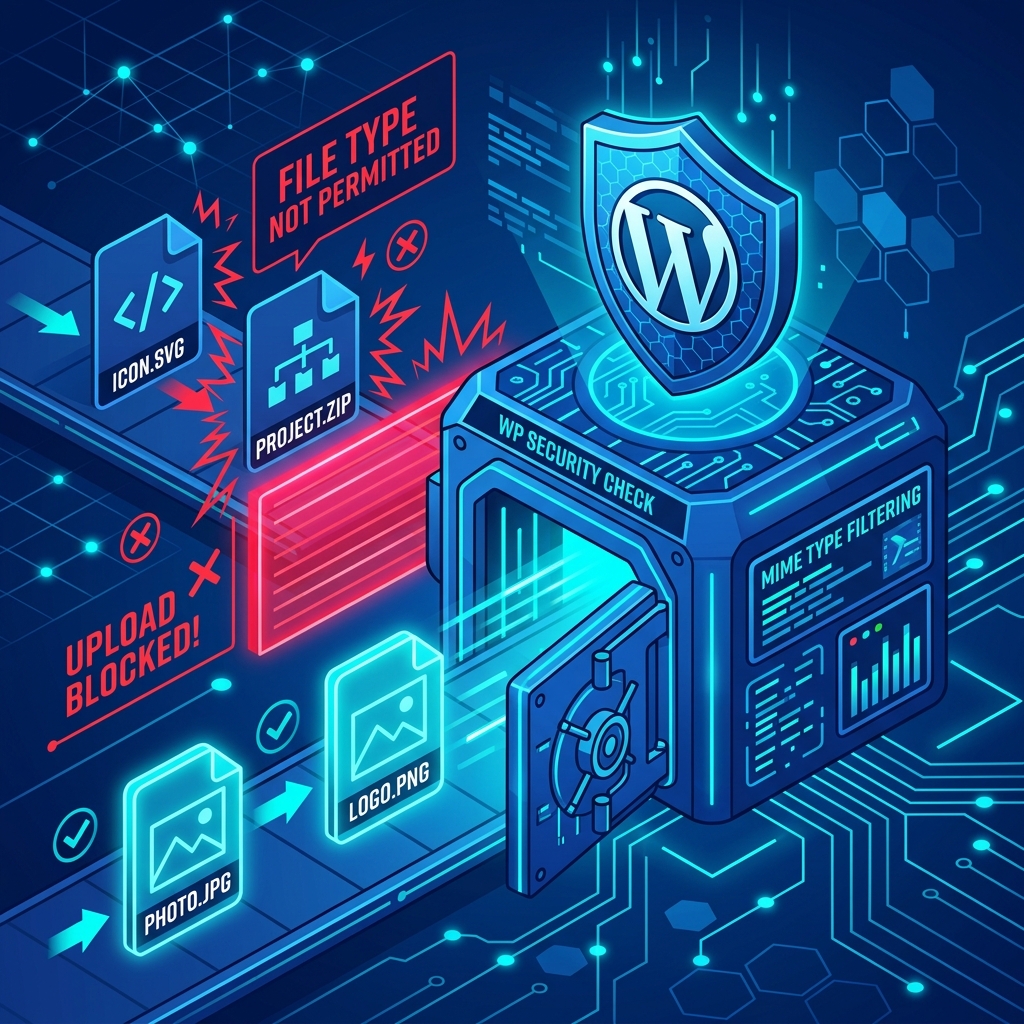
One of the most common roadblocks developers face when customizing a WordPress site is attempting to upload a seemingly harmless file, only to be met with a stark red error message: “Sorry, this file type is not permitted for security reasons.”
Unlike an HTTP Image Upload Error, which is caused by server timeouts or file permissions, this error is a deliberate, hard-coded security feature built directly into the WordPress core.
By default, WordPress only allows you to upload highly standardized, “safe” MIME types (like .jpg, .png, .pdf, .mp4, and .docx). It aggressively blocks executable scripts, custom font files, and critically, SVG vector graphics. Since SVGs are actually XML-based text files, hackers can easily embed malicious JavaScript inside them, which is why WordPress bans them out of the box.
If you know exactly what you are doing and need to bypass this restriction, here is how to do it safely.
Method 1: Allow All Unfiltered Uploads (The Nuclear Option)
If you are the sole administrator of your website, and you need to quickly upload an obscure file format (like a custom .zip archive or a specific data file), you can temporarily disable the WordPress upload filter entirely.
The Fix:
- Log into your hosting account’s cPanel File Manager (or connect via FTP).
- Locate and open the
wp-config.phpfile in your root directory. - Add the following line of code right above the line that says
/* That's all, stop editing! Happy publishing. */:
define('ALLOW_UNFILTERED_UPLOADS', true);Security Warning: Once you save this file, WordPress will allow anyone with Administrator or Editor privileges to upload literally anything, including malicious .php scripts. You should immediately remove this line of code as soon as you have finished uploading your required files.
Method 2: Whitelist Specific File Types via functions.php
The much safer, more elegant solution is to explicitly tell WordPress that a specific file extension is safe, while leaving the rest of the security filters perfectly intact. This is the recommended approach for modern web design, where uploading crisp, lightweight SVG logos is a necessity.
The Fix:
- Navigate to Appearance > Theme File Editor in your WordPress dashboard (or use File Manager).
- Open your Child Theme’s
functions.phpfile. (Never edit the parent theme’s functions file, or your changes will be erased on the next update). - Add the following PHP snippet to the bottom of the file:
function allow_custom_mime_types($mimes) {
  // Allow SVG files
  $mimes['svg'] = 'image/svg+xml';

  // Allow WebP files (if older WordPress version)
  $mimes['webp'] = 'image/webp';

  return $mimes;
}
add_filter('upload_mimes', 'allow_custom_mime_types');
Save the file. You can now upload SVGs and WebPs to your Media Library without triggering the error. If you crash your site while pasting this code, refer to our guide on fixing WordPress Core Pluggable.php Errors.
Ensure Maximum Compatibility with Modern Hosting
While you can tweak PHP to allow specific file types, actually processing them requires robust server resources. For instance, resizing and generating thumbnails for large WebP images can severely tax your server’s RAM, occasionally triggering a Memory Exhausted Error if your host limits you to 64MB of PHP memory.
Nextgen’s WordPress Hosting in Pakistan eliminates these bottlenecks entirely. We provision every WordPress environment with a massive 512MB PHP Memory Limit and pre-install all necessary server extensions (like ImageMagick and GD Library) to perfectly handle modern media formats out of the box.
Upload large WordPress themes without upload size bottlenecks using Shared Hosting in Pakistan.
