
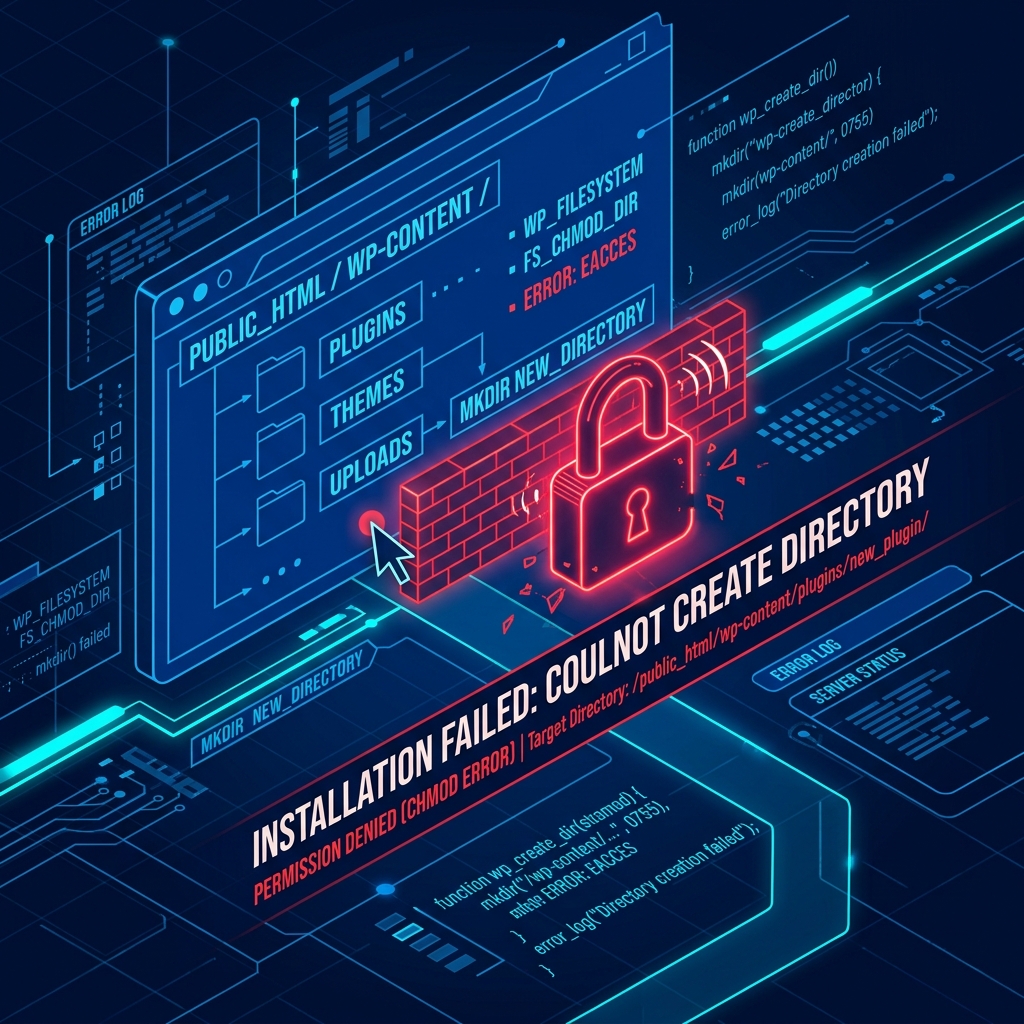
The WordPress content management system is incredibly dynamic. Every time you click “Install Now” on a new plugin, upload a premium theme via a zip file, or run a core update, WordPress is silently executing commands in the background to create new folders and extract files onto your server’s hard drive.
However, if your web server explicitly forbids WordPress from writing data to its own directories, the system halts immediately and displays the error: “Installation failed: Could not create directory.”
This is not a bug with the plugin you are trying to install. This is fundamentally an issue of server-level File Permissions or File Ownership. It shares the exact same technical DNA as the Missing a Temporary Folder error. Here is how to diagnose and fix the restriction.
1. Correct Your CHMOD File Permissions
In the Linux environments where WordPress is universally hosted, every single file and folder has a strict three-digit security code assigned to it. This code dictates who can Read, Write, and Execute that file.
For WordPress to be able to create new folders (like creating a new plugin folder inside wp-content/plugins), the directory permissions must be configured perfectly.
- All Folders (Directories): Must be set to
755 - All Files: Must be set to
644
If your wp-content folder is accidentally set to a restrictive 744 or 555, WordPress is locked out of its own file system.
The Fix:
- Log into your hosting control panel (cPanel) and open the File Manager (or use an FTP client like FileZilla).
- Navigate to your root WordPress installation (usually
public_html). - Right-click on the
wp-contentfolder and select Change Permissions (or File Attributes). - Ensure the checkboxes equal the numerical value
755(Owner has Read/Write/Execute; Group and Public have Read/Execute). Save changes. - Double-click to enter
wp-content, and repeat this process for theplugins,themes, anduploadsfolders.
Once they are all set to 755, attempt your plugin installation again.
2. Resolve Incorrect File Ownership (CHOWN)
If your folder permissions are definitively set to 755, but you are still getting the “Could not create directory” error (or the closely related Destination Folder Already Exists error), you are likely facing an ownership conflict.
In Linux, simply having the right permission number isn’t enough; the correct “User” has to own the folder. If you recently migrated your website from another host, or if a server administrator extracted a zip file using the root command line, the owner of your WordPress files might have accidentally been changed to root or nobody instead of your cPanel username.
If WordPress (which runs under your cPanel user) tries to write into a folder owned by root, the server will block it.
The Fix:
You cannot change file ownership (CHOWN) from the cPanel File Manager. You must either have SSH/Terminal access to run a chown command manually, or you must contact your web hosting support team and tell them: “My WordPress files have incorrect ownership. Please run a recursive chown to assign all files in my public_html to my cPanel user.”
3. Verify You Aren’t Out of Disk Space
It sounds incredibly basic, but it is one of the most common reasons a server refuses to create a new directory: the hard drive is simply full.
If your hosting plan only allows 5GB of storage, and you have accumulated 5GB of heavy automated backups and uncompressed images, the server physically cannot write a single new kilobyte of data.
The Fix: Log into cPanel and check the Disk Usage statistic on the right sidebar. If it is sitting at 100% (or in the red), you must delete old staging sites, unused themes, or old backup archives to free up space before WordPress can create any new plugin directories.
Avoid Permission Nightmares with Optimized Hosting
Manually fighting with CHMOD permissions and CHOWN ownerships is a remnant of poorly configured shared hosting environments.
With Nextgen’s WordPress Hosting in Pakistan, the server environment runs under highly optimized CloudLinux and suPHP architectures. This strictly enforces user isolation, meaning every single PHP script WordPress executes is securely forced to run as your specific user. This guarantees that file ownership is always perfectly aligned out of the box, ensuring you never encounter a “Could not create directory” or permission error while managing your website.
Fix directory permission errors easily with standard Shared Web Hosting in Pakistan.
