
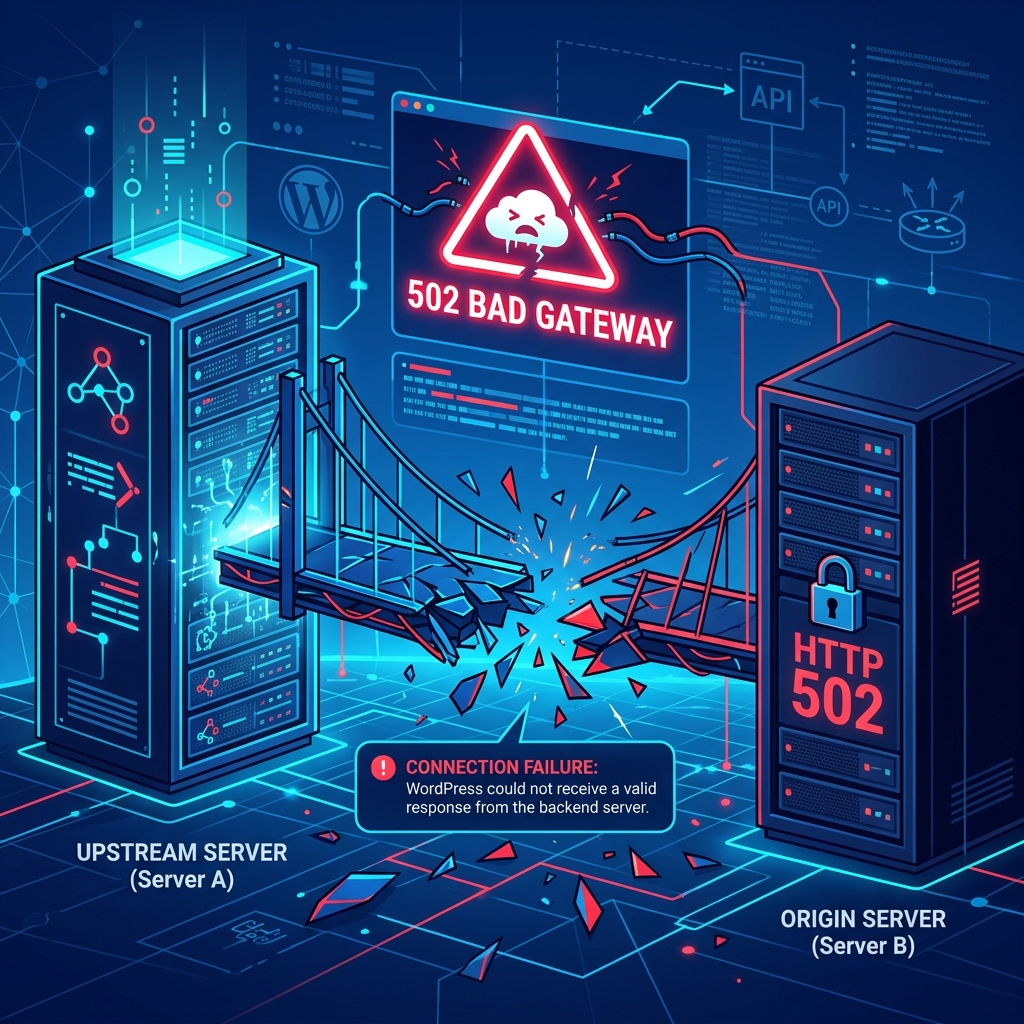
If you use Cloudflare to secure and speed up your WordPress website, there is a high probability that you will eventually encounter the dreaded Error 522: Connection Timed Out screen.
Unlike a standard WordPress PHP error, the 522 error is entirely infrastructure-related. It means that Cloudflare’s edge server successfully received the visitor’s request and attempted to forward it to your actual hosting server (the origin server). However, your origin server failed to establish a TCP connection within 15 seconds. Cloudflare grew tired of waiting, severed the connection, and displayed the 522 error.
While it looks similar to a 504 Gateway Timeout Error or a 502 Bad Gateway, a 522 error specifically means the initial network handshake (TCP) failed completely. Here is a technical breakdown of why this happens and how to fix it.
1. Rate Limiting and Blocked Cloudflare IPs
The single most common cause of a 522 error is your own web host’s firewall actively blocking Cloudflare.
Because Cloudflare acts as a reverse proxy, every single visitor to your website appears to your hosting server as if they are coming from a Cloudflare IP address. If your hosting server utilizes an aggressive firewall (like CSF or Fail2Ban) and suddenly sees 10,000 requests pouring in from just a handful of Cloudflare IPs, it will assume it is under a DDoS attack and block those IPs entirely.
Once Cloudflare is blocked by your host, it can no longer connect, resulting in a permanent 522 error.
The Fix:
You must contact your web hosting support team and explicitly ask them to Whitelist all Cloudflare IP Ranges in their server’s hardware and software firewalls. This is not something you can usually do yourself via cPanel. You can find the official list of IPs at cloudflare.com/ips.
2. Server Overload and Resource Exhaustion
If the Cloudflare IPs are whitelisted, the next most likely scenario is that your web server is completely overloaded and physically unable to respond to the TCP handshake in time.
If a rogue WordPress plugin is eating 100% of your CPU, or if you are under an actual DDoS attack that bypassed Cloudflare, the server’s network queue will fill up. It will start dropping TCP packets.
The Fix: To determine if your server is dead, log into your Cloudflare dashboard and click Pause Cloudflare on Site (or toggle Development Mode). Wait a few minutes. If your site now refuses to load entirely, times out, or throws an Error Establishing a Database Connection, you have confirmed that your origin hosting server has crashed. You will need to reboot your server or upgrade your hosting plan to handle the CPU load.
3. Incorrect DNS A-Records
If you recently migrated your WordPress website to a new hosting provider, your origin server’s IP address changed.
If you updated your nameservers but forgot to update the raw A Record inside the Cloudflare DNS dashboard, Cloudflare will continue attempting to send traffic to your old hosting server. If your old host has already deleted your account, the server will ignore the request, triggering a 522 timeout.
The Fix:
- Log into your new hosting account (e.g., cPanel) and locate your new Shared IP Address.
- Log into Cloudflare and navigate to the DNS tab.
- Find the
A Recordpointing to your root domain (e.g.,example.com). - Edit the record and replace the old IP with the new IP. The 522 error will resolve as soon as the DNS propagates (usually instantly with Cloudflare).
Eliminate Connectivity Issues with Premium Hosting
Constantly fighting 522 connection timeouts is the hallmark of cheap, oversold shared hosting where network routing is poorly optimized.
For a truly seamless experience, Nextgen’s WordPress Hosting in Pakistan is natively optimized for Cloudflare. We maintain server-level whitelists for all CDN providers and utilize enterprise-grade LiteSpeed architecture. This ensures your origin server has the raw network capacity and CPU headroom to instantly respond to Cloudflare edge nodes, keeping your WordPress site online 100% of the time without dropping TCP connections.
Fix origin server timeouts and theme issues with Nextgen’s custom web design team.
