
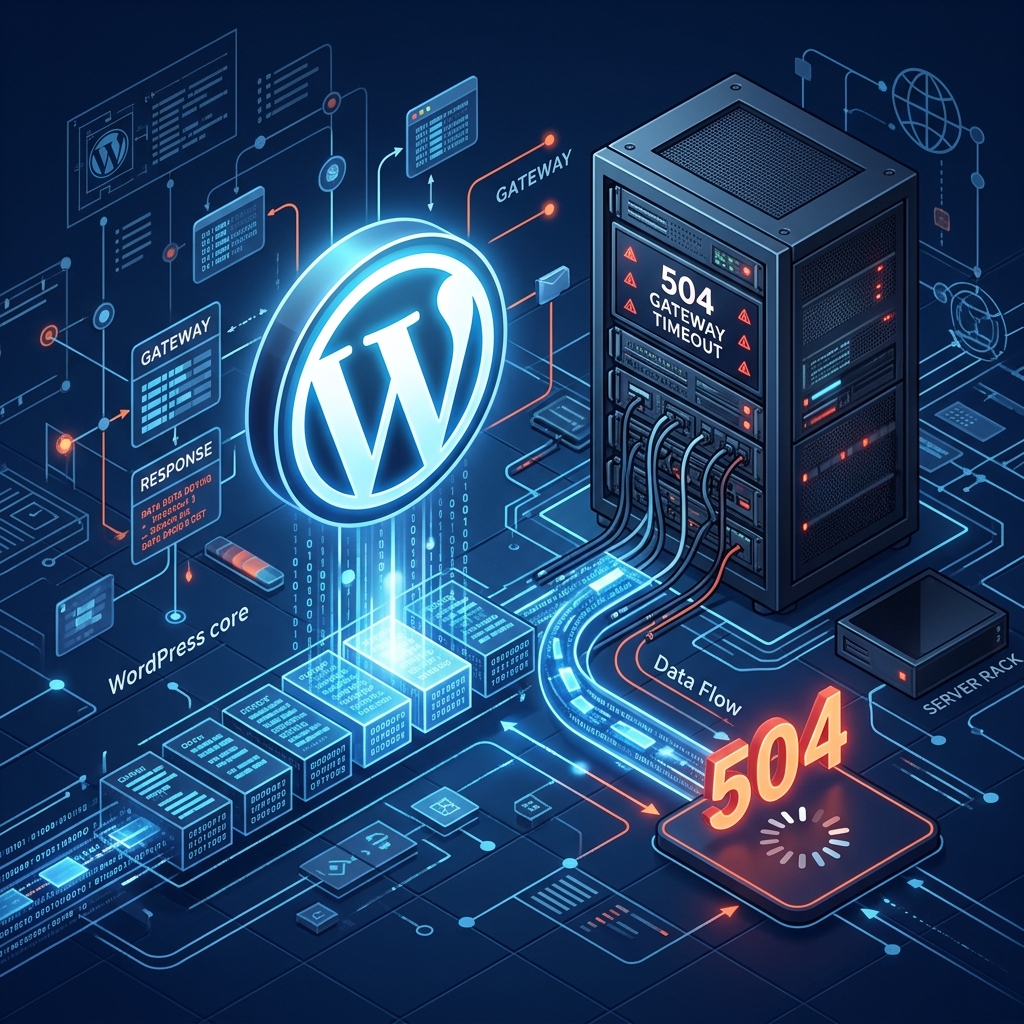
The 504 Gateway Timeout error is an HTTP status code indicating that a server acting as a gateway or proxy did not receive a timely response from an upstream server. In the context of WordPress, this usually means that your web server (like Apache or Nginx) waited too long for PHP or the database to execute a script, and eventually gave up.
Unlike a 502 Bad Gateway Error where the upstream server returns an invalid response, a 504 error means the upstream server simply didn’t respond fast enough.
Here is how you can diagnose and fix the 504 Gateway Timeout error on your WordPress site.
1. Temporarily Disable Your CDN or Proxy
If you are using a proxy service, Web Application Firewall (WAF), or Content Delivery Network (CDN) like Cloudflare, the 504 error might be originating there rather than your actual web server. Cloudflare will often show a custom 504 error page if it cannot connect to your origin server within 100 seconds.
To test this, log into your Cloudflare (or equivalent CDN) dashboard and temporarily pause the service or enable “Development Mode”. If the site loads fine on your direct server IP, the issue lies with the proxy routing or SSL configuration.
2. Deactivate Faulty WordPress Plugins
A plugin executing a massive, unoptimized database query or attempting to connect to a slow third-party API can easily cause a PHP timeout.
Since you likely cannot access the wp-admin dashboard:
- Access your site via FTP or your hosting control panel’s File Manager.
- Navigate to
wp-content/plugins. - Rename the
pluginsfolder toplugins_deactivated. - Refresh your site.
If the 504 error vanishes, rename the folder back to plugins and deactivate them one by one to find the exact culprit causing the bottleneck.
3. Increase the PHP Max Execution Time
Every hosting environment enforces a strict timeout limit (usually 30 or 60 seconds) on how long a PHP script is allowed to run. If a script exceeds this, it is terminated, leading to a 504 error.
You can instruct the server to allow more time by modifying your .htaccess file. Add the following line at the top:
php_value max_execution_time 300Alternatively, you can edit your wp-config.php file and add:
set_time_limit(300);Note: Depending on your server architecture, you may also need to increase your PHP Memory Limit to prevent out-of-memory crashes during long executions.
4. Optimize the WordPress Database
A bloated database is the leading cause of query timeouts, especially on heavy WooCommerce sites. Over time, your database fills up with thousands of post revisions, spam comments, and transient data.
If a database query takes longer than the MySQL timeout threshold, the gateway will return a 504 error.
Log into phpMyAdmin, select your WordPress database, check all tables, and run the Optimize table command from the dropdown menu.
5. Upgrade Your Hosting Plan
If you have optimized your plugins, cleaned your database, and increased your timeout limits but the 504 error persists, you have fundamentally outgrown your hosting environment.
Shared hosting accounts are strictly capped on CPU and I/O usage. When you hit these caps, your processes are queued, which leads to timeouts. For enterprise-grade reliability and lightning-fast PHP execution, upgrade to Nextgen’s premium WordPress Hosting in Pakistan, built on advanced cloud infrastructure designed specifically to prevent server bottlenecks.
Eliminate gateway timeouts permanently by migrating to high-speed LiteSpeed WordPress hosting Pakistan.
