
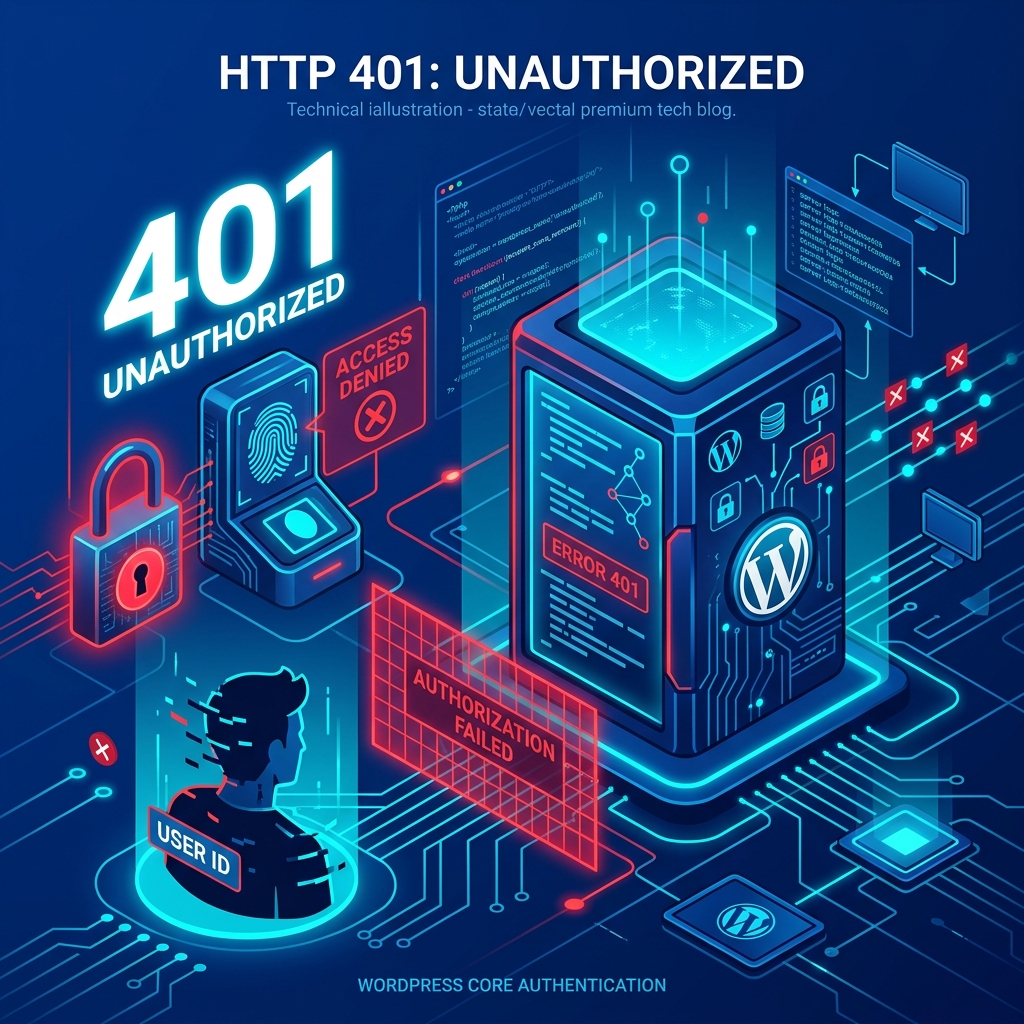
HTTP Status Codes are how a web server communicates with a web browser. While a 200 code means “Everything is perfect,” the 400-level codes mean something went wrong on the client’s end.
The 401 Unauthorized Error specifically means that the server requires valid authentication credentials (like a username and password) to grant access to a specific page or resource, but the browser either provided incorrect credentials or provided none at all.
While it is very similar to a 403 Forbidden Error (which tells you that you don’t have permission to view a file regardless of your login status), the 401 error is entirely focused on authentication.
If you are encountering a 401 Unauthorized error on your WordPress site—especially on your wp-admin login page—here are the technical steps to troubleshoot and resolve it.
1. Clear Browser Cache and Expired Cookies
The most common reason for a 401 error doesn’t actually involve your server at all; it is a mismatch in your browser. When you log into WordPress, it sets a “cookie” in your browser to remember your session.
If that session expires on the server, or if the cookie data becomes corrupted, your browser will keep attempting to access the wp-admin dashboard using an invalid digital ID card. The server will immediately reject this with a 401 error.
The Fix: Simply clear your browser’s cache and cookies. Alternatively, try logging into your website using an Incognito or Private Browsing window. If it works, the issue was your browser cache. This simple step also frequently resolves the frustrating Login Redirect Loop.
2. Check Directory Privacy in cPanel
A very common best practice for WordPress security is to add a secondary layer of password protection directly to the wp-admin directory using your hosting control panel. When this is active, your browser will display a basic HTTP authentication pop-up before you even see the WordPress login screen.
If you click “Cancel” on this pop-up, or if you enter the wrong credentials, the server will intentionally display a 401 Unauthorized error.
The Fix: If you forgot the password or want to remove this secondary lock:
- Log into your hosting control panel (e.g., cPanel).
- Navigate to the Directory Privacy or Password Protect Directories tool.
- Select your
wp-adminfolder. - Uncheck the option that says “Password protect this directory” and save your changes.
3. Disable Overly Aggressive Security Plugins
WordPress security plugins like Wordfence, Sucuri, or Solid Security (formerly iThemes) are designed to lock out brute-force attackers. However, they can occasionally throw false positives.
If you enter your password incorrectly a few times, or if the plugin mistakenly identifies your dynamic IP address as a threat, it may block you entirely, serving a 401 error whenever you try to access the site.
The Fix: Since you are locked out of the WordPress dashboard, you will need to disable the plugin at the server level.
- Connect to your site via FTP or cPanel File Manager.
- Navigate to
wp-content/plugins/. - Locate the folder of your security plugin (e.g.,
wordfence). - Rename the folder to something else (e.g.,
wordfence-deactivated).
This will instantly disable the plugin. Refresh your website, and you should be able to log in normally. Once inside, you can rename the folder back, reactivate the plugin, and whitelist your own IP address.
Migrate to Smarter Hosting Infrastructure
Relying heavily on aggressive third-party security plugins often leads to these frustrating lockouts. A much better approach is to rely on server-level security provided by your host.
Nextgen’s WordPress Hosting in Pakistan features an intelligent LiteSpeed Web Application Firewall (WAF) built directly into the server architecture. It seamlessly blocks brute-force bots and malicious traffic before they ever reach your WordPress installation, meaning you don’t need to overload your site with heavy security plugins that risk locking you out with 401 errors.
Rebuild your online presence cleanly with a turnkey 5-page website design package including 1 year free hosting.
