
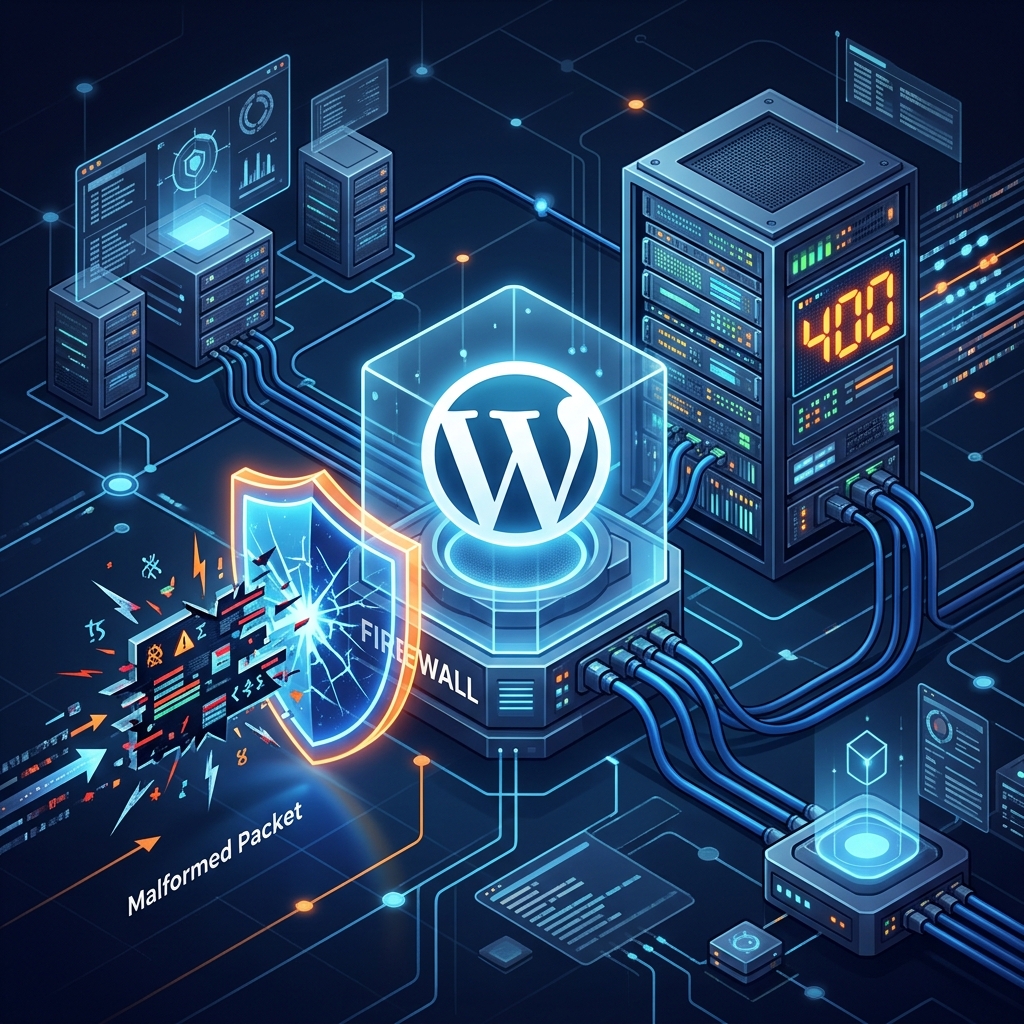
The 400 Bad Request Error is a client-side HTTP status code indicating that the request sent by the browser to the web server was malformed, corrupted, or otherwise unprocessable. Because the server fundamentally cannot understand the syntax of the request, it refuses to process it and drops the connection.
Unlike a 500 Internal Server Error, where the server is at fault, a 400 error implies that the problem lies with your local device, browser, network, or the specific way the application is making the request.
Here is the definitive guide on how to diagnose and fix a 400 Bad Request Error in WordPress.
1. Clear Your Browser Cookies and Cache
The vast majority of 400 Bad Request errors in WordPress are caused by corrupted or expired session cookies. When you log into WordPress, it sets several authentication cookies in your browser. If these cookies become excessively large or corrupted, the HTTP header size exceeds the server’s allowed limits, resulting in an immediate 400 rejection.
The Fix:
- In Google Chrome, click the three dots in the top right corner.
- Go to Settings > Privacy and security > Clear browsing data.
- Check the box for Cookies and other site data.
- Click Clear data. Restart your browser and attempt to access your WordPress dashboard again.
2. Flush Your DNS Cache
Your operating system caches DNS lookups to speed up web browsing. However, if a website recently changed servers or IP addresses, your local DNS cache might route your browser’s request using outdated headers, causing a mismatch that the server interprets as a bad request.
To flush your DNS on Windows:
Open the Command Prompt as an administrator and type:
ipconfig /flushdns
To flush your DNS on macOS:
Open the Terminal and type:
sudo killall -HUP mDNSResponder
3. Check for Exceeded Upload Limits
If you encounter the 400 error specifically when trying to upload an image, theme, or plugin to WordPress, it is highly likely that your file size exceeds the server’s configured limits. When the server drops the oversized data packet, the browser interprets the abruptly closed connection as a 400 error (though a properly configured server should technically return a 413 Request Entity Too Large code).
To resolve this, you must increase your PHP upload limits. Add the following to your .htaccess file:
php_value upload_max_filesize 128M
php_value post_max_size 128M
php_value memory_limit 256M
4. Deactivate Problematic Plugins
If a plugin is executing a poorly written AJAX call or sending a malformed POST request to admin-ajax.php, the server will reject it with a 400 error. This is a common issue with severely outdated cache or security plugins.
To diagnose this, temporarily deactivate all plugins by renaming the wp-content/plugins folder via FTP to plugins_deactivated. If the 400 error disappears, reactivate your plugins one by one to find the culprit.
5. Upgrade to a Managed WordPress Host
If your web host’s Web Application Firewall (WAF) or Nginx configuration is overly strict, it might falsely identify legitimate WordPress API requests as malicious, dropping them as 400 Bad Requests. Diagnosing strict ModSecurity rules on shared hosting is nearly impossible.
To ensure your WordPress site runs flawlessly without false-positive blocks, upgrade to Nextgen’s WordPress Hosting in Pakistan. Our server architecture features intelligent traffic filtering designed specifically for WordPress, ensuring your administrative scripts run perfectly without ever hitting arbitrary firewall limits.
Resolve recurring theme and layout conflicts with professional business website design from certified developers.
