
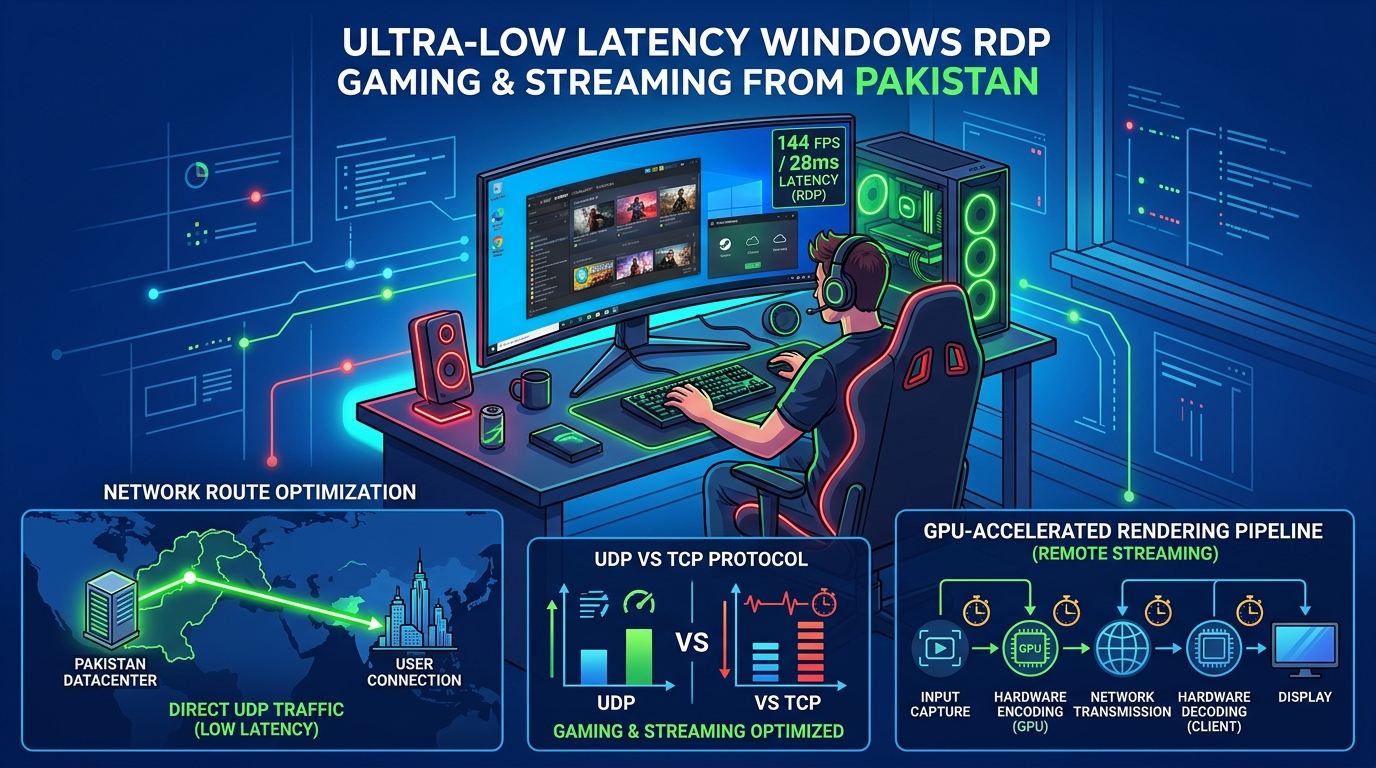
Cloud gaming is exploding globally, but Pakistani gamers face a unique challenge: no local Google Stadia, no GeForce NOW servers in the region, and international cloud gaming services route through Singapore or Europe — adding 150–300ms of latency that makes competitive gaming impossible. A dedicated low latency RDP server hosted in Pakistan eliminates this entirely by placing the GPU-rendered gaming session within 5–30ms of your connection.
This guide walks through the complete technical setup for a gaming-optimized Pakistan RDP — from GPU driver installation through protocol-level latency reduction — targeting sub-30ms input lag for competitive-grade cloud gaming.
Why Standard RDP Fails for Gaming
Microsoft’s default Remote Desktop Protocol was designed for office productivity, not real-time rendering. Out-of-the-box RDP has three critical limitations for gaming:
| Issue | Default RDP Behavior | Impact on Gaming |
|---|---|---|
| Frame rate cap | 30 FPS maximum | Unplayable for any action game |
| Encoding codec | GDI-based software encoding | High CPU usage, visual artifacts |
| Transport protocol | TCP only | Head-of-line blocking adds 20-50ms latency |
| Input processing | Batched every 33ms | Delayed mouse/keyboard response |
Every one of these defaults can be overridden through Group Policy and registry modifications.
Step 1: Enable GPU Hardware Acceleration
First, ensure your RDP server has a dedicated or virtual GPU (NVIDIA Tesla, Quadro, or consumer GeForce). Install the latest drivers:
# Check GPU availability
Get-WmiObject Win32_VideoController | Select Name, DriverVersion, AdapterRAM

# For NVIDIA GPUs, install GRID/gaming drivers
# Download from: https://www.nvidia.com/drivers
Enable RemoteFX GPU acceleration via Group Policy:
Computer Configuration →
  Administrative Templates →
    Windows Components →
      Remote Desktop Services →
        Remote Desktop Session Host →
          Remote Session Environment →
            "Use hardware graphics adapters for all RDS sessions" → Enabled
            "Configure RemoteFX" → Enabled
Step 2: Unlock 60 FPS (or Higher) Frame Rate
The default 30 FPS cap is controlled by a registry key:
# Set maximum frame rate to 60 FPS
Set-ItemProperty -Path "HKLM:\SYSTEM\CurrentControlSet\Control\Terminal Server\WinStations" `
  -Name "DWMFRAMEINTERVAL" -Value 15 -Type DWord

# For 120 FPS (requires high-bandwidth connection):
# Set-ItemProperty -Path "HKLM:\SYSTEM\CurrentControlSet\Control\Terminal Server\WinStations" `
#   -Name "DWMFRAMEINTERVAL" -Value 8 -Type DWord
Additionally, enable H.264/AVC hardware encoding:
Group Policy →
  Remote Session Environment →
    "Configure H.264/AVC hardware encoding for RDP connections" → Enabled
    "Prioritize H.264/AVC 444 Graphics mode" → Enabled
H.264 hardware encoding offloads frame compression to the GPU, reducing CPU overhead by 60-80% and eliminating the visual artifacts common with software encoding.
Step 3: Enable UDP Transport (Shortpath)
UDP eliminates the head-of-line blocking problem inherent in TCP, reducing latency by 15-40ms:
# Enable UDP transport for RDP
Set-ItemProperty -Path "HKLM:\SOFTWARE\Policies\Microsoft\Windows NT\Terminal Services" `
  -Name "SelectTransport" -Value 0 -Type DWord
# 0 = UDP and TCP (prefer UDP)
# 1 = TCP only
# 2 = UDP only

# Open UDP port in Windows Firewall
New-NetFirewallRule -DisplayName "RDP UDP" -Direction Inbound `
  -Protocol UDP -LocalPort 3389 -Action Allow
Verify UDP is active after connecting:
# Check active RDP transport
Get-Counter '\Remote Desktop - UDP\Current UDP Bandwidth'
Step 4: Reduce Input Latency
Minimize the input processing delay from the default 33ms batching:
# Reduce input batching interval
Set-ItemProperty -Path "HKLM:\SYSTEM\CurrentControlSet\Control\Terminal Server\WinStations\RDP-Tcp" `
  -Name "InputBufferingDelay" -Value 10 -Type DWord

# Disable Nagle's algorithm for RDP connections
Set-ItemProperty -Path "HKLM:\SYSTEM\CurrentControlSet\Services\Tcpip\Parameters\Interfaces\*" `
  -Name "TcpNoDelay" -Value 1 -Type DWord
Step 5: Network Route Optimization
For Pakistani ISPs (PTCL, Nayatel, StormFiber), the routing path between your home connection and the datacenter matters significantly:
# Test latency to your RDP server
ping -n 50 YOUR_RDP_IP

# Trace route to identify bottleneck hops
tracert YOUR_RDP_IP
Optimal latency targets:
| Connection Type | Expected Latency | Gaming Grade |
|---|---|---|
| Same city (Lahore → Lahore DC) | 2-8ms | Competitive |
| Inter-city (Karachi → Islamabad DC) | 15-30ms | Excellent |
| International (Dubai → Pakistan DC) | 40-80ms | Playable |
| International (UK/US → Pakistan DC) | 120-250ms | Casual only |
For best results, choose an RDP server in the same city as your ISP’s point-of-presence.
Step 6: Client-Side Optimization
On your local machine, configure the RDP client for gaming:
# Create a custom .rdp file with gaming settings
full address:s:YOUR_RDP_IP
session bpp:i:32
videoplaybackmode:i:1
audiocapturemode:i:0
camerastoredirect:s:
networkautodetect:i:0
bandwidthautodetect:i:0
connection type:i:6
use multimon:i:0
compression:i:0
enablesuperpan:i:1
Key settings:
connection type:i:6— Forces LAN mode (maximum quality).compression:i:0— Disables compression to reduce encoding latency.session bpp:i:32— Full 32-bit color depth.
Step 7: Install and Configure Parsec (Alternative)
For even lower latency than native RDP, install Parsec on both the server and client:
# Download Parsec on RDP server
Invoke-WebRequest -Uri "https://builds.parsec.app/package/parsec-windows.exe" `
  -OutFile "$env:TEMP\parsec-setup.exe"
Start-Process "$env:TEMP\parsec-setup.exe" -ArgumentList "/silent" -Wait
Parsec uses a proprietary low-latency streaming protocol that consistently achieves 5-15ms lower latency than optimized RDP, making it the preferred choice for competitive esports. It pairs perfectly with the hardware acceleration already enabled by the GPU driver setup.
Performance Benchmarks
After applying all optimizations on a Pakistan RDP server with an NVIDIA GPU:
| Metric | Before Optimization | After Optimization |
|---|---|---|
| Frame Rate | 30 FPS | 60 FPS (120 with Parsec) |
| Input Latency | 50-80ms | 12-25ms |
| Transport | TCP only | UDP shortpath |
| Encoding | Software (CPU) | H.264 Hardware (GPU) |
| Visual Quality | Artifacts at motion | Clean 4:4:4 color |
A properly configured low-latency gaming RDP eliminates the need for expensive local gaming hardware. Combined with the RDP pricing structures available in Pakistan, cloud gaming on a dedicated Pakistan RDP delivers a competitive esports experience at a fraction of the cost of building a gaming PC — with the added benefit of playing from any device, anywhere.
