
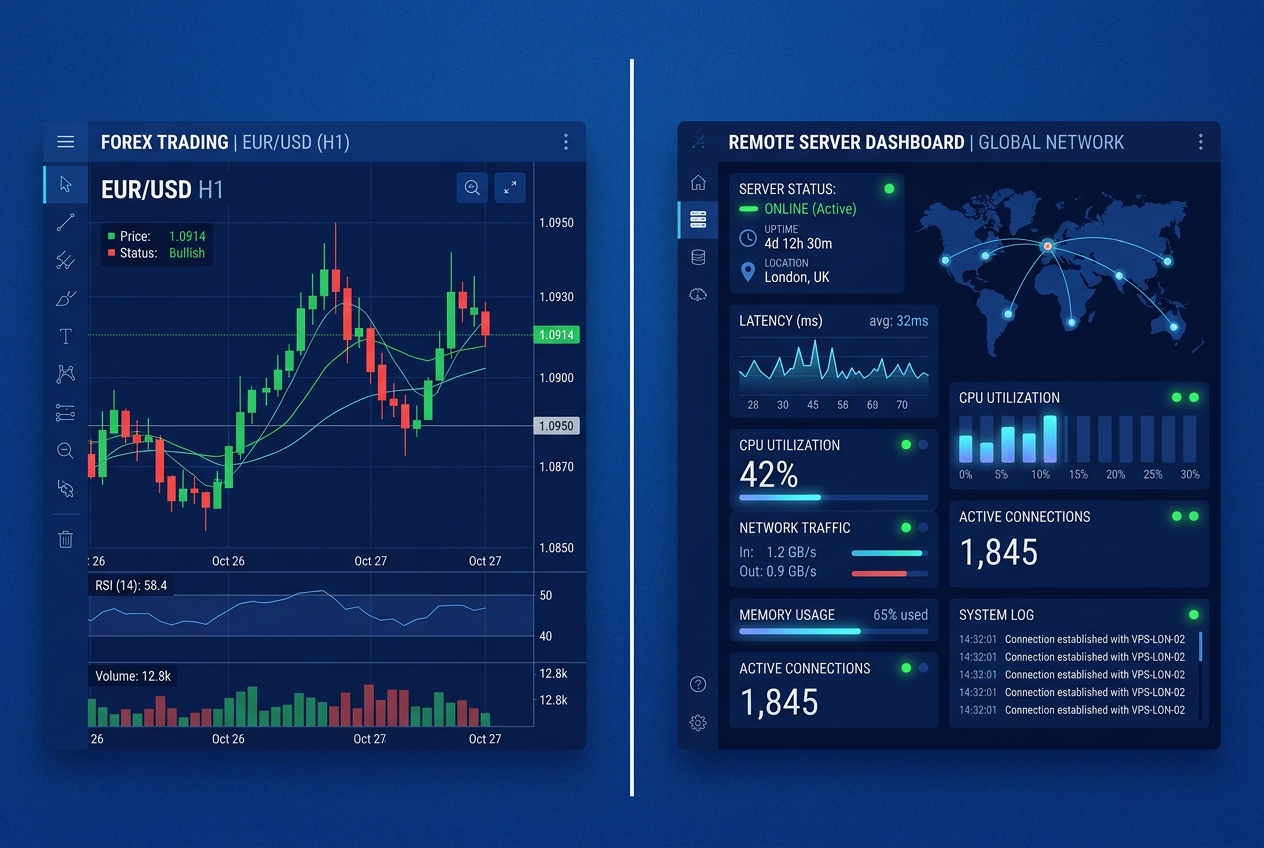
In the fast-paced world of Forex trading, slippage of even a fraction of a pip can mean the difference between a profitable trade and a stop-out. When running automated Expert Advisors (EAs) or high-frequency trading (HFT) algorithms on MetaTrader 4 (MT4) or MetaTrader 5 (MT5), execution speed is everything.
Running your terminal on a dedicated RDP Server positioned near major global brokerage servers (such as London, New York, or Frankfurt) is the standard way to ensure low latency.
However, deploying the server is only the first step. To extract maximum performance, you must optimize your Remote Desktop connection and OS parameters. In this guide, we will cover how to configure your RDP connection settings specifically for low-latency financial trading.
Why Latency Controls Your Trading Success
Geographical distance between your local computer in Pakistan and your broker’s execution desk causes network delay.
- Without RDP: Placing an order from a local desktop routing through standard ISPs can take 180ms to 280ms to reach UK or US servers.
- With Dedicated RDP: Your server runs 24/7 inside an enterprise datacenter with direct fiber connections to major broker networks. Order execution latencies drop to 1ms to 5ms.
Just as migrating to a local VPS resolves network lag to mitigate database latency, a dedicated trading RDP eliminates the latency bottleneck between your terminal and the broker’s execution matchmaker.
Step 1: Optimize the Remote Desktop Client Settings
Before connecting to your trading server, configure the Remote Desktop Connection (mstsc.exe) client settings on your local PC to minimize bandwidth consumption and input lag.
- Open the Remote Desktop client and click Show Options.
- Navigate to the Experience tab:
- Select Low-speed broadband (256 Kbps - 1.99 Mbps) from the dropdown.
- Uncheck Desktop background, Font smoothing, Desktop composition, and Visual styles. Keep only Bitmap caching enabled.
- Navigate to the Display tab:
- Set the color depth to High Color (16-bit) instead of True Color (32-bit).
- Reduce the remote desktop resolution if you have a slower internet connection.
These adjustments reduce the graphical bandwidth requirements of your RDP connection, ensuring that your mouse clicks and dashboard rendering are processed with zero input lag.
Step 2: Set Server Processor Scheduling to Background Services
By default, Windows Server allocates CPU priority to foreground applications (the GUI programs you are actively looking at). For automated trading, your EAs run as background tasks even when your RDP session is disconnected.
To optimize CPU allocation for background trading engines:
- Log into your RDP, open the Start Menu, search for View advanced system settings, and open it.
- Under the Advanced tab, click Settings in the Performance section.
- Switch to the Advanced tab in the Performance Options window.
- Under Processor scheduling, change the selection from Programs to Background services.
- Click Apply and then OK.
This prioritizes background thread execution, ensuring your MT4/MT5 charts and EA trading logic compile instantly, reducing internal program delays.
Step 3: Configure Keep-Alive Connection Policies
Unexpected disconnections can interrupt active trading sessions. Similar to setting up a dedicated IP workspace for freelancer safety, traders need to maintain a continuous, uninterrupted connection.
Configure the Group Policy Editor on the remote server to prevent idle session logoffs:
- Press
Win + R, typegpedit.msc, and hit Enter. - Navigate to:
Computer Configuration -> Administrative Templates -> Windows Components -> Remote Desktop Services -> Remote Desktop Session Host -> Session Time Limits. - Enable Set time limit for active but idle Remote Desktop Services sessions and set it to Never.
- Enable Set time limit for disconnected sessions and set it to Never.
Deploying your terminals on an optimized, enterprise-grade Nextgen’s clean IP RDP or Global RDP ensures that your Expert Advisors remain online 24/7, executing orders at single-digit latencies without interruptions.
