
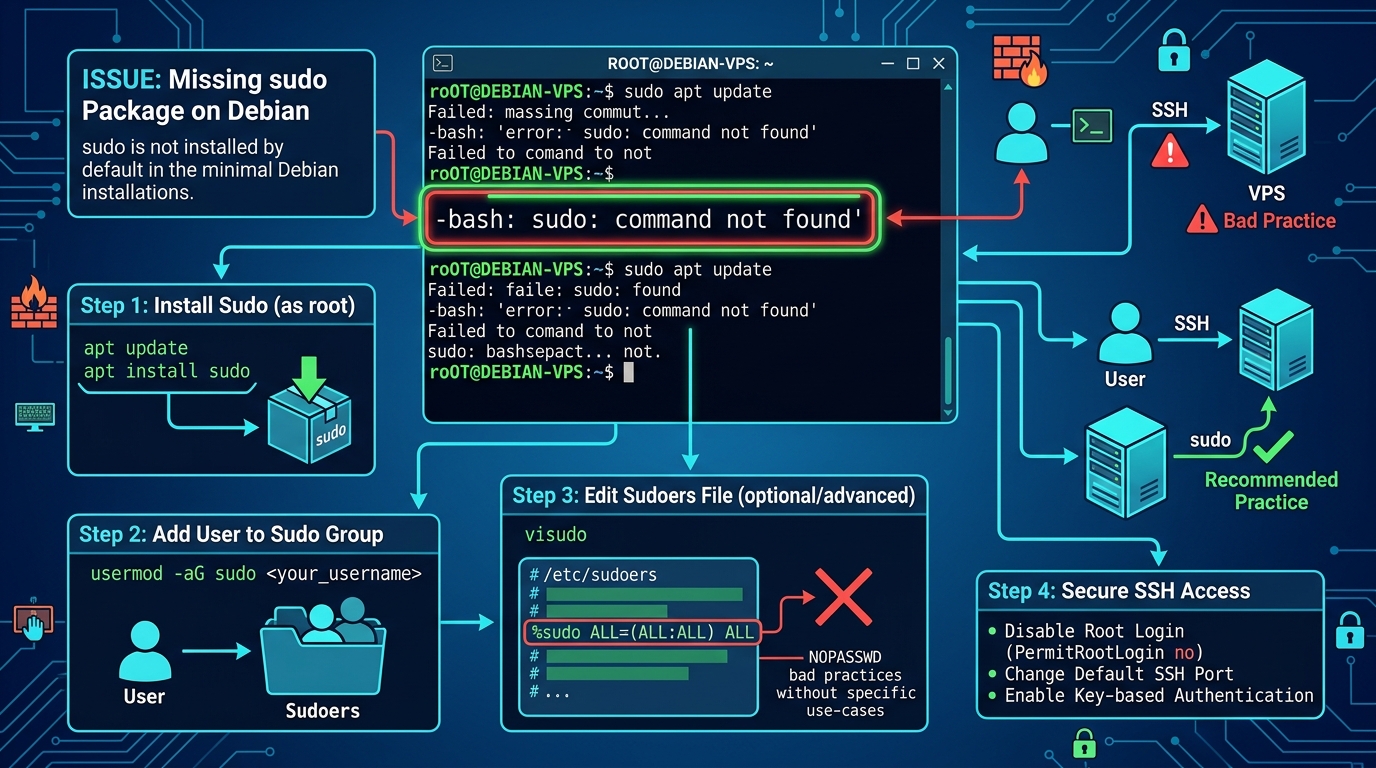
Logging into a fresh Debian or Ubuntu minimal server for the first time and running your first maintenance command (sudo apt update) often returns a frustrating error: debian -bash: sudo: command not found.
This occurs because many server virtualization templates (especially minimal Debian minimal images) exclude the sudo package by default to reduce image size and minimize the initial security footprint.
In this guide, we will cover exactly how to fix the sudo command not found error on your VPS, install the missing packages, add your user to the sudoers file, and secure your Pakistan VPS hosting to prevent root access vulnerabilities.
Why Does ‘debian -bash: sudo: command not found’ Happen?
Unlike desktop installations where sudo is configured out-of-the-box, minimal server environments expect you to execute initial bootstrap operations directly as the root user.
Running commands as root permanently is a dangerous security anti-pattern. If a malicious script or compromised dependency runs under root, it has absolute control over your filesystem. Deploying sudo allows you to run commands with administrative privileges selectively while maintaining a non-privileged user account for daily operations.
Step 1: Log in as Root to Install Sudo
To resolve the -bash: sudo: command not found issue, you must first switch to the root user. If you are logged in via SSH as a standard user, switch to root:
su -Enter the root password configured when your VPS was provisioned. Once logged in as root (indicated by the # prompt), update your package index and install the sudo package:
apt update && apt install sudo -yIf the installation succeeds, the core binaries will be placed in /usr/bin/sudo.
Step 2: Create a Non-Root User Account
It is highly recommended to disable direct root SSH access entirely. First, create a new standard user account:
# Replace 'deployer' with your desired username
adduser deployer
Provide a strong password and complete the user details prompts.
Step 3: Add Your User to the Sudoers Group
Once the user is created, you must grant them administrative permissions by adding them to the sudo system group:
# Add user to the sudo group on Debian/Ubuntu
usermod -aG sudo deployer
To verify the group addition, list the groups for your new user:
groups deployer
# Output should contain: deployer : deployer sudo
Step 4: Verify the Fix
Log out of your root session or open a new terminal window and connect to your VPS using the new user credentials:
ssh deployer@your_vps_ipOnce logged in, attempt to run a command using sudo:
sudo apt updateYou will be prompted for the password of your user account (not the root password). If the command runs without returning -bash: sudo: command not found, the package is working and configured correctly.
Step 5: Advanced Sudoers File Configuration
For custom deployment environments, you may need to adjust the behavior of the sudo group using visudo.
[!CAUTION] Never edit
/etc/sudoersdirectly with standard text editors likenanoorvi. Always usevisudo, which runs syntax validation checks before saving to prevent locking yourself out of administrative privileges.
sudo visudoEnable Passwordless Sudo for Specific Tasks
If you have automated CI/CD deployment runners (like GitHub Actions or GitLab Runner) that need to execute specific commands without prompts:
# Allow 'deployer' user to run systemctl reload nginx without password
deployer ALL=(ALL) NOPASSWD: /usr/bin/systemctl reload nginx
This ensures automated scripts can trigger server reloads (like applying NGINX performance configurations or updating ModSecurity WAF rules) securely without exposing the root password in plaintext configs.
Step 6: Hardening SSH Access
Now that your user has sudo privileges, disable direct root SSH logins to secure your server:
-
Open the SSH daemon configuration:
sudo nano /etc/ssh/sshd_config -
Locate the following lines and modify them:
PermitRootLogin no PasswordAuthentication yes -
Save the file and restart the SSH service to apply changes:
sudo systemctl restart sshd
From this point on, direct logins as root are blocked. You must connect as deployer and escalate privileges using sudo.
Resolving the debian -bash: sudo: command not found error takes less than two minutes but is a critical security step for all Linux VPS instances. Combining a restricted sudoers configuration with regular MySQL optimization sweeps and disabled root access ensures your hosting infrastructure remains secure, performant, and compliant with modern web standards.
