
When provisioning a clean minimal installation of Debian 12 (Bookworm) on a cloud virtual private server or bare-metal machine in Pakistan, one of the most common surprises for developers transitioning from Ubuntu or CentOS is encountering the error:
bash: sudo: command not foundUnlike Ubuntu—which installs and configures sudo by default and prompts you to create a primary administrative user during installation—Debian adheres strictly to minimal UNIX security principles. If you set a root password during installation or deploy a minimal cloud template, the sudo package is omitted entirely from the baseline operating system.
When you log in as a standard non-root user and attempt to run administrative commands like sudo apt update or sudo systemctl restart nginx, the shell throws the command-not-found error.
In this practical troubleshooting masterclass, we examine why Debian omits sudo, show how to access the root shell safely, install and configure the sudo package, grant administrative privileges via /etc/sudoers and visudo, and harden administrative access on Cloud VPS instances and high-performance Dedicated Servers.
1. Why Minimal Debian Excludes the sudo Utility
In standard Debian architecture, security boundaries between the unprivileged user space and the superuser (root) are strictly enforced:
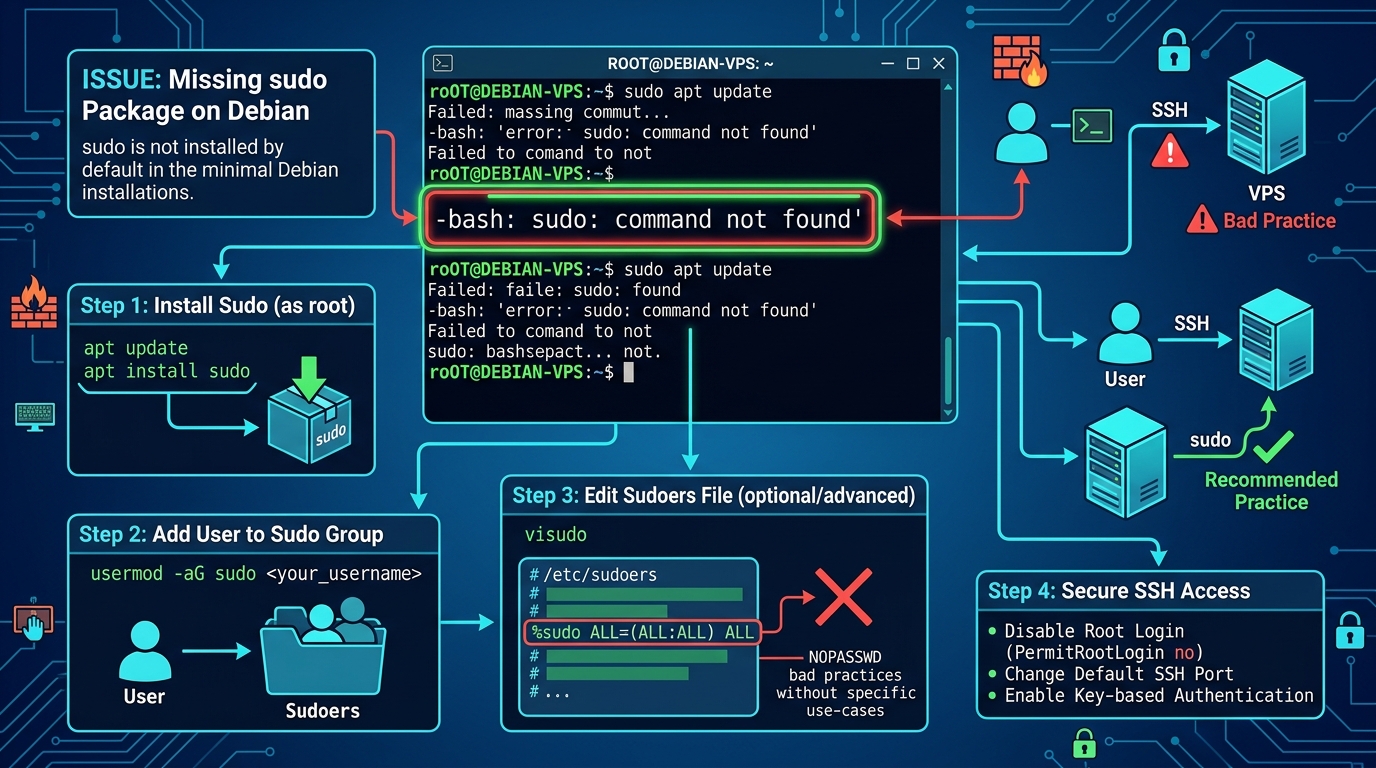
During system installation:
- If a root password is provided, Debian assumes the administrator will elevate privileges using
su -(Substitute User) directly, avoiding dependency onsudo. - Minimal VPS cloud images strip away all non-essential packages to minimize the attack surface and conserve memory.
2. Step 1: Elevating to the Superuser Shell via su -
Because sudo is missing, you must first switch to the root user account directly.
Run the su command with the critical hyphen (-) flag:
su -Enter your server’s root password when prompted.
Crucial Sysadmin Tip: Always use
su -rather than plainsu. The hyphen flag initiates a full login shell, properly initializing root’s environment variables—specifically the critical system PATH (/usr/local/sbin:/usr/local/bin:/usr/sbin:/usr/bin:/sbin:/bin). Omitting the hyphen can leave commands likeadduserandrebootunreachable in your current shell PATH!
Once logged in, your terminal prompt changes from $ (unprivileged user) to # (root):
root@debian-vps:~#3. Step 2: Updating APT Repositories & Installing sudo
Now that you have full root authority, update your package lists and install the sudo utility:
apt-get update
apt-get install -y sudo
Verify that the binary is installed and executable:
which sudoExpected output:
/usr/bin/sudo4. Step 3: Adding Your User Account to the sudo Group
In Debian, any user belonging to the sudo group inherits the right to execute any command as superuser.
Add your unprivileged username (for example, farhan or adminuser) to the group using usermod:
usermod -aG sudo farhan-a(append): Ensures the user is added without removing them from other existing secondary groups.-G sudo: Targets the administrativesudogroup.
Verify that the group assignment succeeded:
groups farhanExpected output confirms the group membership:
farhan : farhan sudo5. Step 4: Auditing /etc/sudoers via visudo
Never edit /etc/sudoers with a standard text editor like nano or vim. If you make a single typographical error in the sudoers file, you can lock yourself out of administrative privileges permanently!
Always use the dedicated visudo command, which performs strict syntax validation before writing changes to disk:
visudoEnsure the following default group rule is present and uncommented:
# Allow members of group sudo to execute any command
%sudo   ALL=(ALL:ALL) ALL
Save and exit.
6. Step 5: Applying Group Changes & Testing Sudo Privileges
Group memberships are only applied to active login sessions upon re-authentication.
Exit the root shell:
exitNow, as your regular user, log out and log back into your SSH session, or force the group refresh in the current subshell using newgrp:
newgrp sudoTest administrative elevation:
sudo apt updateThe system will prompt you for your regular user’s password (not the root password). The command will execute successfully with zero errors!
7. Production Hardening: Disabling Direct Root SSH Logins
Now that your administrative user has working sudo privileges, you should immediately disable direct root SSH access to protect your server from automated brute-force attacks across Pakistani and global networks.
Edit /etc/ssh/sshd_config:
sudo nano /etc/ssh/sshd_configLocate and set:
PermitRootLogin no
PasswordAuthentication no
Test syntax and restart SSH:
sudo sshd -t && sudo systemctl restart ssh8. Enterprise Cloud Infrastructure
Mastering Linux system administration ensures your cloud environments remain stable, secure, and resilient under production workloads.
Explore our related server engineering and troubleshooting guides:
- SSH Hardening Masterclass: Ed25519 & MFA
- Fail2ban Custom Jails for SSH & cPanel Hardening
- Linux VPS Swap Tuning & zRAM Optimization
For organizations managing demanding web applications, database clusters, and mission-critical enterprise workloads requiring unshared bare-metal resources, deploy directly on Dedicated Servers in Pakistan.
Deploy Enterprise Cloud VPS & Dedicated Servers
Power your development and production workloads with pure NVMe storage, isolated CPU allocation, and local low-latency routing across Pakistan.
