
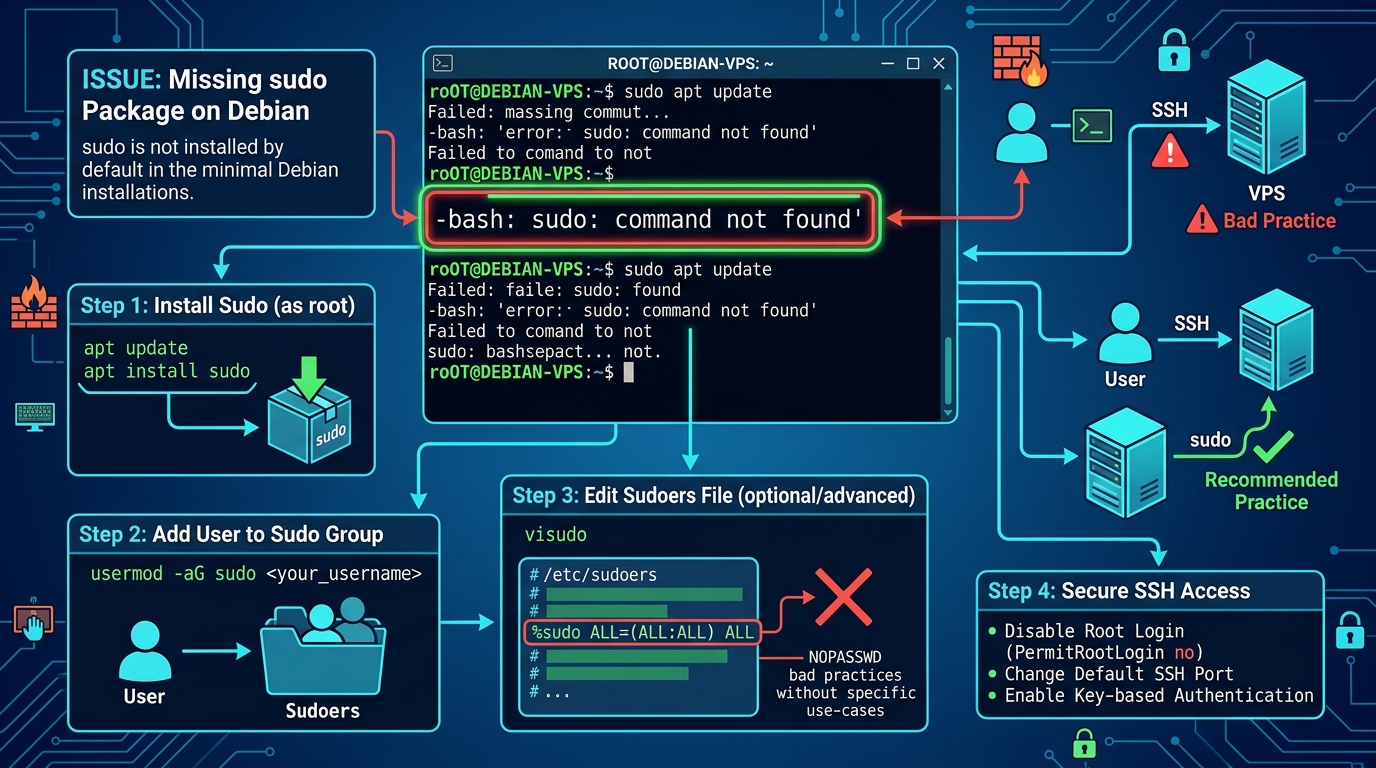
You spin up a fresh Debian 12 (Bookworm) minimal installation, launch an LXC container on Proxmox, or pull an official debian:latest Docker image on your Dedicated Servers. You log in as your regular user or non-root account, type sudo apt update, and immediately hit a wall:
-bash: sudo: command not foundFor developers and engineers migrating from Ubuntu Server—where sudo is pre-installed and automatically configured out of the box—this error is a frequent stumbling block.
Why is sudo missing on Debian? How does the installer decide whether to include it? And what is the proper, secure way to install sudo, configure user permissions, and ensure correct $PATH variables without compromising root privilege safety?
Here is the comprehensive diagnostic and implementation guide.
Root Cause: Why Debian Omits sudo by Default
Debian adheres strictly to the UNIX security philosophy of privilege separation. During Debian’s classic installation wizard:
- If you set a Root Password during setup: The Debian installer assumes you intend to use traditional
su -(Switch User) for system administration. Therefore, the installer does not install thesudopackage, and regular users are left without elevated execution binaries. - If you leave the Root Password empty: Debian disables direct root password logins and automatically installs
sudo, assigning administrative permissions to the first user created. - In Minimal Cloud / Container Images: Base container images (
debian:bookworm-slim,ubuntu:latest) strip outsudocompletely to minimize attack surface and image footprint (often saving 15–30MB of dependencies).
Step 1: Elevate to Root Shell Using su -
Because sudo is not installed, you must first switch to the superuser using su.
Critical Syntax Note: Always use su - (with the hyphen/dash), not plain su:
# Correct: Loads root's full login environment and standard /sbin, /usr/sbin PATH
su -
Why does the hyphen matter? In Debian 10, 11, and 12, running plain su preserves the non-root user’s $PATH. If you do this, system administration binaries like addgroup, visudo, or useradd in /usr/sbin will fail with command not found errors even though you are root! The hyphen forces a clean login shell with the proper root $PATH.
Enter the root password when prompted.
Step 2: Update Repositories and Install sudo
Once in the root shell, update your APT package cache and install the sudo package:
apt-get update
apt-get install sudo -y
Verify that the binary exists and has the correct setuid permissions:
ls -l /usr/bin/sudoExpected output:
-rwsr-xr-x 1 root root 238240 Jan 14 10:22 /usr/bin/sudo(Notice the s in -rwsr-xr-x, indicating the essential setuid bit is enabled).
Step 3: Grant Sudo Privileges to Your User Account
On Debian and Ubuntu systems, members of the sudo group are automatically granted privilege escalation rights via /etc/sudoers.
Add your non-root user (e.g., deployer or your username) to the sudo group:
# Replace 'deployer' with your actual username
usermod -aG sudo deployer
Confirm that the user has been added to the group:
groups deployer
# Output: deployer : deployer sudo
Step 4: Fix the $PATH Environment Variable (Debian 12 Gotcha)
In some minimal Debian installations, even after installing sudo, executing administrative tools such as sudo reboot or sudo fdisk -l might return:
sudo: fdisk: command not found.
This occurs because Debian’s default non-root user $PATH omits /sbin, /usr/sbin, and /usr/local/sbin.
To fix this globally for all users, inspect /etc/environment or update /etc/profile:
# Check current system-wide secure_path in sudoers
visudo
Ensure the following default directive is present in /etc/sudoers:
Defaults        env_reset
Defaults        mail_badpass
Defaults        secure_path="/usr/local/sbin:/usr/local/bin:/usr/sbin:/usr/bin:/sbin:/bin"
The secure_path directive ensures that whenever sudo is invoked, the environment automatically includes standard administrative binary paths.
Step 5: Activate Group Membership Without Rebooting
Group memberships in Linux are established when a user session begins. If you are already logged in via SSH or a terminal emulator as the non-root user, simply typing sudo will fail with:
user is not in the sudoers file. This incident will be reported.
To apply your new group membership without terminating your SSH session:
# Re-initialize the active shell's group token
newgrp sudo

# Test sudo execution
sudo whoami
Output:
[sudo] password for deployer:
root
Success! You now have full superuser rights configured cleanly and securely.
Handling Minimal Docker Containers
If you are developing inside a Dockerfile or running automated provisioning on Dedicated Servers in Pakistan, do not expect sudo to exist in debian:latest or ubuntu:latest.
Here is the standardized, production-grade Dockerfile snippet to install and configure a non-root sudoer user securely:
FROM debian:12-slim

# Prevent interactive debconf prompts during container build
ENV DEBIAN_FRONTEND=noninteractive

# Install sudo and create unprivileged application user
RUN apt-get update && apt-get install -y --no-install-recommends \
    sudo \
    ca-certificates \
    curl \
    && rm -rf /var/lib/apt/lists/* \
    && useradd -m -s /bin/bash appuser \
    && usermod -aG sudo appuser \
    && echo "appuser ALL=(ALL) NOPASSWD:ALL" > /etc/sudoers.d/appuser \
    && chmod 0440 /etc/sudoers.d/appuser

# Switch to non-root user
USER appuser
WORKDIR /home/appuser

CMD ["bash"]
Security Best Practices for Sudo Management
- Never edit
/etc/sudoerswith a standard text editor: Always usevisudo. It performs syntax validation before writing changes to disk, preventing lockouts caused by simple typos. - Use
/etc/sudoers.d/for drop-in modular files: Instead of modifying the main/etc/sudoersfile, create single files such as/etc/sudoers.d/devops. Ensure permissions are set to0440(chmod 0440 /etc/sudoers.d/devops), otherwise sudo will reject them for security reasons. - Log Sudo Commands: Sudo automatically logs executions to
/var/log/auth.log(Debian/Ubuntu) or/var/log/secure(Enterprise Linux). Periodically audit this file or stream it to a centralized SIEM for compliance.
Run Your Container & Linux Clusters on NextGen Hardware
Looking for reliable, enterprise-grade infrastructure? NextGen Dedicated Servers in Pakistan offer lightning-fast NVMe storage, custom Linux OS templates, native BGP routing, and 24/7 priority support.
