
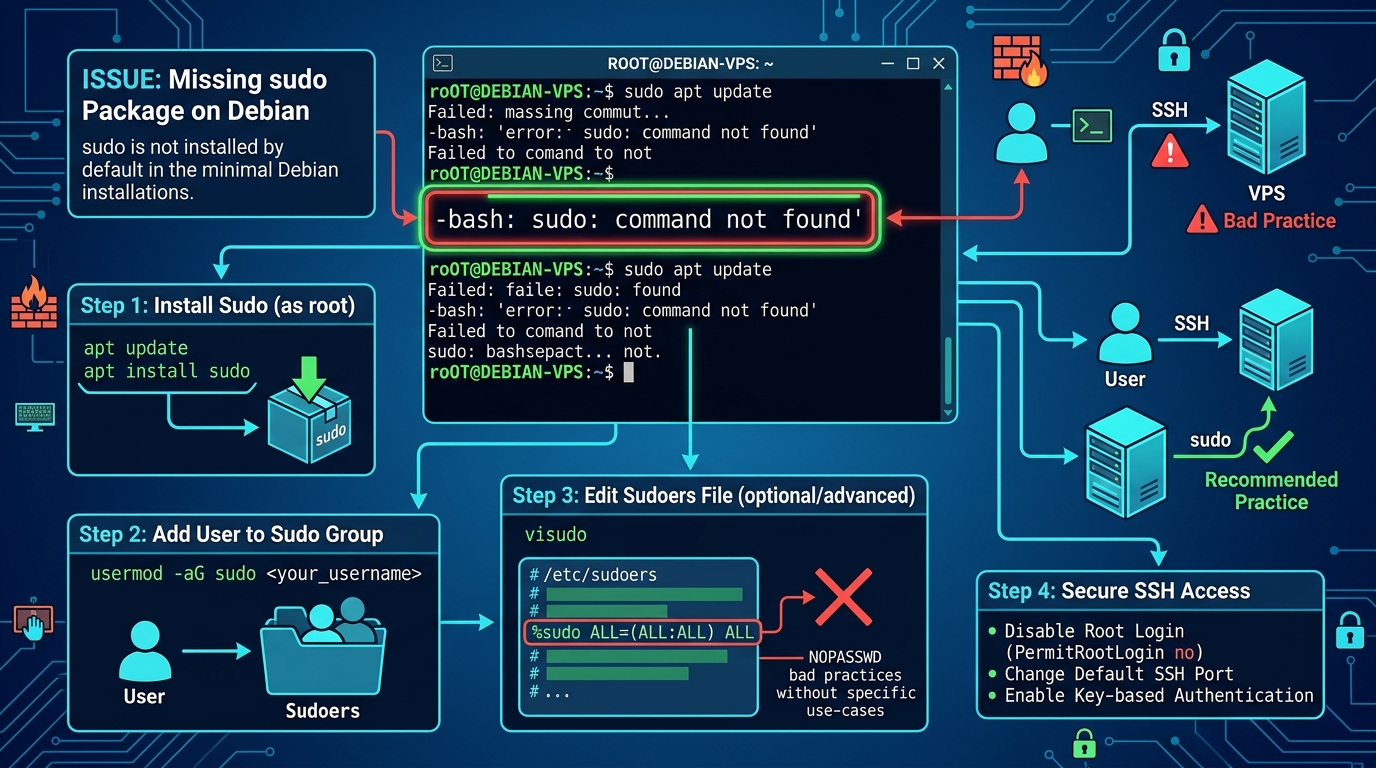
When deploying a fresh, minimal installation of Debian 11 (Bullseye) or Debian 12 (Bookworm) on cloud instances or bare-metal servers in Pakistan, system administrators frequently encounter an immediate roadblock.
After logging in as a standard non-root user and attempting to install packages or inspect system services:
sysadmin@server:~$ sudo apt update
-bash: sudo: command not found
To developers accustomed to Ubuntu (which ships with sudo pre-installed and automatically assigns the initial user to the sudo group), this error comes as a jarring surprise. On a standard Debian installer, if you provide a root password during the installation wizard, the Debian installer deliberately skips installing and configuring the sudo package, leaving root as the sole administrative account.
While switching to root via su - works for quick commands, running production operations directly as root violates security baselines, breaks audit trails, and risks catastrophic accidental deletions.
In this technical guide, we explain why Debian behaves this way, how to properly install and configure sudo, how to repair missing $PATH environment variables, and how to configure granular, least-privilege sudoers policies on enterprise Dedicated Servers in Pakistan.
Step 1: Switching to Root and Installing the Sudo Package
Because your non-root user cannot execute privileged commands, you must first switch to the superuser using su:
[!IMPORTANT] Always use
su -(with the hyphen). Running baresuswitches your user ID to root but retains your unprivileged user’s$PATH, which omits/sbin,/usr/sbin, and/usr/local/sbin. Usingsu -loads root’s complete environment!
# Switch to superuser with root's full login shell environment
su -

# Update apt repositories
apt update

# Install the official sudo package
apt install -y sudo
Step 2: Granting Sudo Privileges to Your User Account
In Debian, any user who belongs to the sudo secondary group inherits administrative privileges.
Add your unprivileged username to the sudo group using usermod:
# Add user 'sysadmin' to the sudo group (-a for append, -G for group)
usermod -aG sudo sysadmin

# Verify group membership
id sysadmin
# Output: uid=1000(sysadmin) gid=1000(sysadmin) groups=1000(sysadmin),27(sudo)
[!NOTE] Group membership changes only take effect on the next login session. You must log out of SSH and reconnect, or run
su - sysadminto refresh group credentials!
Step 3: Fixing the Debian $PATH Variable Bug
Even after installing sudo, many Debian users encounter a secondary issue: running administrative commands returns command not found because the user’s $PATH does not include system binary directories:
sysadmin@server:~$ sudo reboot
sudo: reboot: command not found
By default, Debian does not include /sbin and /usr/sbin in standard user paths. When invoking sudo, the secure path must explicitly point to these directories.
To fix this permanently across all users:
- Open
/etc/sudoersusing the safety validatorvisudo:visudo - Locate the
secure_pathline and ensure it contains all system binary paths:Defaults secure_path="/usr/local/sbin:/usr/local/bin:/usr/sbin:/usr/bin:/sbin:/bin" - Save and exit (
visudovalidates syntax before writing to disk, preventing lockouts).
Additionally, update your shell profile (~/.bashrc or /etc/profile):
# Add to ~/.bashrc
export PATH="$PATH:/usr/local/sbin:/usr/sbin:/sbin"
Step 4: Enterprise Best Practice: Granular Sudoers Policies
Rather than granting unrestricted, blanket root access to all team members, enterprise production standards enforce Principle of Least Privilege (PoLP).
Never edit /etc/sudoers directly. Instead, create drop-in configuration snippets inside /etc/sudoers.d/:
1. Allowing a DevOps Engineer to Restart NGINX and PHP-FPM Without Password
Suppose your frontend engineer needs to reload web services after deploying code, but should not have access to read database files or alter firewalls:
visudo -f /etc/sudoers.d/devops-web-reloadAdd the following targeted rule:
# Allow user 'deployer' to restart web daemons without asking for password
deployer ALL=(ALL) NOPASSWD: /usr/bin/systemctl reload nginx, /usr/bin/systemctl restart php8.2-fpm
2. Passwordless Commands with Audit Logging
To log every single sudo command executed by your team for ISO 27001 or PCI-DSS compliance in Pakistan:
visudo -f /etc/sudoers.d/audit-logging# Send all sudo command executions to dedicated audit log
Defaults logfile="/var/log/sudo.log"Now, every privilege escalation is tracked:
Oct 3 16:12:04 server sudo: sysadmin : TTY=pts/0 ; PWD=/home/sysadmin ; USER=root ; COMMAND=/usr/bin/apt upgradeVerifying Sudo Privileges
Log out and reconnect to your server as your normal user. Test your newly configured privileges:
# Test sudo access
sudo whoami
# Output: root

# Inspect granted permissions for your user
sudo -l
You now have a fully hardened, compliant Debian production environment!
Enterprise Stability with Nextgen Bare-Metal
Debian is renowned worldwide as the “Universal Operating System” due to its legendary rock-solid stability and zero-bloat architecture. However, running mission-critical Debian databases and high-traffic clusters on budget shared virtual servers negates these benefits due to noisy-neighbor CPU throttling and IOPS caps.
Deploying Debian on bare-metal enterprise hardware guarantees dedicated ECC DDR5 memory channels, unthrottled NVMe storage, and 100% dedicated compute.
Explore Nextgen’s high-performance bare-metal Dedicated Servers and locally hosted Dedicated Servers in Pakistan.
Deploy Rock-Solid Debian Infrastructure with Nextgen
Deliver unmatched uptime and enterprise stability. Deploy customized minimal Debian installations on dedicated bare-metal hardware backed by our 4.7/5 Trustpilot rated support in Pakistan.
