
Few browser errors trigger more immediate panic for a website owner than typing your domain name into Google Chrome and seeing:
This page isn’t working
yourdomain.pk redirected you too many times.
Try clearing your cookies.
ERR_TOO_MANY_REDIRECTS
When this error strikes, your entire website becomes completely inaccessible to visitors. Worse, you are often locked out of your own WordPress administrative dashboard (/wp-admin/), leaving you unable to deactivate plugins or change settings through the standard interface.
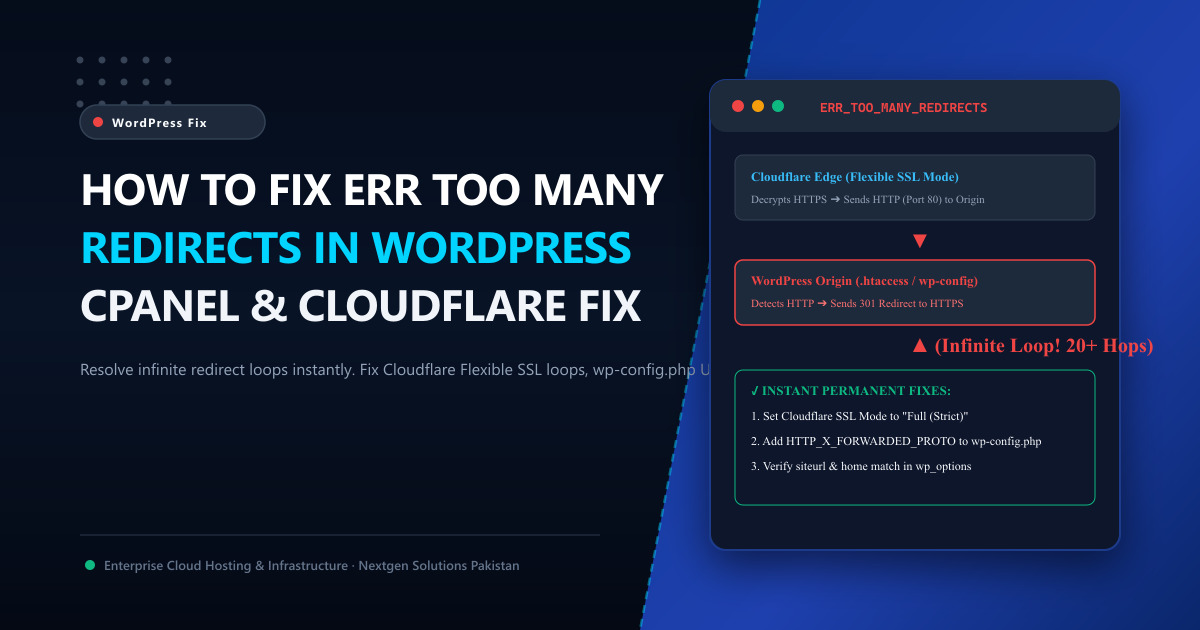
The ERR_TOO_MANY_REDIRECTS error occurs when a web browser enters an infinite HTTP redirect loop. Your browser requests URL A, which redirects to URL B, which in turn redirects back to URL A. After 20 consecutive redirects, the browser gives up and terminates the connection to prevent crashing your device.
In this step-by-step diagnostic guide, we dissect the root causes of WordPress redirect loops and provide immediate, battle-tested solutions across Cloudflare, cPanel, .htaccess, and wp-config.php.
🔁 The Most Common Culprit: Cloudflare “Flexible” SSL Loops
In Pakistan, over 80% of WordPress redirect loops occur when website owners configure Cloudflare CDN with the default “Flexible” SSL encryption mode:
[ Visitor Browser ] ────── HTTPS Request (Port 443) ─────► [ Cloudflare Edge ]
                                                                   │
                                                                   ▼ (Unencrypted HTTP Port 80)
                                                           [ Origin Web Server ]
                                                                   │
                                                                   ▼ (.htaccess forces HTTPS)
                                                      [ Sends 301 Redirect to HTTPS ]
                                                                   │
                                                                   ▲
                                                 (Infinite Loop Between Edge & Origin!)
The Fix: Switch to “Full (Strict)” SSL
- Log into your Cloudflare Dashboard.
- Select your domain and navigate to SSL/TLS ➔ Overview.
- Change the encryption mode from Flexible to Full (or Full (strict)).
- Full mode instructs Cloudflare to connect to your origin server over port 443 with encrypted HTTPS, instantly terminating the redirect ping-pong!
[!IMPORTANT] For “Full (Strict)” mode to function, your origin server must have an active SSL certificate installed. If your origin lacks a certificate, issue one instantly using cPanel AutoSSL or install a free Cloudflare Origin CA certificate.
🛠️ Solution 2: Hardcoding Site URLs in wp-config.php
If your WordPress database table wp_options contains conflicting or mismatched URL protocols (such as siteurl set to http:// while home is set to https://), WordPress will constantly attempt to canonicalize the request, causing a loop.
You can override the database directly by adding two lines to your wp-config.php file:
- Open cPanel File Manager and locate
/public_html/wp-config.php. - Right-click and choose Edit.
- Add the following lines just above
/* That's all, stop editing! Happy publishing. */:
// Force exact canonical site URLs
define( 'WP_HOME', 'https://yourdomain.pk' );
define( 'WP_SITEURL', 'https://yourdomain.pk' );

// Fix Reverse Proxy SSL Header Detection (Essential for Cloudflare & Nginx)
if ( isset( $_SERVER['HTTP_X_FORWARDED_PROTO'] ) && $_SERVER['HTTP_X_FORWARDED_PROTO'] === 'https' ) {
    $_SERVER['HTTPS'] = 'on';
}
The second block is critical: it informs WordPress that Cloudflare has already decrypted the HTTPS connection, preventing WordPress from repeatedly redirecting port 80 traffic.
📄 Solution 3: Resetting a Corrupt .htaccess File
Rogue security plugins, caching plugins, or manual rewrite rules can create conflicting 301 redirects inside your Apache/LiteSpeed .htaccess file.
How to Reset .htaccess to WordPress Defaults:
- In cPanel File Manager, ensure “Show Hidden Files” is enabled in settings.
- Locate
/public_html/.htaccessand rename it to.htaccess.backup. - Create a brand-new file named
.htaccessand paste the clean, standard WordPress rewrite rules:
# BEGIN WordPress
RewriteEngine On
RewriteBase /
RewriteRule ^index\.php$ - [L]
RewriteCond %{REQUEST_FILENAME} !-f
RewriteCond %{REQUEST_FILENAME} !-d
RewriteRule . /index.php [L]
# END WordPress- Save the file and refresh your website. If the site loads, an offending redirect rule in your old
.htaccesswas the culprit!
🔌 Solution 4: Temporarily Deactivating Offending Redirect Plugins
Plugins like Really Simple SSL, Redirection, or outdated page builders frequently conflict with server-level redirects.
If you are locked out of /wp-admin/:
- In cPanel File Manager, navigate to
/public_html/wp-content/. - Locate the
pluginsfolder and temporarily rename it toplugins_old. - This safely disables all plugins across your WordPress site without deleting any data.
- If your website now loads, rename the folder back to
plugins, open/wp-admin/, and reactivate your plugins one by one until you isolate the faulty plugin.
⚡ The Server Advantage: Managed Cloud Infrastructure
Fixing recurring redirect errors, SSL certificate expirations, and proxy header collisions is frustrating when hosting on low-cost shared hosting with restrictive server configurations.
By migrating to Nextgen Cloud VPS in Pakistan or enterprise bare-metal Dedicated Servers:
- Our senior Linux engineers configure native LiteSpeed Enterprise reverse proxies that automatically recognize Cloudflare headers.
- Enjoy automated Let’s Encrypt SSL issuance and renewal with zero configuration hassle.
- Experience blazing-fast domestic speeds with sub-10ms PkIX peering in Islamabad datacenters.
📚 Related Technical Architecture Guides & Reading
- How to Fix ERR_SSL_VERSION_OR_CIPHER_MISMATCH in Chrome & cPanel – Resolve SSL handshake and cipher suite failures.
- How to Fix 504 Gateway Timeout Errors in WordPress – Tune timeouts, resolve database locks, and fix server performance.
- How to Use cPanel to Manage Your Web Hosting: The Practical Masterclass – Managing domains, DNS records, and SSL certificates with zero stress.
Upgrade to High-Performance WordPress Cloud VPS in Pakistan
Tired of broken redirects and server errors? Nextgen provides turnkey KVM Cloud VPS and dedicated bare-metal servers optimized for WordPress and WooCommerce with LiteSpeed web acceleration and 24/7 expert Pakistani support.
