
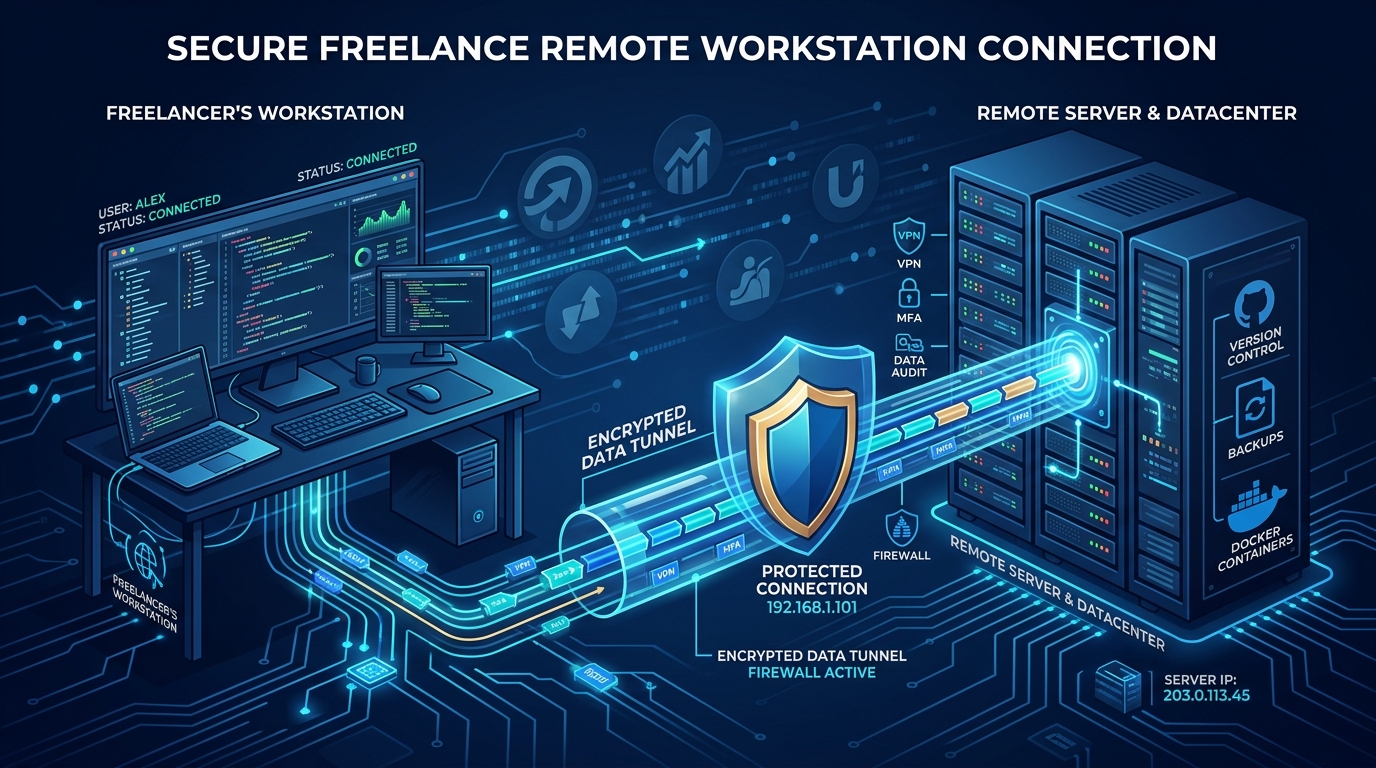
Across corporate enterprises, commercial banks, fintech platforms, software development houses, and business process outsourcing (BPO) call centers in Pakistan, Windows Server Remote Desktop Gateway (RD Gateway) serves as the primary ingress point for remote desktop sessions.[1][2] By encapsulating standard Remote Desktop Protocol (RDP) traffic inside encrypted HTTPS (TLS over port 443), RD Gateway eliminates the hazardous practice of opening TCP port 3389 directly to the public internet.[2][4]
However, relying solely on single-factor Active Directory username and password credentials exposes organizations to severe vulnerabilities.[1][5] Automated credential-stuffing bots, leaked passwords from employee workstations, and phishing attacks routinely breach perimeter gateways.[1] Furthermore, under the State Bank of Pakistan’s (SBP) Cyber Shield 2025–2030 framework (CRMD Circular 01 of 2026) and SECP cybersecurity directives, single-factor authentication for remote corporate access is strictly non-compliant.[5]
To achieve a resilient Zero-Trust security posture, enterprise infrastructure teams must enforce hardware-token, Time-based One-Time Password (TOTP), or push-notification Multi-Factor Authentication (MFA) at the perimeter.[1][2] In Windows Server environments, this is natively accomplished by decoupling authentication from the RD Gateway and delegating it to Network Policy Server (NPS) acting as a central RADIUS broker.[1][3]
This architectural guide provides systems administrators, CISOs, and network security engineers across Pakistan with an end-to-end implementation roadmap to install, configure, and optimize Multi-Factor Authentication on Windows Server RDS using Network Policy Server and RADIUS.[1][2][3][4][5]
Architectural Foundations: How RDS MFA Traverses the RADIUS Pipeline
Understanding the RADIUS handshake between the client, the RD Gateway, the Network Policy Server, and the identity provider is critical to diagnosing connection failures and timeout drops.[1][3]
When a remote user connects to an enterprise RDS deployment:[1][2]
[ Remote User ]
      |  (1. HTTPS Connect :443)
      v
[ RD Gateway ]
      |  (2. RADIUS Access-Request UDP 1812)
      v
[ Network Policy Server (NPS) ]
      |  (3. Primary AD DS Authentication)
      +------------------------+
      |                        |
      v (4. Trigger MFA)       v (5. Local TOTP / RADIUS)
[ Microsoft Entra ID ]   [ On-Prem FreeRADIUS / Duo ]
      |                        |
      v (User Mobile Push)     v (TOTP Code Verify)
[ User Approves ]        [ User Inputs OTP ]
      |                        |
      +------------+-----------+
                   | (6. Access-Accept)
                   v
             [ RD Gateway ]
                   | (7. Encrypted RDP Tunnel)
                   v
[ RD Session Host Farm ]- Connection Initiation: The user launches Remote Desktop Connection (
mstsc.exe), specifying the RD Gateway FQDN (rdgw.corp.nextgen.pk).[1][4] - RADIUS Delegation: The RD Gateway strips the username and password from the HTTP transport and wraps them into a
RADIUS Access-Requestpacket directed to the central Network Policy Server (NPS) over UDP port 1812.[1][3] - Primary Authentication: The NPS server validates the user’s primary credentials against Active Directory Domain Services (AD DS).[1][3]
- MFA Interception: If primary authentication succeeds, the NPS Extension DLL intercepts the flow and triggers an out-of-band secondary authentication challenge (e.g., Microsoft Authenticator mobile push or TOTP verification).[1]
- Session Authorization: Once the user approves the secondary challenge, the NPS server issues a
RADIUS Access-Acceptpacket containing connection attributes back to the RD Gateway.[1][3] - Policy Evaluation & Tunnel Establishment: The RD Gateway evaluates its Remote Desktop Connection Authorization Policies (RD CAP) and Resource Authorization Policies (RD RAP), establishing the TLS tunnel to the internal RD Session Host (
RDSH).[2][4]
Prerequisites and Component Sizing for Pakistani Deployments
Before configuring policies, ensure your infrastructure meets these baseline requirements:[1][2]
- Server Roles: At least two distinct Windows Server instances (e.g., Windows Server 2025/2022). While RD Gateway and NPS can technically coexist on the same server, enterprise architecture requires separating the public perimeter gateway (in a DMZ) from the internal NPS server joined to Active Directory.[1][3]
- Firewall Ports:
- External to RD Gateway: TCP port 443 and UDP port 3391 (for RDP UDP transport).[2][4]
- RD Gateway to NPS (Internal): UDP port 1812 (RADIUS Authentication) and UDP port 1813 (RADIUS Accounting).[3]
- NPS to Domain Controllers: TCP/UDP port 88 (Kerberos), TCP/UDP port 389 (LDAP), TCP port 3268 (Global Catalog).[3]
- SSL/TLS Certificate: A valid, publicly trusted SSL certificate (such as Let’s Encrypt or Sectigo) bound to the RD Gateway external FQDN.[4]
Step 1: Installing the Network Policy Server (NPS) Role Service
On your designated internal management server, install the Network Policy and Access Services (NPAS) role via elevated PowerShell:[3]
# Install Network Policy Server and Management Tools
Install-WindowsFeature NPAS -IncludeManagementTools -Restart:$false
Register the NPS server in Active Directory Domain Services so it possesses rights to read user dial-in and authorization attributes:[3]
# Register NPS in Active Directory
netsh nps add registeredserver
Verify that the Windows service is running and set to automatic startup:[3]
Get-Service -Name IAS | Select-Object Name, Status, StartType(Note: In Windows Server, the underlying service name for Network Policy Server remains IAS — Internet Authentication Service).[3]
Step 2: Configuring RD Gateway as a RADIUS Client in NPS
The NPS server must recognize the RD Gateway as an authorized RADIUS client before accepting authentication requests.[1][3]
1. Define the RADIUS Client via PowerShell
Execute the following PowerShell command on the NPS server:[3]
# Generate a cryptographically secure shared secret
$SharedSecret = "NextgenSecureRadiusKey2026!#"

# Register the RD Gateway as a RADIUS client
New-NpsRadiusClient -Name "RDGateway-DMZ" `
                    -Address "192.168.10.15" `
                    -State Enabled `
                    -SharedSecret $SharedSecret
2. Configure the Connection Request Policy
In the Network Policy Server console (nps.msc):[3]
- Navigate to Policies > Connection Request Policies.[3]
- Create a new policy named
RD Gateway MFA Policy.[1] - Under Conditions, add:
- Client Friendly Name:
RDGateway-DMZ(or Client IPv4 Address matching the gateway).[1]
- Client Friendly Name:
- Under Settings > Authentication, select Authenticate requests on this server.[1][3]
Step 3: Installing the MFA Provider Extension (Microsoft Entra ID or On-Premises)
Depending on your organization’s regulatory posture in Pakistan, you can choose between cloud-backed MFA or fully on-premises MFA.[1][5]
Option A: Cloud-Integrated MFA via Entra ID NPS Extension
For commercial software houses, digital agencies, and remote corporate teams in Pakistan leveraging Microsoft 365 / Entra ID licenses:[1]
- Download the NPS Extension for Microsoft Entra ID from Microsoft Download Center.[1]
- Run
NpsExtnForAzureMfaInstaller.exeon the NPS server.[1] - Run the PowerShell post-installation script to link your Active Directory tenant with Entra ID:[1]
# Navigate to installation directory and run tenant authentication
cd "C:\Program Files\Microsoft\AzureMfa\Config"
.\AzureMfaNpsExtnConfigSetup.ps1
Sign in with your Entra ID Global Administrator account.[1] The script generates a local self-signed certificate, uploads the public key to Entra ID, and registers your on-premises NPS server for cloud MFA challenges.[1]
Option B: Fully Air-Gapped On-Premises MFA (For Banking & Critical Infrastructure)
Under SBP guidelines, financial institutions requiring strict domestic data residency without foreign cloud dependencies can integrate NPS with an on-premises FreeRADIUS / LinOTP / privacyIDEA server.[5] In this topology, NPS forwards secondary authentication requests to a local Linux VM hosting FreeRADIUS and a localized TOTP validation database over private local network links.[3][5]
Step 4: Configuring RD Gateway to Delegate to Central NPS
Once the NPS server is prepared, configure your RD Gateway to hand off connection authorization.[1][4]
1. Configure the Central NPS Server in RD Gateway Manager
- Open Remote Desktop Gateway Manager (
tsgateway.msc) on the RD Gateway server.[4] - Right-click the server name and select Properties.[4]
- Select the RD CAP Store tab.[1][4]
- Choose Central server running NPS.[1][4]
- Enter the FQDN or IP address of your internal NPS server (
nps01.corp.nextgen.pk).[1] - Click Add, and enter the identical shared secret defined in Step 2 (
NextgenSecureRadiusKey2026!#).[1][4] - Click OK to apply.[4]
# Alternatively, configure via Remote Desktop PowerShell Module
Import-Module RemoteDesktop
Set-RDDeploymentGatewayConfiguration -ConnectionBroker "rdcb01.corp.nextgen.pk" `
                                     -GatewayMode "Custom" `
                                     -GatewayExternalFQDN "rdgw.corp.nextgen.pk" `
                                     -LogonMethod "Password"
Step 5: Critical Timeout Tuning (Eliminating False Drops)
The most frequent production failure in RDS MFA deployments is the Premature RADIUS Timeout Bug.[1][3]
By default, the Windows RD Gateway wait timeout for a RADIUS response is set to 3 seconds.[1] When MFA is triggered, sending a push notification across cellular networks in Pakistan (such as Jazz, Zong, or Nayatel) and waiting for the user to unlock their smartphone and tap “Approve” typically takes 10 to 20 seconds.[1]
Because 3 seconds is insufficient, the RD Gateway disconnects the client before the user can complete the prompt, resulting in The remote connection was severed error.[1]
1. Adjusting RD Gateway RADIUS Timeout
On the RD Gateway server, increase the RADIUS server timeout in the registry:[1]
# Set RD Gateway RADIUS Request Timeout to 60 seconds
Set-ItemProperty -Path "HKLM:\SYSTEM\CurrentControlSet\Services\AuthSrv\Parameters" `
                 -Name "RequestTimeout" -Value 60 -Type DWord
2. Adjusting NPS Client Timeout
On the NPS Server, configure the matching timeout value on the RADIUS client properties:[3]
# Set NPS Client timeout to 60 seconds
Set-NpsRadiusClient -Name "RDGateway-DMZ" -SharedSecret $SharedSecret
Restart the relevant services immediately:[1][3]
# On RD Gateway:
Restart-Service TSGateway -Force

# On NPS Server:
Restart-Service IAS -Force
Troubleshooting Matrix: Diagnosing RDS MFA Failures in Production
When users cannot authenticate through the MFA-enabled RD Gateway, use this operational troubleshooting guide:[1][2][3][4]
| Failure Symptom | Event Log / ID | Root Cause | Technical Remediation |
|---|---|---|---|
| User receives password prompt, but mobile never alerts | NPS Event ID 6273: Reason: The user is not enrolled in MFA |
The user account in Active Directory has not completed MFA onboarding | Enroll the user in Microsoft Authenticator or provision a software TOTP token |
| Mobile prompt appears, user taps approve, but RDP disconnects | RD Gateway Event ID 302: The user could not be authenticated |
RD Gateway RADIUS timeout (3s) tripped before user approved prompt | Increase RequestTimeout to 60 in HKLM:\...\Services\AuthSrv\Parameters |
| “Your computer can’t connect to the Remote Desktop Gateway” | RD Gateway Event ID 200: RADIUS server did not respond |
UDP Port 1812 blocked by firewall or incorrect shared secret | Verify UDP 1812 with Test-NetConnection; re-enter identical shared secret |
| User passes MFA, but denied with “Not authorized to connect” | RD Gateway Event ID 304: User failed connection authorization |
User is not a member of the Active Directory security group defined in RD RAP | Add user to authorized Remote Desktop Users security group in AD DS |
| NPS Extension DLL fails to load during service start | System Event ID 7023 / AzureMfa Event ID 1000 | TLS 1.2 disabled or outdated .NET Framework on Windows Server | Force TLS 1.2 in Schannel registry and verify system clock synchronization |
Infrastructure Considerations: Virtual VPS vs. Bare-Metal Dedicated Hosting in Pakistan
While RADIUS authentication and MFA enforce cryptographic identity verification, physical server architecture governs the underlying security and latency of enterprise remote access.[2][5]
In multi-tenant cloud VPS instances, your RD Gateway, Active Directory Domain Controllers, and RD Session Host VMs share physical hardware, memory buses, and CPU cache lines with external tenants.[5] Side-channel microarchitectural vulnerabilities (such as Spectre, Meltdown, and Zenbleed) can allow rogue virtual machines on the same physical node to monitor memory buffers, compromising in-flight cryptographic tokens and Active Directory hashes.[2][5]
For financial organizations, healthcare providers, and high-security enterprise remote teams in Pakistan, running on unshared bare-metal hardware provides absolute hardware isolation.[2][5] By deploying enterprise dedicated servers and localized dedicated servers in Pakistan, enterprises achieve:
- Hardware-Enforced Multi-Tenant Isolation: Complete single-tenant physical compute with dedicated Intel Xeon and AMD EPYC processors, preventing cross-tenant hypervisor cache snooping.[2]
- Carrier-Grade Domestic Peering: In-country hosting in Karachi and Islamabad connected to the Pakistan Internet Exchange (PIE) ensures RDP desktop rendering, audio, and keyboard input operate with sub-15ms round-trip latencies nationwide.[2]
- Regulatory Compliance with SBP & SECP: Dedicated bare metal satisfies statutory data sovereignty mandates, ensuring transactional data and biometric authentication logs never leave Pakistani jurisdiction.[5]
Sources & Official References
- Microsoft Learn. (2026). Integrate your Remote Desktop Gateway infrastructure using the Network Policy Server (NPS) extension and Microsoft Entra ID. Retrieved from https://learn.microsoft.com/en-us/entra/identity/authentication/howto-mfa-nps-extension-rdg
- Microsoft Learn. (2026). Plan Multifactor Authentication for Remote Desktop Services. Retrieved from https://learn.microsoft.com/en-us/windows-server/remote/remote-desktop-services/rds-plan-mfa
- Microsoft Learn. (2026). Network Policy Server (NPS) Overview and RADIUS Server Architecture. Retrieved from https://learn.microsoft.com/en-us/windows-server/networking/technologies/nps/nps-top
- Microsoft Learn. (2026). Configure Remote Desktop Gateway Connection and Resource Authorization Policies (RD CAP and RD RAP). Retrieved from https://learn.microsoft.com/en-us/windows-server/remote/remote-desktop-services/rds-gateway-policies
- State Bank of Pakistan (SBP). (2026). CRMD Circular Letter No. 01 of 2026: Cyber Shield 2025–2030 Strategy for Financial Sector Resilience & Multi-Factor Access Control. Retrieved from https://www.sbp.org.pk
Secure Your Remote Desktop Infrastructure with Enterprise Bare Metal
Protect your corporate RDS deployments and remote workforce from credential theft, ransomware, and unauthorized perimeter access. Deploy Nextgen's high-performance enterprise dedicated servers with unshared compute, dedicated IP subnets, and domestic low-latency peering across Pakistan.
Disclaimer: This post is for informational and educational purposes only, accurate to the best of our knowledge at publication. It does not constitute advice. We do not guarantee accuracy or completeness and accept no liability for any decisions or losses resulting from reliance on this content.
