
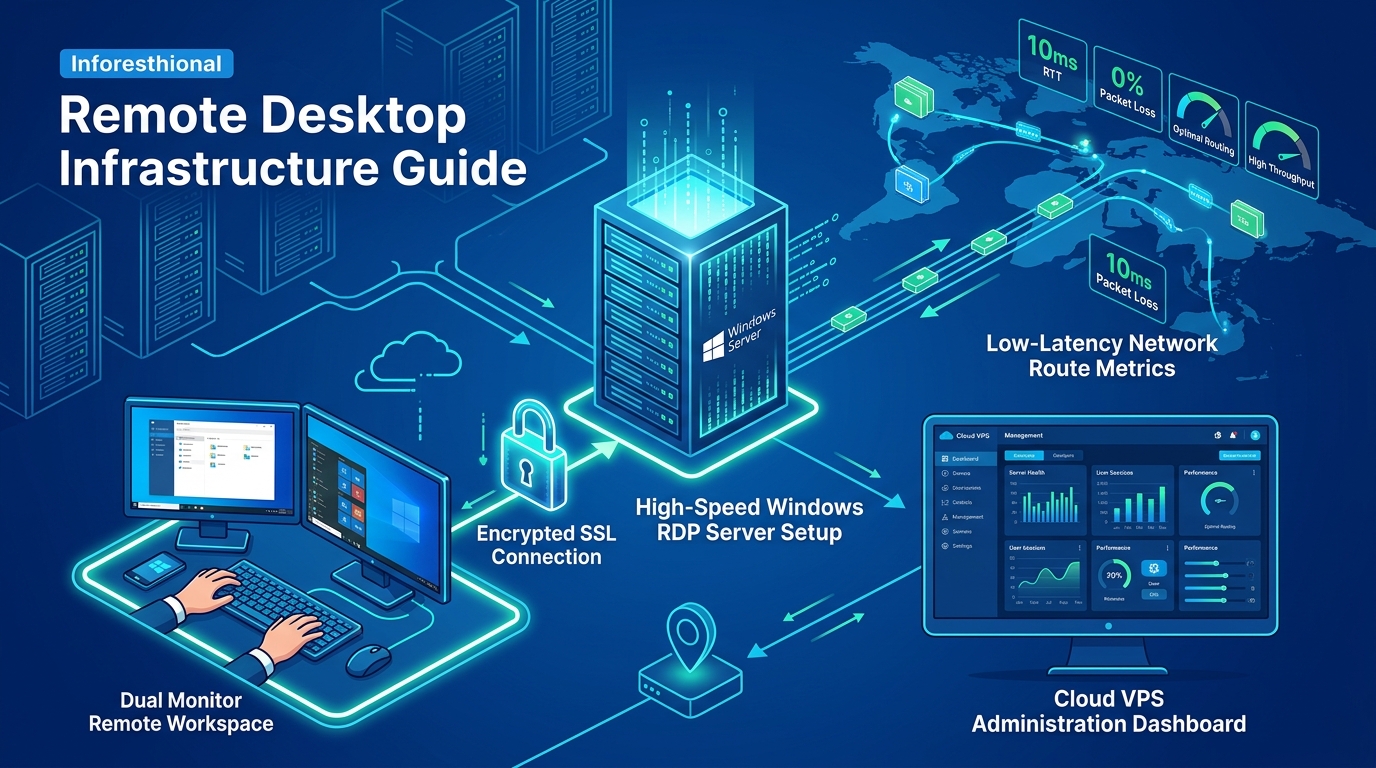
Across IT departments, software houses, financial institutions, and business process outsourcing (BPO) call centers in Pakistan, Microsoft Windows Server Remote Desktop Services (RDS) powers multi-user centralized computing.[1][2] Whether delivering shared accounting systems (Tally, QuickBooks), hosting custom development toolchains, or enabling remote agents to connect to high-performance enterprise desktops, RDS session host farms provide the standard virtualization backplane.[2]
However, systems engineers frequently encounter a critical production disruption four months after initial deployment: the sudden expiration of the 120-day RDS licensing grace period.[3] When the grace period ends, remote users are abruptly disconnected and locked out with the error message:[3]
“The remote session was disconnected because there are no Remote Desktop License Servers available to provide a license. Please contact the server administrator.”
Even when an organization has legitimately purchased Client Access Licenses (RDS CALs), misconfigurations between the Remote Desktop Session Host (RDSH), the RD Connection Broker, and the RD Licensing server frequently prevent license issuance.[1][4]
This architectural guide provides systems administrators and infrastructure architects across Pakistan with an end-to-end framework to plan, install, activate, and manage Windows Server RD Licensing, navigate the nuances between Per-User and Per-Device licensing models, enforce configuration via Active Directory Group Policy, and recover from grace period lockouts.[1][2][3][4][5]
Architectural Foundations: How Windows Server RD Licensing Works
Remote Desktop Services uses an independent role service—the Remote Desktop Licensing (RD Licensing) server—to issue and track Client Access Licenses (CALs).[2][5]
When a client initiates an RDP connection to an RD Session Host server:[2][3]
- Connection Initiation: The user authenticates against the RDSH server or through an RD Gateway / RD Connection Broker.[2]
- License Check: The RDSH server determines whether the connecting client has a valid RDS CAL token.[2][3]
- Contacting the License Server: If no token is presented, the RDSH contacts its configured RD Licensing server over RPC (TCP port 135 and dynamic RPC ports) to request a CAL token.[3][4]
- Validation and Issuance: The RD Licensing server validates available license pools, deducts an available CAL, and returns a cryptographically signed license token to the RDSH server, allowing the user session to proceed.[2][3]
The 120-Day Grace Period Mechanics
When the RD Session Host role service is installed on Windows Server, Microsoft provides a built-in grace period of 120 days during which no license server is required and an unlimited number of concurrent connections are permitted.[3]
During this grace period:[3]
- The countdown timer begins the moment the first non-administrative remote desktop session connects to the server.[3]
- The RDSH server writes a binary timestamp to the registry path:
HKLM:\SYSTEM\CurrentControlSet\Control\Terminal Server\RCM\GracePeriod.[3] - If the grace period expires without a registered, activated RD Licensing server configured with valid CAL packs, all non-administrative RDP sessions are immediately denied.[3] Only two concurrent administrative console sessions (
mstsc /admin) remain permitted.[3]
Decision Matrix: Per-User vs. Per-Device CALs for Pakistani Enterprises
Choosing the correct licensing mode is critical because Windows Server does not support dynamically mixing Per-User and Per-Device licensing modes within the same RD Session Host collection.[1][2]
| Architectural Attribute | Per-User CAL (Mode = 4) |
Per-Device CAL (Mode = 2) |
|---|---|---|
| Licensing Anchor | Assigned to an Active Directory User Object (objectGUID) |
Assigned to the physical client hardware (HardwareID / MAC) |
| Multi-Device Support | One user can connect from unlimited devices (office PC, laptop, phone, home PC) | Multiple users can share the same physical computer across shifts |
| Active Directory Requirement | Mandatory. Must be deployed within an Active Directory Domain Services (AD DS) forest | Works in both Active Directory Domains and standalone Workgroup environments |
| Issuance Enforcement | Not strictly enforced by the server; unallocated users are tracked in licensing reports | Strictly enforced by the licensing server; connections are blocked if pool is empty |
| Temporary License Flow | No temporary licenses; licenses are assigned directly to user accounts | Issues a temporary license (valid 52 to 89 days) on first connect; upgrades on second connect |
| Revocation & Reassignment | Automatically reclaims unused licenses after 90 days of inactivity | Can be manually revoked up to 20% of total pool via RD Licensing Manager |
| Recommended Use Case in Pakistan | Remote software developers, financial analysts, executives roaming across devices | Call centers, BPO shifts, manufacturing terminals, hospital nurse stations sharing PCs |
Step 1: Installing and Activating the RD Licensing Role Service
In an enterprise RDS farm, the RD Licensing role can be hosted on a dedicated management VM, an RD Connection Broker, or a domain controller.[5]
PowerShell Installation
Open an elevated PowerShell console on the target licensing server:[5]
# Install Remote Desktop Licensing Role and Administration Tools
Install-WindowsFeature RDS-Licensing, RDS-Licensing-UI -IncludeManagementTools -Restart:$false
Verify that the service is running and set to automatic startup:[5]
Get-Service -Name TermServLicensing | Select-Object Name, Status, StartTypeActivating the Licensing Server via GUI or Web
Before the server can issue CALs, it must be activated with the Microsoft Clearinghouse:[5]
- Open Remote Desktop Licensing Manager (
licmgr.exe).[5] - Right-click the server name and select Activate Server.[5]
- Select the connection method:
- Enter company details (Organization Name, Country: Pakistan) and complete the activation wizard.[5]
Installing Purchased RDS CAL Packs
Once activated, right-click the server in licmgr.exe and select Install Licenses.[2][5] Select the appropriate license agreement program:
- Open License / Enterprise Agreement: Enter the Agreement Number and Authorization Number.[2]
- Retail Purchase (Packaged Product): Enter the 25-character product key provided by Microsoft or an authorized distributor.[2]
- Service Provider License Agreement (SPLA): Input the monthly subscriber agreement details.[2]
Step 2: Configuring RD Session Host to Use the License Server
Once the license server is active and populated with CALs, RD Session Host servers must be explicitly configured to locate and bind to it.[1][4]
Method A: Configuring via Remote Desktop Connection Broker (RDS Deployment)
In a managed RDS deployment with an RD Connection Broker, execute Set-RDLicenseConfiguration on the broker server:[1]
# Configure Per-User Licensing Mode pointing to high-availability license servers
Set-RDLicenseConfiguration -LicenseServer @("rdlic01.corp.nextgen.pk", "rdlic02.corp.nextgen.pk") `
                           -Mode PerUser `
                           -ConnectionBroker "rdcb01.corp.nextgen.pk" `
                           -Force
To verify the deployment’s active licensing configuration:[1]
Get-RDLicenseConfiguration -ConnectionBroker "rdcb01.corp.nextgen.pk"Expected output:
Mode                      : PerUser
LicenseServer             : {rdlic01.corp.nextgen.pk, rdlic02.corp.nextgen.pk}
ConnectionBroker          : rdcb01.corp.nextgen.pk
Method B: Enterprise Domain Enforcement via Group Policy (GPO)
For standalone RDSH servers, session host farms outside broker control, or to ensure that domain policies cannot be inadvertently overwritten, configure Active Directory Group Policy:[4]
-
Open Group Policy Management Console (
gpmc.msc) on a Domain Controller.[4] -
Create or edit a GPO linked to the Organizational Unit (OU) containing your RD Session Host computer objects (e.g.,
OU=RDS-Hosts,DC=corp,DC=nextgen,DC=pk).[4] -
Navigate to:[4]
Computer Configuration └── Policies └── Administrative Templates └── Windows Components └── Remote Desktop Services └── Remote Desktop Session Host └── Licensing -
Configure the two mandatory policies:[4]
- Use the specified Remote Desktop license servers: Set to Enabled. In the License servers to use field, enter the fully qualified domain names (FQDN) or IP addresses separated by commas:[4]
rdlic01.corp.nextgen.pk, rdlic02.corp.nextgen.pk - Set the Remote Desktop licensing mode: Set to Enabled. Select either Per User or Per Device from the dropdown menu to match your purchased license pack.[4]
- Use the specified Remote Desktop license servers: Set to Enabled. In the License servers to use field, enter the fully qualified domain names (FQDN) or IP addresses separated by commas:[4]
-
Force policy propagation across the session host farm:[4]
Invoke-Command -ComputerName (Get-ADComputer -Filter 'Name -like "RDSH*"' | Select-Object -ExpandProperty Name) `
               -ScriptBlock { gpupdate /force }
Method C: Local Registry Configuration (Workgroup or Testing Environments)
In isolated environments without Active Directory, configure the session host registry directly via elevated PowerShell:[3]
# Set Licensing Mode: 4 = Per-User, 2 = Per-Device
Set-ItemProperty -Path "HKLM:\SYSTEM\CurrentControlSet\Control\Terminal Server\RCM\Licensing Core" `
                 -Name "LicensingMode" -Value 4 -Type DWord

# Specify License Servers
New-Item -Path "HKLM:\SYSTEM\CurrentControlSet\Services\TermService\Parameters" -Name "LicenseServers" -Force | Out-Null
New-ItemProperty -Path "HKLM:\SYSTEM\CurrentControlSet\Services\TermService\Parameters\LicenseServers" `
                 -Name "SpecifiedLicenseServers" -Value @("192.168.10.25") -PropertyType MultiString -Force | Out-Null
Step 3: Diagnostic Validation and Health Verification
Windows Server provides built-in diagnostic utilities to confirm that RDSH servers are successfully communicating with the licensing server and acquiring CALs.[3][4]
1. Remote Desktop Licensing Diagnoser
Launch the graphical diagnostic tool on the RDSH server:[3]
# Launch Licensing Diagnoser
licensingdiagnoser.exe
A healthy RD Session Host reports:[3]
- Number of licenses available for clients: Reflects total unallocated CALs in the pool.[2]
- Licensing mode: Matches your configured mode (Per User or Per Device).[1]
- License server status: Displays a green checkmark confirming connectivity and version compatibility.[3]
2. Network and RPC Connectivity Verification
If the diagnoser reports connectivity failures, verify network port accessibility over the local area network or VPN tunnel in Pakistan:[3]
# Verify Endpoint Mapper (Port 135)
Test-NetConnection -ComputerName "rdlic01.corp.nextgen.pk" -Port 135

# Verify SMB / Named Pipes (Port 445)
Test-NetConnection -ComputerName "rdlic01.corp.nextgen.pk" -Port 445
Ensure Windows Defender Firewall on the licensing server has enabled the pre-configured rules:[5]
- Remote Desktop Licensing (RPC)
- Remote Desktop Licensing (RPC-EPMAP)
Troubleshooting Common RD Licensing Failures in Production
When licensing alerts occur, use this operational troubleshooting matrix to isolate and resolve root causes:[1][2][3][4]
| Error Message / Event ID | Root Cause | Technical Resolution |
|---|---|---|
| Event ID 1130: “The Remote Desktop Session Host server does not have a Remote Desktop license server specified.” | Neither GPO nor Connection Broker licensing settings have been applied to this host | Configure Set-RDLicenseConfiguration or define license server FQDNs in Group Policy |
| Event ID 1128: “The Remote Desktop Session Host server’s grace period has expired, but it has not been configured with any license server.” | 120-day grace period expired without active licensing binding | Bind active license server immediately; reset grace period registry key if pending procurement |
| “The remote session was disconnected because there are no available client access licenses.” (Per-Device) | All permanent and temporary Per-Device CALs in the pool are consumed | Purchase additional CAL packs or revoke unused licenses from decommissioned PCs |
| Licensing Diagnoser reports: “The license server version is not compatible with the session host.” | License server is running an older Windows Server version than the Session Host | Windows Server RD Licensing servers can only license hosts of the same or earlier OS version. Upgrade the license server to Windows Server 2025/2022 |
| Event ID 1061: “The Remote Desktop Licensing service failed to start because the database is corrupted.” | Jet database (C:\Windows\System32\LServer\TLSLic.edb) corrupted during an ungraceful shutdown |
Stop TermServLicensing, rename database folder, restart service, and reinstall CAL packs from Microsoft Clearinghouse |
Emergency Recovery: Resetting the 120-Day Grace Period
In critical emergency situations where an organization in Pakistan has ordered RDS CALs through local procurement channels but licensing keys have not yet arrived, systems administrators can reset the grace period timer to restore user access immediately:[3]
# Elevated PowerShell: Take ownership and remove expired GracePeriod registry key
$Path = "HKLM:\SYSTEM\CurrentControlSet\Control\Terminal Server\RCM\GracePeriod"

# Take ownership of registry key from SYSTEM
takeown /f "C:\Windows\System32" | Out-Null # Ensure administrative context

# Adjust permissions using PowerShell ACL
$Acl = Get-Acl $Path
$Rule = New-Object System.Security.AccessControl.RegistryAccessRule(
    [System.Security.Principal.WindowsIdentity]::GetCurrent().Name,
    "FullControl",
    "Allow"
)
$Acl.SetAccessRule($Rule)
Set-Acl -Path $Path -AclObject $Acl

# Remove the GracePeriod key and reboot host
Remove-Item -Path $Path -Recurse -Force
Restart-Computer -Force
Upon system reboot, Windows Server generates a fresh GracePeriod registry entry with a full 120-day reset, buying the organization time to finalize CAL installations.[3]
Infrastructure Considerations: Virtual VPS vs. Bare-Metal Dedicated Servers in Pakistan
While licensing configuration handles operational compliance, hardware performance dictates the actual end-user experience across high-density RDS environments.[2]
In multi-tenant cloud VPS instances, multiple virtual machines share physical CPU cores, memory bus bandwidth, and storage controllers.[2] When 30 to 50 active users log into an RDS farm simultaneously to launch Office applications, ERP clients, and web browsers, virtualized memory overcommitment and noisy-neighbor disk latency create session freezing, typing lag, and unexpected disconnects.[2]
For enterprise RDS deployments, high-concurrency call centers, and multi-user remote desktop environments in Pakistan, running on unshared bare-metal hardware is the gold standard.[2] Deploying on enterprise dedicated servers and localized dedicated servers in Pakistan delivers:
- Dedicated Compute Power: Full access to high-frequency multi-core Intel Xeon and AMD EPYC processors without virtualization scheduling overhead.[2]
- Enterprise NVMe Storage in RAID-10: Lightning-fast disk I/O exceeding 500,000 IOPS, ensuring user profile loading and app startup times remain instantaneous during morning login storms.[2]
- Domestic Low-Latency Peering: Local hosting in Karachi and Islamabad provides sub-15ms round-trip latency across all major Pakistani ISPs (PTCL, Nayatel, StormFiber, Jazz), providing responsive, lag-free remote desktop experiences.[2]
Sources & Official References
- Microsoft Learn. (2026). Set-RDLicenseConfiguration (RemoteDesktop PowerShell Module). Retrieved from https://learn.microsoft.com/en-us/powershell/module/remotedesktop/set-rdlicenseconfiguration
- Microsoft Learn. (2026). License your Remote Desktop Services deployment with client access licenses (CALs). Retrieved from https://learn.microsoft.com/en-us/windows-server/remote/remote-desktop-services/rds-client-access-license
- Microsoft Learn. (2026). Troubleshoot Remote Desktop Licensing and Grace Period Expiration Issues. Retrieved from https://learn.microsoft.com/en-us/troubleshoot/windows-server/remote/remote-desktop-licensing-guidance
- Microsoft Learn. (2026). Group Policy settings for Remote Desktop Session Host licensing. Retrieved from https://learn.microsoft.com/en-us/windows-server/remote/remote-desktop-services/rds-rdsh-licensing
- Microsoft Learn. (2026). Install the RD Licensing role service in Windows Server. Retrieved from https://learn.microsoft.com/en-us/windows-server/remote/remote-desktop-services/rds-install-licensing-role
Deploy High-Performance Multi-User Windows Remote Desktops
Eliminate login freezes, memory overcommitment, and noisy-neighbor latency on your enterprise RDS farm. Nextgen Hosting delivers dedicated bare-metal Windows Server infrastructure with unthrottled NVMe storage, hardware raid, and ultra-low latency peering across Pakistan.
Disclaimer: This post is for informational and educational purposes only, accurate to the best of our knowledge at publication. It does not constitute advice. We do not guarantee accuracy or completeness and accept no liability for any decisions or losses resulting from reliance on this content.
