
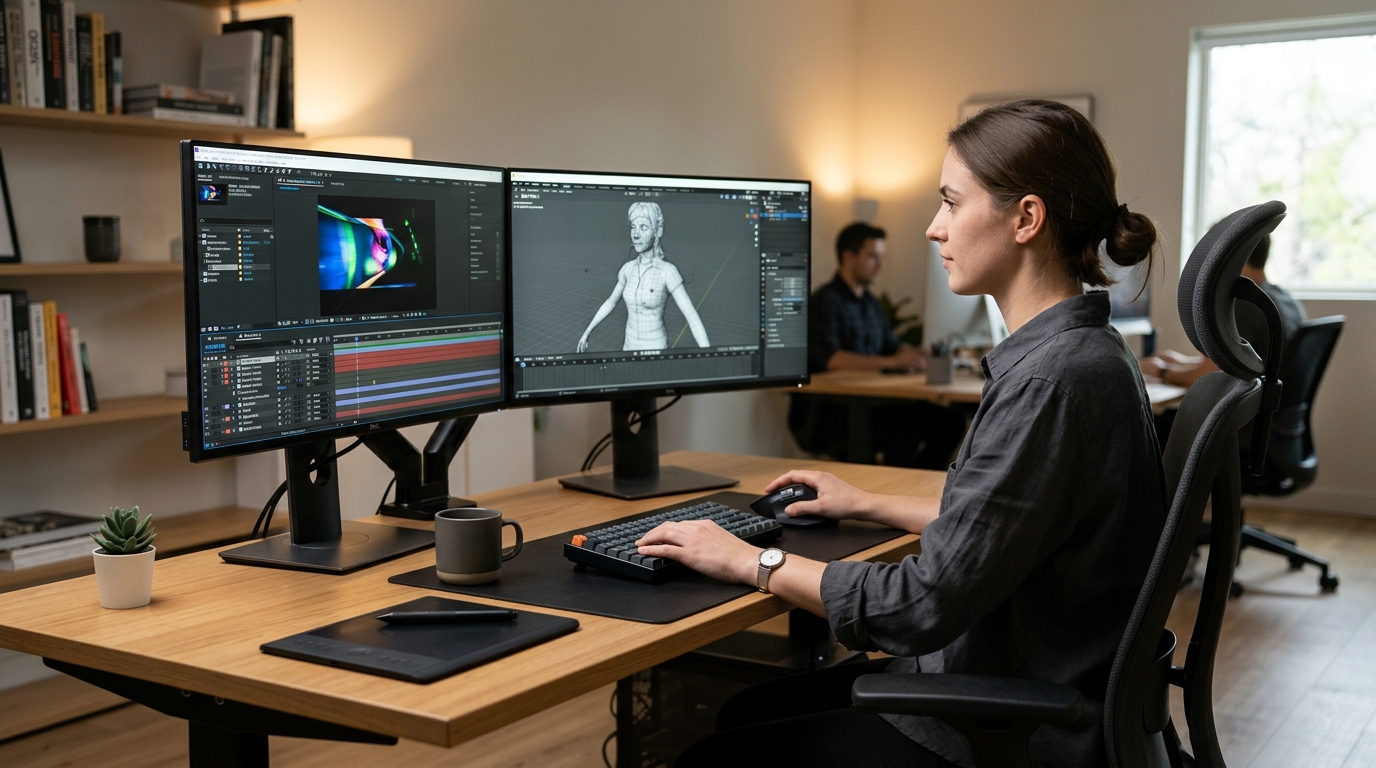
Thousands of creative professionals across Pakistan—including 3D generalists, motion graphics animators, architectural visualizers, and UI/UX product designers—rely on remote Windows workstations to execute compute-heavy workloads in software like Blender, Unreal Engine, Adobe Premiere Pro, DaVinci Resolve, and Figma.[1][2] Accessing high-specification cloud workstations or bare-metal host servers located in European or North American data centers allows local freelancers and creative studios to bypass local hardware import tariffs, eliminate load-shedding disruptions, and collaborate directly with international production pipelines.[2]
However, standard Remote Desktop Protocol (RDP) deployments are fundamentally engineered for office administrative tasks rather than visual creative production.[3] By default, Windows Server limits RDP sessions to software-rendered graphics, restricts refresh rates to 30 frames per second (FPS), forces aggressive 4:2:0 chroma subsampling, and routes display data strictly over TCP.[1][4] Over transatlantic or transcontinental latency paths (typically 120ms to 180ms from Pakistani ISPs like PTCL, Nayatel, StormFiber, or Transworld), default RDP manifests as choppy cursor movements, smeared red UI typography, washed-out color gamuts, and severe input lag.[2][5]
This technical guide provides an exhaustive engineering reference for configuring Windows Server 2022 and Windows Server 2025 to deliver low-latency, hardware-accelerated remote graphics utilizing H.264/AVC 4:4:4 chroma subsampling, native GPU hardware encoding, 60 FPS display pipelines, and UDP-based RDP Shortpath transport.[1][2][6]
The Color Compression Bottleneck: 4:2:0 vs. 4:4:4 Chroma Subsampling
To understand why remote creative interfaces look blurry on standard RDP connections, administrators must examine how the video compression pipeline handles color information.[1][6]
Standard video encoding algorithms (such as H.264/MPEG-4 AVC) optimize bandwidth consumption by separating luminance (brightness, $Y$) from chrominance (color information, $Cb$ and $Cr$).[6] Because the human visual system is biologically more sensitive to luminance variations than fine color shifts, video streams routinely employ YUV 4:2:0 chroma subsampling:[1][6]
| Chroma Subsampling Standard | Horizontal Sampling | Vertical Sampling | Color Data Transmitted | Visual Impact on Remote Workstations |
|---|---|---|---|---|
| YUV 4:2:0 (Default RDP Video Mode) | Half resolution (2:1 reduction) | Half resolution (2:1 reduction) | 25% of original color information[6] | Severe red and blue color bleed; thin UI borders and high-contrast typography appear jagged or blurred.[1] |
| YUV 4:4:4 (AVC 444 Graphics Mode) | Full resolution (1:1 sampling) | Full resolution (1:1 sampling) | 100% of original color information[6] | Exact pixel-for-pixel fidelity; zero color haloing; razor-sharp vector shapes, code editors, and timelines.[1] |
When editing UI mockups in Figma, color grading footage in DaVinci Resolve, or working with CAD wireframes, 4:2:0 subsampling renders high-contrast interface elements (such as red warning badges or blue hyperlinked text) nearly illegible due to color fringing.[1] Activating H.264/AVC 444 instructs Windows Server and the client endpoint to allocate full color bandwidth to every pixel, maintaining exact visual fidelity.[1]
Step 1: Enabling GPU Hardware Acceleration via Group Policy
To eliminate CPU bottlenecks and offload video encoding to physical GPU silicon (such as NVIDIA RTX, Quadro, or Tesla chips), configure the Windows Remote Session Environment via Local Group Policy (gpedit.msc):[1][3]
- Press Win + R, input
gpedit.msc, and press Enter.[1] - Navigate through the policy tree:[1]
Computer Configuration └── Administrative Templates └── Windows Components └── Remote Desktop Services └── Remote Desktop Session Host └── Remote Session Environment - Configure the following critical policies within this folder:[1]
1. Use hardware graphics adapters for all Remote Desktop Services sessions
- State:
Enabled - Impact: Forces the Windows Desktop Window Manager (DWM) and RemoteFX graphics pipeline to route 3D rendering and DirectX/OpenGL calls directly through the host GPU rather than the software Basic Display Adapter.[1][4]
2. Configure H.264/AVC hardware encoding for Remote Desktop connections
- State:
Enabled - Setting: Select
Attempt to use hardware encodingorAlways use hardware encoding.[1] - Impact: Directs Windows Server to utilize NVENC (NVIDIA Encoder) or Intel Quick Sync hardware video engines to compress screen frames into H.264 streams, reducing host CPU consumption to near zero.[1]
3. Prioritize H.264/AVC 444 Graphics mode for Remote Desktop connections
- State:
Enabled - Impact: Enforces true 4:4:4 color chroma subsampling across the RDP pipeline whenever the connecting client device supports AVC 444 decoding.[1]
4. Configure image quality for RemoteFX Adaptive Graphics
- State:
Enabled - Image Quality: Select
HighorLossless.[1] - Impact: Prevents RDP from aggressively downscaling static interface areas during brief bandwidth fluctuations.[1]
Apply the changes immediately by executing an elevated command prompt on the server:[3]
gpupdate /forceStep 2: Unlocking 60 FPS Refresh Rates in the Windows Registry
By default, the Windows Desktop Window Manager limits remote desktop frame production to 30 FPS to conserve server compute cycles and bandwidth.[3] For interactive applications involving 3D orbit navigation or scrubbing high-frame-rate video timelines, 30 FPS causes noticeable stuttering and visual fatigue.[3]
To unlock full 60 FPS rendering, modify the DWM frame interval parameter in the Windows Registry:[3]
# Open elevated PowerShell and configure DWM frame rate
New-Item -Path "HKLM:\SYSTEM\CurrentControlSet\Control\Terminal Server\WinStations\DWM" -Force | Out-Null

# Set frame interval to 15 milliseconds (~66.6 FPS)
Set-ItemProperty -Path "HKLM:\SYSTEM\CurrentControlSet\Control\Terminal Server\WinStations\DWM" `
    -Name "DWMFRAMEINTERVAL" -Value 15 -Type DWord

# Enable unthrottled graphics pipeline
Set-ItemProperty -Path "HKLM:\SYSTEM\CurrentControlSet\Control\Terminal Server\WinStations\DWM" `
    -Name "MaxFrameRate" -Value 60 -Type DWord
The DWMFRAMEINTERVAL value represents the minimum time between rendered frames in milliseconds (a value of 15 correlates to $\approx 66.6\text{ FPS}$, delivering smooth 60Hz display synchronization).[3]
Step 3: Eliminating Head-of-Line Blocking with UDP (RDP Shortpath)
When remote creative sessions travel over long-distance international backbones connecting Pakistan to Western Europe or North America, TCP transport introduces significant performance degradation.[2][7]
Under TCP, even a 0.5% packet loss on undersea fiber segments (such as SEA-ME-WE 4 or AAE-1) triggers TCP sliding window collapse and head-of-line blocking: the entire RDP screen stream freezes until the lost packet is retransmitted and acknowledged.[2][7]
Activating UDP Transport (RDP Shortpath / MS-RDPEMT) decouples latency-sensitive display frames from strict sequential acknowledgment.[2][7] RDP transmits video frames over fast, low-overhead UDP datagrams while preserving TCP for clipboard synchronization and file transfers:[2][7]
Computer Configuration
└── Administrative Templates
    └── Windows Components
        └── Remote Desktop Services
            └── Remote Desktop Session Host
                └── Connections
                    └── Select RDP transport protocols -> Enabled -> "Use both UDP and TCP"
Verify firewall configuration to ensure inbound UDP port 3389 is unobstructed:[2]
# Allow inbound RDP over both TCP and UDP
Enable-NetFirewallRule -DisplayGroup "Remote Desktop"
New-NetFirewallRule -DisplayName "RDP-UDP-Inbound" -Direction Inbound -LocalPort 3389 -Protocol UDP -Action Allow
Step 4: Automated PowerShell Hardening Script
To deploy all GPU acceleration, AVC 444 color rules, 60 FPS registry settings, and UDP transport configurations in a single automated step, run this verified PowerShell script with Administrator privileges on your Windows Server instance:[1][3]
# ==============================================================================
# Nextgen Hosting - Windows Server RDP GPU & AVC 444 Optimization Pipeline
# ==============================================================================
Write-Host "Configuring GPU Hardware Encoding and AVC 444 Policies..." -ForegroundColor Cyan

$TSPath = "HKLM:\SOFTWARE\Policies\Microsoft\Windows NT\Terminal Services"
If (!(Test-Path $TSPath)) { New-Item -Path $TSPath -Force | Out-Null }

# 1. Enable Hardware Graphics Adapters (GPU Offloading)
Set-ItemProperty -Path $TSPath -Name "bEn EARLY_RELEASE" -Value 0 -Type DWord -ErrorAction SilentlyContinue
Set-ItemProperty -Path $TSPath -Name "bEnHwGraphics" -Value 1 -Type DWord

# 2. Configure H.264/AVC Hardware Encoding (NVENC / QuickSync)
Set-ItemProperty -Path $TSPath -Name "fEnableH264HardwareAcceleration" -Value 1 -Type DWord

# 3. Prioritize H.264/AVC 444 Graphics Mode (Full Color Sampling)
Set-ItemProperty -Path $TSPath -Name "fEnableAVC444" -Value 1 -Type DWord

# 4. Set RemoteFX Graphics Quality to Maximum
Set-ItemProperty -Path $TSPath -Name "VisualQuality" -Value 1 -Type DWord

# 5. Configure 60 FPS DWM Frame Rate
$DWMPath = "HKLM:\SYSTEM\CurrentControlSet\Control\Terminal Server\WinStations\DWM"
If (!(Test-Path $DWMPath)) { New-Item -Path $DWMPath -Force | Out-Null }
Set-ItemProperty -Path $DWMPath -Name "DWMFRAMEINTERVAL" -Value 15 -Type DWord
Set-ItemProperty -Path $DWMPath -Name "MaxFrameRate" -Value 60 -Type DWord

# 6. Ensure RDP UDP Transport is Enabled
Set-ItemProperty -Path $TSPath -Name "SelectTransport" -Value 2 -Type DWord # 2 = Use both UDP and TCP

Write-Host "Updating Group Policy..." -ForegroundColor Yellow
gpupdate /force

Write-Host "SUCCESS: Windows Server RDP is fully tuned for 60 FPS and AVC 444 graphics." -ForegroundColor Green
Write-Host "Please restart the server to initialize the hardware display driver pipeline." -ForegroundColor Cyan
Step 5: Client-Side .rdp Configuration for Creative Workstations
Even with server policies fully optimized, client-side RDP settings can throttle visual fidelity if default low-bandwidth presets remain active.[1]
Open your client connection profile (workstation.rdp) in a text editor like Notepad and append or update these directives:[1]
screen mode id:i:2
use multimon:i:1
desktopwidth:i:2560
desktopheight:i:1440
session bpp:i:32
compression:i:1
keyboardhook:i:2
audiocapturemode:i:0
videoplaybackmode:i:1
connection type:i:7
networkautodetect:i:1
bandwidthautodetect:i:1
displayconnectionbar:i:1
enableworkspacereconnect:i:1
disable wallpaper:i:0
disable full window drag:i:0
disable menu anims:i:0
disable themes:i:0
disable cursor setting:i:0
bitmapcachepersistenable:i:1
Setting connection type:i:7 (LAN mode) instructs the client not to suppress desktop composition, font smoothing (ClearType), or window animations, allowing full 60 FPS AVC 444 streaming.[1]
Step 6: Verifying Active Hardware Acceleration & AVC 444
To confirm that your active remote session is genuinely utilizing GPU hardware encoding and 4:4:4 chroma subsampling, inspect the Windows Event Viewer on the server host:[1]
- Open
eventvwr.msc.[1] - Navigate to:[1]
Applications and Services Logs └── Microsoft └── Windows └── RemoteDesktopServices-RdpCoreTS └── Operational - Filter by Event ID 162 and 170:[1]
- Event ID 162: Indicates the active transport protocol. Look for
The client has connected using UDP transport.[2] - Event ID 170: Reports graphics pipeline initialization. A properly configured session records:
The server is using the hardware graphics adapter to encode Remote Desktop sessionsandAVC444 mode enabled: 1.[1]
- Event ID 162: Indicates the active transport protocol. Look for
Alternatively, run this PowerShell one-liner to query recent graphics events:[1]
Get-WinEvent -LogName "Microsoft-Windows-RemoteDesktopServices-RdpCoreTS/Operational" -MaxEvents 50 |
    Where-Object { $_.Id -in 162, 170 } | Format-Table TimeCreated, Id, Message -Wrap
Scaling Studio Workloads on Enterprise Dedicated Hardware
While virtualized cloud instances provide flexible on-demand compute, creative agencies and 3D animation studios requiring continuous, multi-user 4K rendering frequently suffer from virtualized GPU contention (vGPU slice limits) and shared I/O throttling.[4]
For production studios managing simultaneous video render queues, physics simulations, and multi-monitor designer desks, bare-metal hardware represents the gold standard.[4] By deploying high-throughput dedicated servers and localized dedicated servers in Pakistan, creative teams gain unmediated access to dedicated physical GPUs, ultra-fast NVMe scratch disks, and 1Gbps unmetered uplinks, ensuring uninterrupted 60 FPS AVC 444 performance regardless of local network congestion.[4]
Sources & Official References
- Microsoft Learn. (2026). Configure Graphics Processing Unit (GPU) Acceleration for Azure Virtual Desktop and Windows Server. Retrieved from https://learn.microsoft.com/en-us/azure/virtual-desktop/configure-vm-gpu
- Microsoft Learn. (2026). Understanding Remote Desktop Protocol (RDP) Shortpath and UDP Transport for High-Latency Networks. Retrieved from https://learn.microsoft.com/en-us/azure/virtual-desktop/rdp-shortpath
- Microsoft Learn. (2026). Performance Tuning Remote Desktop Session Hosts: Display Subsystem, DWM, and Frame Intervals. Retrieved from https://learn.microsoft.com/en-us/windows-server/administration/performance-tuning/role/remote-desktop/session-hosts
- Microsoft Learn. (2026). Performance Tuning Remote Desktop Virtualization Hosts and GPU Assignment. Retrieved from https://learn.microsoft.com/en-us/windows-server/administration/performance-tuning/role/remote-desktop/virtualization-hosts
- Microsoft Learn. (2026). Remote Desktop Protocol Bandwidth and Network Latency Requirements for Creative Workloads. Retrieved from https://learn.microsoft.com/en-us/azure/virtual-desktop/rdp-bandwidth
- International Telecommunication Union (ITU-T). (2026). Recommendation H.264: Advanced Video Coding for Generic Audiovisual Services (AVC 4:4:4 Profile). Retrieved from https://www.itu.int/rec/T-REC-H.264
- Internet Engineering Task Force (IETF). (2026). RFC 768: User Datagram Protocol (UDP) Specification. Retrieved from https://datatracker.ietf.org/doc/html/rfc768
Accelerate Remote Creative Workflows with Dedicated GPU Power
Eliminate RDP latency, color distortion, and rendering bottlenecks with Nextgen's high-speed bare-metal workstations. Deploy dedicated NVIDIA GPU hardware with enterprise NVMe storage arrays optimized specifically for 3D animators, video editors, and design teams in Pakistan.
Disclaimer: This post is for informational and educational purposes only, accurate to the best of our knowledge at publication. It does not constitute advice. We do not guarantee accuracy or completeness and accept no liability for any decisions or losses resulting from reliance on this content.
