
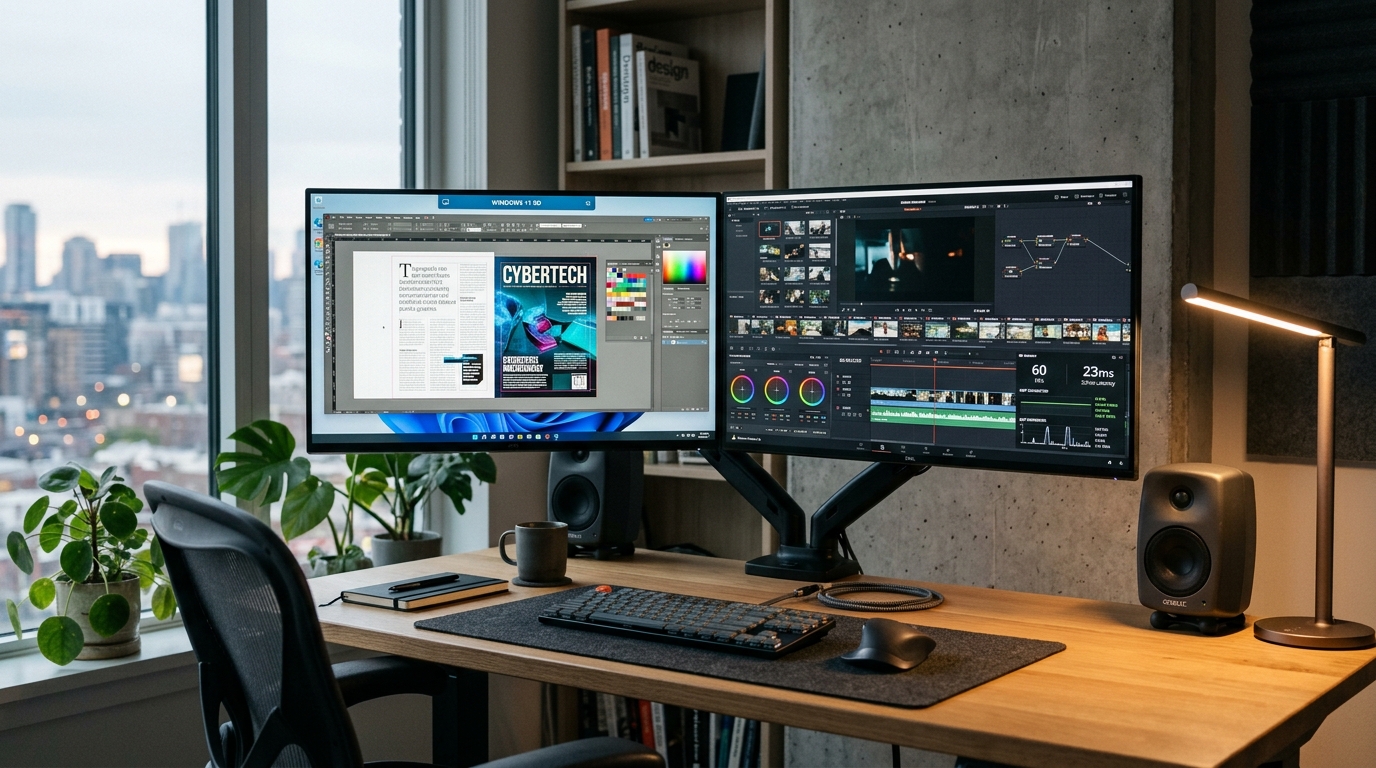
Digital creators, UI/UX designers, video editors, and software developers operating from Pakistan frequently depend on overseas Windows Remote Desktop (RDP) workstations hosted in European and North American data centers.[1] However, default Windows Server and Windows 11 Enterprise configurations introduce severe usability impediments across transcontinental routes.[1][3] By default, RDP caps Desktop Window Manager (DWM) frame delivery at 30 frames per second (FPS), compresses screen rasterization using lossy 4:2:0 chroma subsampling, and restricts packet transmission to single-stream TCP port 3389.[1][2]
When network packets traverse submarine cable paths between Karachi or Islamabad and datacenters in Frankfurt, London, or Virginia—imposing physical round-trip times (RTT) of 120 ms to 180 ms—standard TCP handshakes suffer from Head-of-Line (HoL) blocking.[2] A single dropped packet halts the entire display pipeline, causing perceptible mouse cursor freezing, jagged text rendering, and video frame drops.[2]
This technical guide provides an exhaustive engineering walkthrough to unlock true 60 FPS desktop fluidity, enable AVC444 (YUV 4:4:4 lossless chroma) hardware video acceleration, and activate UDP transport (MS-RDPEUDP) across residential Pakistani broadband providers.[1][2]
Core Performance Architecture: Default RDP vs. Tuned AVC444 UDP
The table below contrasts standard Windows Remote Desktop behavior with an optimized workstation pipeline configured for interactive digital production.[1][2]
| Operating Dimension | Standard Windows RDP Default | Optimized AVC444 + UDP Transport | Technical Advantage |
|---|---|---|---|
| Transport Layer | Strict TCP Port 3389 | Dual TCP + UDP 3389 (MS-RDPEUDP)[2] |
Eliminates TCP Head-of-Line blocking; zero cursor freeze during packet jitter |
| Chroma Subsampling | YUV 4:2:0 Lossy Subsampling | YUV 4:4:4 Full Chroma (AVC444 mode)[1] | Razor-sharp text, accurate color palettes in Figma, Photoshop, and CAD |
| Display Framerate | Hard-capped at 30 FPS | Hardware-synchronized 60 FPS[1] | Fluid cursor movement and smooth 60 Hz video playback |
| Encoding Pipeline | CPU-driven RemoteFX software compression | GPU-accelerated NVENC / AMD AMF / Intel QuickSync[1] | Relieves host CPU; sub-10ms frame encoding latency |
| Error Recovery | Full TCP Retransmission cycle | Forward Error Correction (FEC) & selective retransmission[2] | Tolerates up to 5% transcontinental packet loss without session degradation |
Step 1: Unlocking 60 FPS Display Refresh via Windows Registry
Windows Server and Windows 10/11 multi-session hosts throttle the Desktop Window Manager (DWM) frame generation rate to 30 FPS to minimize server-side virtual GPU utilization.[1] To unlock smooth 60 FPS rendering, add the DWMFrameRate registry directive.[1]
Open an administrative PowerShell prompt on your remote host:
# Set DWM display capture rate to 60 FPS (Decimal 60 = Hex 0x3c)
New-ItemProperty -Path "HKLM:\SYSTEM\CurrentControlSet\Control\Terminal Server\WinStations" `
  -Name "DWMFrameRate" -PropertyType DWord -Value 60 -Force

# Confirm registry parameter application
Get-ItemProperty -Path "HKLM:\SYSTEM\CurrentControlSet\Control\Terminal Server\WinStations" -Name "DWMFrameRate"
A value of 60 commands the terminal session’s compositor to capture and push desktop updates at 60 Hz, matching native client monitors.[1]
Step 2: Enforcing H.264/AVC 444 Chroma via Local Group Policy
Standard Remote Desktop protocols compress desktop graphics using YUV 4:2:0 subsampling, which halves horizontal and vertical color resolution.[1] This causes fine red and blue typography in code editors (VS Code, PhpStorm) and UI design software (Figma, Illustrator) to appear blurry with color bleed artifacts.[1]
Enabling AVC444 mode forces the encoder to process the entire YUV 4:4:4 color matrix with zero chroma subsampling.[1]
Group Policy Editor Configuration
Launch gpedit.msc and navigate to:
Computer Configuration \ Administrative Templates \ Windows Components \ Remote Desktop Services \ Remote Desktop Session Host \ Remote Session Environment
Configure the following policies:[1]
- Prioritize H.264/AVC 444 Graphics mode for Remote Desktop connections:
- Set to Enabled.
- Configure H.264/AVC hardware encoding for Remote Desktop connections:
- Set to Enabled.
- Configure compression for RemoteFX data:
- Set to Enabled, and select Optimized to use less network bandwidth.
- Use hardware graphics adapters for all Remote Desktop Services sessions:
- Set to Enabled (essential if your remote instance possesses an NVIDIA, AMD, or Intel discrete virtual GPU).
Equivalent PowerShell Registry Automation
Administrators managing headless servers or automating provisioning scripts can deploy these policies directly via PowerShell:[1]
$RegPath = "HKLM:\SOFTWARE\Policies\Microsoft\Windows NT\Terminal Services"
If (!(Test-Path $RegPath)) { New-Item -Path $RegPath -Force }

# Enable H.264 hardware encoding and AVC444 profile
Set-ItemProperty -Path $RegPath -Name "fEnableH264AMD" -Value 1 -Type DWord
Set-ItemProperty -Path $RegPath -Name "fEnableAVC444Mode" -Value 1 -Type DWord
Set-ItemProperty -Path $RegPath -Name "bEnumerateHWDuringInit" -Value 1 -Type DWord

# Trigger immediate Group Policy refresh
gpupdate /force
Step 3: Enabling UDP Transport (MS-RDPEUDP) across Cloud Firewalls
By default, Remote Desktop clients connect over TCP port 3389.[3] On transcontinental links from Pakistan (via PTCL, Nayatel, StormFiber, Transworld, or Jazz), residential connections frequently suffer 1% to 3% intermittent packet loss.[2] Under standard TCP, packet drops trigger congestion avoidance algorithms (such as Cubic or Reno), collapsing transmission windows and producing frozen frames.[2]
The RDP UDP Transport Extension (MS-RDPEUDP) isolates frame rendering from packet loss penalties.[2] It delivers real-time audio and input feeds via unreliable Datagram delivery while managing video stream updates with selective Forward Error Correction.[2]
+-----------------------------------------------------------------------------------+
| Transcontinental Network Path (Pakistan to Global Data Center, 140ms RTT)          |
+-----------------------------------------------------------------------------------+

Standard TCP Only:
Client (Pakistan) =======[ TCP Port 3389: Head-of-Line Stall on 1% Packet Loss ]======> Server
Result: Audio crackles, mouse cursor freezes for 280ms until TCP ACK/retransmission resolves.

Dual Transport (TCP + UDP Active):
Client (Pakistan) =======[ TCP: Initial TLS Handshake & Authentication (Port 3389) ]===> Server
Client (Pakistan) <======[ UDP: 60 FPS AVC444 Video & Real-Time FEC Stream ]========== Server
Result: Zero cursor lag; packet drops are instantly compensated without freezing screen.
Configuring Windows Defender Firewall for UDP 3389
Ensure that inbound UDP traffic on port 3389 is explicitly authorized on the remote host:[3]
# Verify or create Inbound Rule for RDP over UDP
New-NetFirewallRule -DisplayName "Remote Desktop - User Mode (UDP-In)" `
  -Direction Inbound -Protocol UDP -LocalPort 3389 `
  -Action Allow -Profile Any -Enabled True
Cloud Security Group Verification
In your cloud management portal (AWS, Azure, Hetzner, or dedicated provider firewall), you must ensure that Port 3389 UDP is permitted in addition to Port 3389 TCP.[3] If UDP is blocked at the perimeter edge, RDP will silently fall back to TCP-only mode without notification.[2]
Step 4: Verification and Telemetry Auditing
Once configured, verify that both AVC444 hardware acceleration and UDP transport are actively negotiating on your live connection.[1][2]
1. In-Session Visual Inspection
Look at the Remote Desktop connection title bar at the top of your screen:
- Click the Connection Quality icon (the signal bars).
- The dialog must read:
“The quality of the connection to the remote computer is excellent and UDP is enabled.”[2]
2. Inspecting the Event Viewer Operational Logs
Open eventvwr.msc on the remote server and navigate to:
Applications and Services Logs \ Microsoft \ Windows \ RemoteDesktopServices-RdpCoreTS \ Operational
Verify the following diagnostic events:[2]
- Event ID 131: “The server accepted a new UDP connection from client [IP:Port].” Confirms that UDP transport has been established.[2]
- Event ID 162: Confirms the negotiated client capabilities and graphic engine initialization.[1]
- Event ID 98: “A connection was established using RDP-UDP transport.”[2]
To audit these events instantly via PowerShell:
Get-WinEvent -LogName "Microsoft-Windows-RemoteDesktopServices-RdpCoreTS/Operational" -MaxEvents 15 |
  Where-Object { $_.Id -in 98, 131, 162 } |
  Select-Object TimeCreated, Id, Message |
  Format-Table -Wrap
Low-Latency Sovereign Hosting for Remote Teams
While network protocol optimizations mitigate transcontinental latency penalties, the fundamental law of physics dictates that packets traveling 6,000 kilometers across international subsea fiber cannot achieve the sub-10ms response times demanded by high-frequency trading bots, real-time audio mastering, and competitive workflows.[2]
For enterprises, design agencies, and financial operations seeking zero-latency performance, deploying on bare-metal dedicated server hosting and locally routed dedicated Pakistan servers provides direct interconnects with Pakistan Internet Exchange (PKIX) nodes in Islamabad and Karachi, delivering deterministic 4ms to 12ms ping times nationwide.
Accelerate Your Remote Desktop Workstations
Experience true local performance with unmetered high-bandwidth dedicated servers deployed in premier Pakistani and international datacenters with guaranteed hardware isolation.
Sources & Official References
-
Microsoft Learn — Performance Tuning Remote Desktop Session Hosts
Official Microsoft Windows Server engineering documentation detailing graphic encoder configuration, AVC444 mode tuning, DWM framerate thresholds, and hardware video offload.
-
Microsoft Learn — RDP Shortpath & UDP Transport Protocol Tuning
Official architecture reference for Remote Desktop Protocol UDP transport extension (MS-RDPEUDP), packet loss mitigation, round-trip latency optimization, and firewall requirements.
-
Microsoft Learn — Connect to Remote Desktop Services & Network Architecture
Official operational guide defining Remote Desktop port bindings, network security groups, firewall configurations, and client connectivity requirements.
