
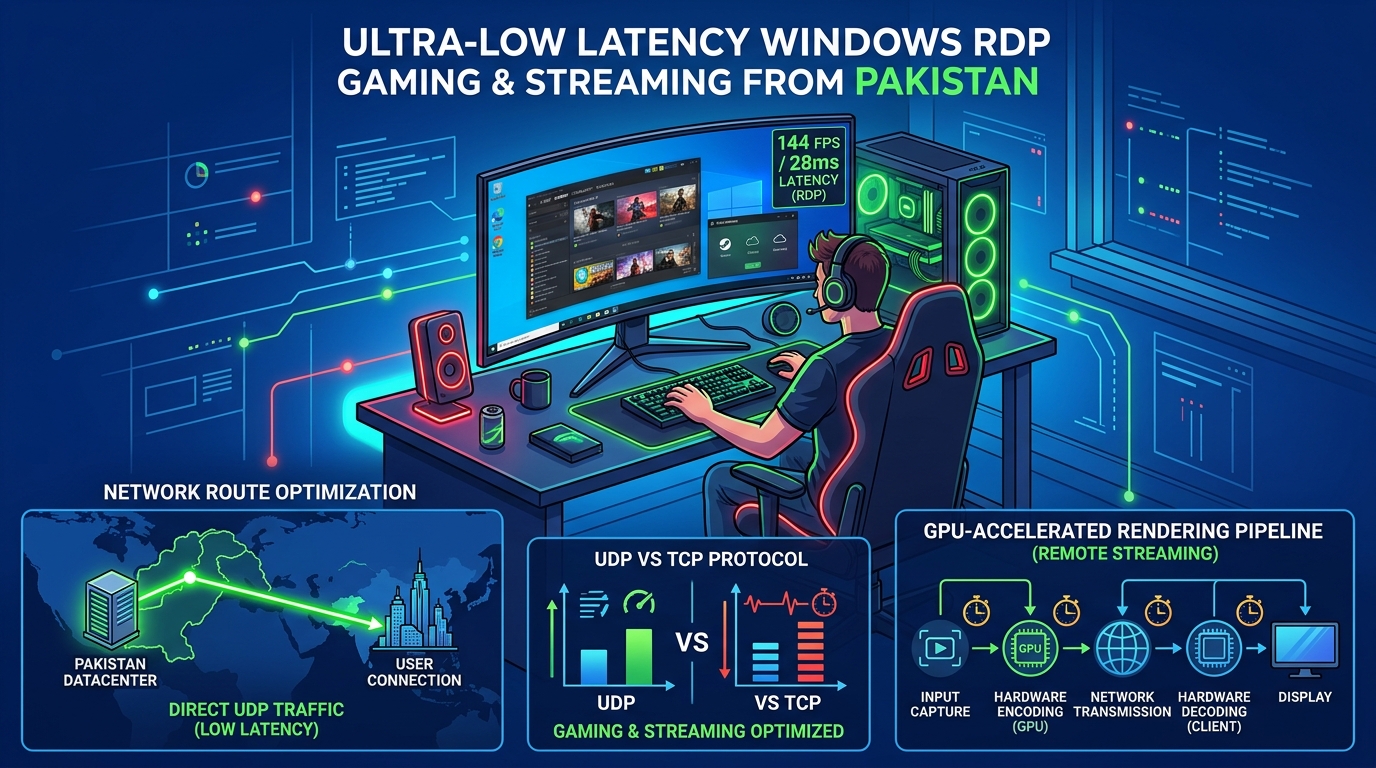
High-end PC gaming, Unreal Engine 5 development, and Blender 3D rendering require expensive dedicated GPU hardware. With high import duties, currency devaluation, and hardware prices in Pakistan, buying a flagship desktop with an RTX 4080 or RTX 4090 requires a substantial capital outlay.
Furthermore, remote digital artists and esports gamers who travel between cities face the frustration of leaving their workstation behind.
The modern solution is Self-Hosted Cloud Gaming via GPU-Accelerated RDP.
By hosting a high-performance Windows or Linux workstation equipped with a dedicated NVIDIA GPU on a high-bandwidth server, you can stream AAA games at 1440p 120 FPS directly to a low-spec laptop, iPad, or Android TV anywhere in Pakistan with virtually imperceptible input latency.
In this technical guide, we break down how to configure an open-source cloud gaming rig using Sunshine (Host) and Moonlight (Client) over local Pakistani ISP networks on Dedicated Servers in Pakistan.
The Latency Physics: Decoding the Cloud Gaming Pipeline
For cloud gaming to feel native, Total Motion-to-Photon Latency must stay below 35 milliseconds:
$$\text{Total Latency} = \text{Frame Capture} + \text{Hardware Encode (NVENC)} + \text{Network Round-Trip} + \text{Hardware Decode} + \text{Display Lag}$$
GPU Server (Datacenter)                              Client (Pakistan)
┌────────────────────────┐                          ┌────────────────────────┐
│ Render Frame (GPU)     │                          │ Network Packet Arrival │
│ Capture: Desktop Dupl. │                          │ Video Decode (NVDEC)   │
│ Encode: NVENC (1-3ms)  │                          │ Render to Screen       │
└───────────┬────────────┘                          └───────────▲────────────┘
            │                                                   │
            └──────► [Low-Latency UDP Stream (RTP)] ────────────┘
                     (PTCL / Nayatel / StormFiber)
Standard Windows Remote Desktop (RDP port 3389) is designed for office applications; it caps frame rates at 30–60 FPS and introduces noticeable mouse smoothing. In contrast, Sunshine + Moonlight streams raw video frames using UDP with zero-copy NVENC encoding, cutting display latency to the absolute minimum.
Step 1: Installing and Configuring Sunshine (Open-Source GameStream Host)
Sunshine is a self-hosted, open-source alternative to NVIDIA GameStream that supports NVIDIA, AMD, and Intel GPUs.
- Download the latest release from the Sunshine GitHub repository.
- Install the Sunshine Windows package as a system service.
- Access the Sunshine web management console at
https://localhost:47990and configure user credentials.
Optimal Encoder Settings for Low Latency:
In the Sunshine Web UI under Configuration > Audio/Video:
- Encoder:
NVIDIA NVENC (nvenc) - NVENC Preset:
P1 (Fastest / Lowest Latency) - Rate Control:
CBR (Constant Bitrate) - Video Codec:
HEVC (H.265)(Delivers 40% bandwidth reduction over H.264 at identical visual quality) - Minimum Bitrate:
25,000 Kbps (25 Mbps) - Maximum Bitrate:
50,000 Kbps (50 Mbps)
Step 2: Virtual Display Driver & Headless Display Emulation
Datacenter GPU servers typically operate without a physical monitor connected. Without an active display output, Windows will disable GPU desktop acceleration, defaulting to a basic 1024x768 software rasterizer.
To bypass this on cloud infrastructure:
- Install the open-source Virtual Display Driver (IddSampleDriver):
# Install Virtual Display Driver via PowerShell Invoke-WebRequest -Uri "https://github.com/itsmevn/virtual-display-driver/releases/download/v23.12.1/VirtualDisplayDriver.zip" -OutFile "C:\temp\vdd.zip" Expand-Archive "C:\temp\vdd.zip" -DestinationPath "C:\VirtualDisplay" - Configure
options.txtto enable high-refresh resolutions:# C:\VirtualDisplay\options.txt 1920, 1080, 60 1920, 1080, 120 2560, 1440, 120 - Windows will recognize a virtual monitor capable of native 1440p 120Hz output with full GPU acceleration!
Step 3: Moonlight Client Configuration in Pakistan
On your client device (Mac, Windows PC, or Android):
- Install the official Moonlight Game Streaming client.
- In Moonlight settings:
- Match the target resolution and frame rate to your client monitor (
2560x1440 @ 120 FPS). - Enable V-Sync only if you experience screen tearing; otherwise leave it off to minimize input lag.
- Set Bitrate Limit to
35 Mbps(optimal for domestic Pakistani fiber lines).
- Match the target resolution and frame rate to your client monitor (
- Pair the client with the server by entering the 4-digit PIN generated by Sunshine.
Network Optimization for Pakistani ISPs (PTCL, Nayatel, StormFiber)
When hosting your GPU rig in a local Karachi or Lahore datacenter on Dedicated Servers in Pakistan:
- Local Network Round-Trip: Typical domestic latency over Nayatel or StormFiber to local datacenters is just 4ms to 12ms.
- Packet Loss Mitigation: Configure Moonlight’s Packet Pacing to
Balancedto prevent jitter on high-concurrency home Wi-Fi networks. - Port Forwarding: Ensure UDP ports
47998,47999, and48000are allowed through the host firewall.
For 3D artists, game developers, and competitive gamers, building a cloud GPU workstation on Dedicated Servers provides uncompromised performance and the flexibility to create from anywhere.
Deploy Dedicated GPU Workstations & Cloud Rigs in Pakistan
Stream AAA games, render 3D animation, and train AI models with dedicated hardware. NextGen GPU Dedicated Servers feature high-end NVIDIA graphics cards, NVMe Gen4 arrays, and direct local fiber peering across Pakistan.
