
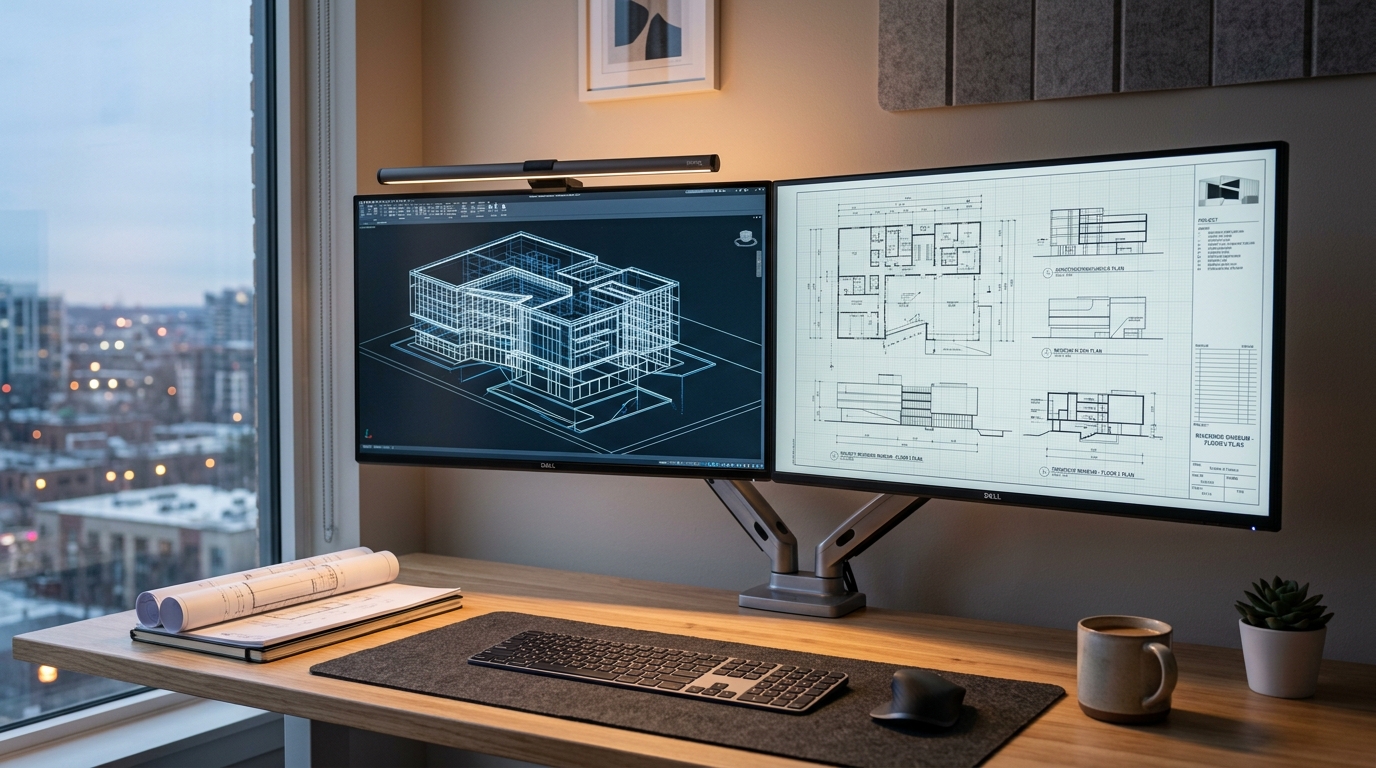
Operating computer-aided design (CAD), Building Information Modeling (BIM), and high-poly 3D rendering suites locally in Pakistan presents steep capital expenditure barriers. With persistent currency depreciation against the US Dollar, stringent import levies on high-end computer components, and steep retail margins, procuring a bare-minimum physical engineering workstation equipped with an NVIDIA RTX 4080 or RTX 5000 Ada Generation GPU routinely surpasses PKR 850,000 to PKR 1,200,000.
Compounding these acquisition costs are localized infrastructural challenges: thermal throttling during extended summer ambient temperatures, rotational power load-shedding, and the recurring battery degradation of 2 kVA to 3 kVA online UPS systems required to prevent workstation shutdowns during prolonged Revit project exports.
To circumvent local hardware depreciation, Pakistani engineering consultancies, BIM modelers, and freelance visualization specialists on Upwork and Fiverr are migrating production compute to remote GPU-accelerated Windows environments. When configured properly, modern Remote Desktop Protocol (RDP) delivers hardware-accelerated DirectX and OpenGL viewports, native H.264/AVC 4:4:4 chroma subsampling, and up to 60 frames per second (FPS) interactive orbital panning from modest Core i5 laptops or thin clients.
This technical guide details the end-to-end architecture required to deploy, optimize, and operate an enterprise GPU-accelerated Windows RDP workstation tailored for AutoCAD, Autodesk Revit, 3ds Max, and Lumion over Pakistani broadband networks.
Workstation Economics: Local Hardware Procurement vs. Cloud GPU Infrastructure
For architectural studios in Lahore, Islamabad, and Karachi, shifting from local hardware procurement to dedicated cloud instances alters project financial mechanics from high upfront capital expenditure (CapEx) to flexible operational expenditure (OpEx).
| Metric / Dimension | On-Premise Physical Workstation (Karachi/Lahore) | Dedicated GPU Cloud Workstation |
|---|---|---|
| Initial Capital Outlay | PKR 850,000 - 1,250,000 (Hardware + Tax + Duty) | PKR 0 (Zero hardware procurement) |
| Power & Auxiliary Backup | 3 kVA Online Pure Sine Wave UPS + Battery (PKR 180,000) | 100% Datacenter Tier-III N+1 Redundancy |
| Thermal & Duty Cycle | Ambient 38°C–44°C room temps accelerate thermal throttling | Climate-controlled datacenter racks (18°C–21°C constant) |
| Upgrade Flexibility | Difficult resale; manual part replacements; customs delays | Instant scale-up of vCPUs, RAM, and NVMe allocations |
| Client Data Redundancy | Local RAID-1 vulnerable to theft, surges, and mechanical failure | Enterprise NVMe SAN storage with automated offsite snapshots |
| Foreign Billing Offset | Depreciating rupee asset with fixed local overhead | Directly deductible operating expense against USD/GBP client billings |
By deploying bare-metal or virtualized GPU resources via Dedicated Servers, firms retain predictable monthly overhead while delivering viewport interactivity indistinguishable from local hardware.
Architectural Foundation: Bare-Metal GPU vs. Hyper-V Discrete Device Assignment (DDA)
Standard Windows Remote Desktop connections run on a synthetic, CPU-emulated display driver (the Microsoft Remote Display Adapter). While sufficient for basic spreadsheet manipulation or accounting software, this emulated display pipeline executes all graphics calculations on the host CPU. Under Autodesk Revit or AutoCAD, CPU emulation causes catastrophic viewport drops (often dipping below 5 FPS during complex wireframe rotations) and complete rendering crashes in GPU-only engines like Lumion and OctaneRender.
Delivering genuine workstation performance over RDP requires direct physical GPU access, which can be achieved via two enterprise virtualization paradigms:
+---------------------------------------------------------------+
|                      PHYSICAL SERVER HOST                     |
|                                                               |
|  [ Multi-Core Xeon / EPYC CPU ]     [ Enterprise PCIe GPU ]   |
+---------------------------------------------------------------+
                               |
              +----------------+----------------+
              |                                 |
              v                                 v
   [ Bare-Metal Deployment ]       [ Hyper-V DDA Virtualization ]
   Direct OS Installation          PCIe Device Unmounted from Host
   Zero hypervisor overhead        Mapped 1:1 to Dedicated Guest VM
   Full driver ecosystem           Near-native PCIe Gen 4/5 bus speed
              |                                 |
              +----------------+----------------+
                               |
                               v
+---------------------------------------------------------------+
|                    WINDOWS SERVER / 11 GUEST                  |
|                                                               |
|  [ Native NVIDIA Studio Drivers ]   [ DirectX 12 / OpenGL 4.6 ]
|  [ Hardware NVENC Video Engine ]    [ 60 FPS DWM Pipeline ]   |
+---------------------------------------------------------------+
                               |
                               | (RDP over UDP 3389 / AVC 4:4:4)
                               v
+---------------------------------------------------------------+
|               CLIENT WORKSTATION IN PAKISTAN                  |
|          StormFiber / Nayatel / PTCL Fiber (Sub-35ms)         |
+---------------------------------------------------------------+
1. Bare-Metal GPU Host Deployment
In this configuration, Windows Server 2022 or Windows 11 Enterprise runs natively on physical server hardware equipped with dedicated graphics cards (such as the NVIDIA RTX 4000/5000 Ada or GeForce RTX series). Because there is no intervening virtualization layer, the operating system directly accesses PCIe hardware channels, native NVIDIA Studio or Quadro drivers, and Vulkan/DirectX runtimes. This configuration provides the lowest possible latency and maximum computational throughput for compute-intensive Lumion rendering sessions.
2. Hyper-V Discrete Device Assignment (DDA)
When multiple isolated environments or mixed tenant workloads are required, Microsoft’s Discrete Device Assignment (DDA) passes a physical PCIe device directly through the Hyper-V hypervisor into a designated guest virtual machine. Unlike legacy RemoteFX vGPU (which was deprecated due to architectural security vulnerabilities), DDA gives the guest VM 1:1 control over the physical GPU silicon, unlocking hardware-accelerated NVENC video pipelines without hypervisor abstraction overhead.
To configure DDA for an engineering VM using administrative PowerShell on the host:
# 1. Identify the physical PCIe GPU location path
$GPU = Get-PnpDevice -Class "Display" | Where-Object { $_.FriendlyName -like "*NVIDIA*" }
$LocationPath = (Get-PnpDeviceProperty -InstanceId $GPU.InstanceId -KeyName 'DEVPKEY_Device_LocationPaths').Data[0]

# 2. Disable the physical device on the host partition
Disable-PnpDevice -InstanceId $GPU.InstanceId -Confirm:$false

# 3. Dismount the GPU from the host operating system
Dismount-VMHostAssignableDevice -LocationPath $LocationPath -Force

# 4. Configure Guest VM memory boundaries (required for 64-bit BAR allocation)
Set-VM -VMName "BIM-Workstation-VM" -AutomaticStopAction TurnOff
Set-VM -VMName "BIM-Workstation-VM" -GuestControlledCacheTypes $true -LowMemoryMappedIoSpace 3Gb -HighMemoryMappedIoSpace 33280Mb

# 5. Assign the PCIe device directly to the guest VM
Add-VMAssignableDevice -VMName "BIM-Workstation-VM" -LocationPath $LocationPath
Once assigned, boot the virtual machine and install the official NVIDIA Studio or Production Branch Enterprise drivers inside the guest OS. Verify in Windows Device Manager that the GPU displays cleanly under Display Adapters without Code 12 or Code 43 driver halt errors.
Configuring Group Policy for H.264/AVC 4:4:4 Hardware Compression
By default, the Windows Remote Desktop Session Host encodes the screen buffer using baseline RemoteFX codecs with heavy 4:2:0 chroma subsampling. In engineering applications, 4:2:0 subsampling severely degrades line quality: crisp 0.15mm vector lines in AutoCAD blur against contrasting backgrounds, tiny dimensions in architectural floor plans exhibit colored artifact halos, and gray wireframes in Revit appear visibly jagged.
To eliminate image artifacting and pass screen rendering duties to the GPU’s hardware video encoder (NVENC), enforce the following policies in the Local Group Policy Editor (gpedit.msc).
Navigate to:
Computer Configuration > Administrative Templates > Windows Components > Remote Desktop Services > Remote Desktop Session Host > Remote Session Environment
+---------------------------------------------------------------------------------------------------+
| GROUP POLICY OBJECT SETTINGS: REMOTE SESSION ENVIRONMENT                                          |
+-----------------------------------------------------------------------------------+---------------+
| Policy Setting Name                                                               | Configuration |
+-----------------------------------------------------------------------------------+---------------+
| Use hardware graphics adapters for all Remote Desktop Services sessions           | Enabled       |
| Prioritize H.264/AVC 444 Graphics mode for Remote Desktop Connections             | Enabled       |
| Configure H.264/AVC hardware encoding for Remote Desktop Connections              | Enabled       |
| Configure image quality for Remote Desktop Connections                            | Enabled (High)|
| Enable Remote Desktop app share and display frame rate tuning                      | Enabled       |
+-----------------------------------------------------------------------------------+---------------+
Detailed Group Policy Directives:
-
Use hardware graphics adapters for all Remote Desktop Services sessions:
Set toEnabled. Forces Windows Session Manager to bind the DWM (Desktop Window Manager) directly to the physical GPU rather than falling back to the software-emulated WARP (Windows Advanced Rasterization Platform) engine. -
Prioritize H.264/AVC 444 Graphics mode for Remote Desktop Connections:
Set toEnabled. Forces the RDP server to transmit video frames in full YUV 4:4:4 color space. Every pixel retains its distinct chroma and luma values, ensuring that hairline CAD linework, Revit elevation tags, and dense text annotations remain sharp without fringing. -
Configure H.264/AVC hardware encoding for Remote Desktop Connections:
Set toEnabled. Instructs the RDP subsystem to utilize the dedicated hardware ASIC on the graphics card (NVIDIA NVENC) to encode display packets, freeing up host CPU cores for structural calculations and background compilation.
To apply these directives across the operating system immediately, execute in an elevated Command Prompt:
gpupdate /forceOverriding the Default 30 FPS Cap: Windows Registry Tuning
Even with a dedicated GPU and hardware encoding active, Microsoft limits standard RDP frame delivery to 30 frames per second to preserve network bandwidth in conventional office scenarios. For 3D modelers navigating orbital perspectives in 3ds Max or panning across complex multi-layered DWG files, 30 FPS introduces noticeable visual input lag and spatial disorientation.
You can unlock smooth 60 FPS viewport streaming by adjusting the Desktop Window Manager refresh interval in the Windows Registry.
Applying the 60 FPS Registry Patch
Open an elevated PowerShell session and apply the following registry modifications:
# Set DWM frame interval to ~60 FPS (15 milliseconds per frame refresh)
New-ItemProperty -Path "HKLM:\SYSTEM\CurrentControlSet\Control\Terminal Server\WinStations" `
    -Name "DWMFrameInterval" -PropertyType DWord -Value 15 -Force

# Optimize remote mouse input queue to reduce cursor trailing
Set-ItemProperty -Path "HKCU:\Control Panel\Mouse" -Name "MouseSpeed" -Value 0
Set-ItemProperty -Path "HKCU:\Control Panel\Mouse" -Name "MouseThreshold1" -Value 0
Set-ItemProperty -Path "HKCU:\Control Panel\Mouse" -Name "MouseThreshold2" -Value 0

# Prevent dynamic frame dropping during intensive redraws
New-ItemProperty -Path "HKLM:\SOFTWARE\Policies\Microsoft\Windows NT\Terminal Services" `
    -Name "SelectTransport" -PropertyType DWord -Value 1 -Force
Note: A DWMFrameInterval value of 15 (decimal) configures the DWM rendering loop to cycle approximately every 15 milliseconds, producing an effective screen output rate of 66.6 FPS, perfectly synchronizing with standard 60 Hz client displays.
Application-Specific Viewport Optimizations
Enterprise engineering software utilizes distinct rendering engines. The following adjustments ensure each package utilizes the hardware-accelerated remote desktop pipeline without falling back to software emulation.
1. Autodesk AutoCAD (DWG / Civil 3D)
AutoCAD incorporates a dedicated hardware acceleration engine that must be explicitly verified within the remote session:
- Launch AutoCAD and type
GRAPHICSCONFIGin the command line. - In the Graphics Performance dialogue, verify that Hardware Acceleration is toggled to ON.
- Under 2D Display Settings, set the mode to Advanced Mode with Smooth Line Display checked.
- Under 3D Display Settings, ensure the driver is recognized as DirectX 12 or DirectX 11 showing the assigned NVIDIA GPU model.
- In the command console, enter
GPUTHREADINGand set the value to1to enable multi-threaded draw list generation across available CPU cores.
+---------------------------------------------------------------------+
| AUTOCAD GRAPHICS PERFORMANCE CONFIGURATION                          |
+---------------------------------------------------------------------+
| [X] Hardware Acceleration: ON                                       |
|     Active Driver: NVIDIA RTX 4000 Ada (DirectX 12 Runtime)         |
|                                                                     |
| 2D Display Options:                                                 |
|   (*) Advanced Mode (High-fidelity vector geometry)                 |
|   [X] Smooth Line Display                                           |
|   [X] High Quality Geometry                                         |
|                                                                     |
| 3D Display Options:                                                 |
|   [X] Advanced Material Effects                                     |
|   [X] Full Shadow Display                                           |
+---------------------------------------------------------------------+
2. Autodesk Revit (BIM Modeling)
Revit’s viewport relies heavily on Direct3D for view regeneration across plan, section, and 3D orthographic projections:
- In Revit, navigate to
File>Options>Hardware. - Ensure Use hardware acceleration (Direct3D) is enabled.
- Check the box for Draw visible elements only to minimize the rendering overhead of geometry occluded behind solid walls in complex structural models.
- If working with large projects (over 250 MB RVT models), navigate to
Graphicsand ensure Smooth lines with anti-aliasing is set to Use for all views (caution: performance impact minimized via remote GPU).
3. Autodesk 3ds Max
3ds Max uses the high-performance Nitrous viewport system:
- Go to
Customize>Preferences>Viewports. - Click Choose Driver under Display Drivers and confirm Nitrous Direct3D 11 (Recommended) is active.
- Under Nitrous Quality Settings, set Rendering Level to Shaded during interactive modeling sessions and toggle Ambient Occlusion to Off during viewport panning to eliminate frame-time spikes.
4. Lumion & Headless Display Emulation
Lumion requires an active display output handshake with the graphics card; on headless cloud servers lacking an attached physical monitor, Lumion may display a black screen or fail hardware benchmark checks.
To solve this on bare-metal servers or DDA environments, install a lightweight Virtual Display Driver (such as the open-source IddSampleDriver or enterprise virtual monitor driver) configured for 2560x1440 at 60 Hz. This tricks the display stack into maintaining an active frame buffer, allowing Lumion’s real-time engine to compute lighting passes without interruption.
Network Engineering for Pakistani ISPs (StormFiber, Nayatel, PTCL)
Even an optimized server will feel sluggish if network packets between the local machine in Pakistan and the remote server experience jitter or excessive transit delays.
+--------------------------------------------------------------------+
|               INTERACTIVE LATENCY THRESHOLDS OVER RDP              |
+-----------------------+-------------------+------------------------+
| One-Way Ping (RTT)    | Viewport Feel     | Engineering Feasibility|
+-----------------------+-------------------+------------------------+
| 5ms - 35ms            | Local-like        | Native 3D Modeling/BIM |
| 35ms - 75ms           | Near-instant      | Full CAD / Architectural|
| 75ms - 130ms          | Mild mouse inertia| Drafting / Batch Render|
| > 150ms               | Noticeable drag   | Impractical for 3D     |
+-----------------------+-------------------+------------------------+
1. Domestic vs. International Server Routing
- Domestic Hosting (Dedicated Servers in Pakistan): Deploying hardware locally within tier-3 facilities in Karachi or Islamabad provides round-trip latency of 8ms to 28ms across local fiber operators like StormFiber, Nayatel, Transworld, and PTCL Flash Fiber. This delivers a responsive, zero-lag experience for high-density BIM collaboration.
- European / Middle Eastern Datacenters: If cost considerations lead you toward international cloud instances (e.g., Frankfurt, London, or Dubai), ensure routing passes cleanly through subsea cables (SMW4, SMW5, or AAE-1). Pakistan-to-Europe routes average 105ms to 125ms, while UAE/Middle East routes sit between 38ms to 55ms.
2. Forcing RDP over UDP (Port 3389 UDP)
Standard RDP operates over TCP, which forces packet retransmission upon packet loss. On domestic broadband experiencing brief Wi-Fi or line fluctuations, TCP retransmission causes the remote screen to freeze momentarily before catching up.
RDP 8.0+ includes an advanced UDP transport engine that streams video frames asynchronously. If a packet drops during viewport rotation, the client simply receives the next incoming frame without halting the interface.
To ensure UDP is active:
- Verify UDP port 3389 is open through your host’s firewall and cloud security groups.
- Inside your active RDP session, look at the connection bar at the top of the screen: click the signal icon. It must state: “The quality of the connection to the remote computer is good and UDP is enabled.”
3. Local QoS Configuration on MikroTik / SOHO Routers
To prevent family video streaming or local downloads from interfering with your CAD workstation packets, add a Quality of Service (QoS) rule on your local router to prioritize outbound traffic to your server’s IP address. Assign RDP traffic a DSCP value of 46 (Expedited Forwarding) to ensure interactive drawing commands bypass local network queues.
Multi-Monitor Engineering Setup
Architects and engineers depend heavily on dual-display setups: viewing technical 2D floor plans or detailing schedules on one screen while rotating 3D axonometric perspectives on the other.
To launch a native dual-screen session over RDP:
- Open
mstsc.exe(Remote Desktop Connection) and click Show Options. - Navigate to the Display tab.
- Check the box labeled Use all my monitors for the remote session.
+-------------------------------------------------------------+
| REMOTE DESKTOP CONNECTION - MULTI-MONITOR CONFIGURATION     |
+-------------------------------------------------------------+
| Display configuration                                       |
| [X] Use all my monitors for the remote session              |
|                                                             |
| Colors:                                                     |
| [ Highest Quality (32 bit)                            | v ] |
|                                                             |
| Remote session display controls:                            |
| [X] Display the connection bar when I use the full screen   |
+-------------------------------------------------------------+
Advanced Multi-Monitor Tuning via .rdp Configuration File
For setups utilizing mixed resolutions (e.g., a 4K primary monitor paired with a 1080p secondary reference screen), save your connection profile as an .rdp file, open it in a text editor, and configure the following parameters:
use multimon:i:1
selectedmonitors:s:0,1
span:i:0
smart sizing:i:0
dynamic resolution:i:1
bitmapcachepersistenable:i:1
audiomode:i:0
camerastoredirect:s:*
devicestoredirect:s:*
dynamic resolution:i:1ensures that dragging Revit windows across displays automatically rescales interface ribbons without causing blurry text scaling artifacts.bitmapcachepersistenable:i:1stores static interface assets (such as tool palettes and ribbon icons) in your local client RAM, saving precious bandwidth exclusively for viewport frame changes.
High-Performance Production Workflows Compared
When selecting your infrastructure foundation for structural engineering and architectural drafting, match your workload against the following tier specifications:
+----------------------------------------------------------------------------------------------------+
| NEXTGEN INFRASTRUCTURE PROFILES FOR CAD / BIM / 3D RENDERING WORKFLOWS                             |
+----------------------------+-----------------------+-----------------------+-----------------------+
| Hardware Spec / Metric     | Entry 2D / 3D CAD     | Heavy BIM & Revit     | Photoreal Visualization|
+----------------------------+-----------------------+-----------------------+-----------------------+
| Primary Software           | AutoCAD, Civil 3D,    | Revit, Navisworks,    | Lumion 2024, 3ds Max, |
|                            | SketchUp Pro          | Rhino 3D, Tekla       | V-Ray, Unreal Engine 5|
| Recommended Infrastructure | High-Memory Cloud VPS | Dedicated GPU Server  | Bare-Metal GPU Host   |
| vCPU Allocation            | 8 Dedicated vCPUs     | 16 - 32 vCPUs         | 32+ AMD EPYC Cores    |
| Dedicated RAM              | 16 GB - 32 GB DDR4/5  | 64 GB - 128 GB ECC    | 128 GB - 256 GB ECC   |
| GPU Acceleration           | vGPU Shared / GTX     | Dedicated RTX 4000 Ada| Dual RTX 4090 / A5000 |
| Storage Array              | NVMe RAID-1           | Enterprise PCIe 4 NVMe| Dual NVMe U.2 Striped |
| Recommended Plan           | [VPS Hosting](/servers/vps-pk)| [Dedicated Servers](/servers/dedicated) | [Dedicated PK](/servers/dedicated-Pakistan)|
+----------------------------+-----------------------+-----------------------+-----------------------+
Practical Deployment Checklist
Before initiating production engineering projects on your remote setup, run through this verification checklist:
- Verify Display Adapter Binding: Open Windows Task Manager on the remote workstation, navigate to the Performance tab, and confirm that both 3D load and Video Encode (NVENC) register activity during 3D model rotation.
- Confirm YUV 4:4:4 Transmission: In the remote session, view thin diagonal lines against solid background fills (such as an architectural hatching pattern). The lines should appear crisp and uniformly colored without chromatic aberration.
- Validate Frame Rates: Run a lightweight utility like Fraps or the DirectX diagnostic overlay inside the remote session during 3D orbit operations. The frame counter should hit 55 to 60 FPS.
- Audit Session Persistence: Ensure that your remote session preserves active work states upon disconnection. Closing the RDP window should leave long background renders and computational simulations running undisturbed in the background.
By coupling dedicated GPU computing power with finely tuned RDP session parameters, Pakistani engineers can eliminate local hardware limitations, sidestep hefty import taxes, and deliver world-class architectural and structural projects efficiently to clients worldwide.
Related Remote Computing & Systems Infrastructure Guides
Expand your architectural knowledge of remote desktop and server optimization:
- Dedicated RDP vs Shared RDP: Architecture & Performance Comparison
- Windows RDP Server in Pakistan: Performance Tuning & Security
- Bypassing Freelance Platform IP Inconsistencies Using Clean Dedicated Infrastructure
Deploy Dedicated GPU Infrastructure for CAD & 3D Rendering
Eliminate local hardware limitations and bypass high import duties. Deploy bare-metal and high-performance virtualized Windows workstations equipped with enterprise NVIDIA GPUs, pure NVMe storage, and low-latency connectivity across Pakistan.
