
Hosting an Automated MT4/MT5 Forex Trading Terminal on a Windows Server RDP
In the fast-paced world of Forex trading, milliseconds can mean the difference between a highly profitable trade and a significant loss. As algorithmic trading and Expert Advisors (EAs) continue to gain massive popularity among Pakistani traders, running your trading terminal on a local PC is no longer a viable option due to power outages, internet instability, and hardware constraints.
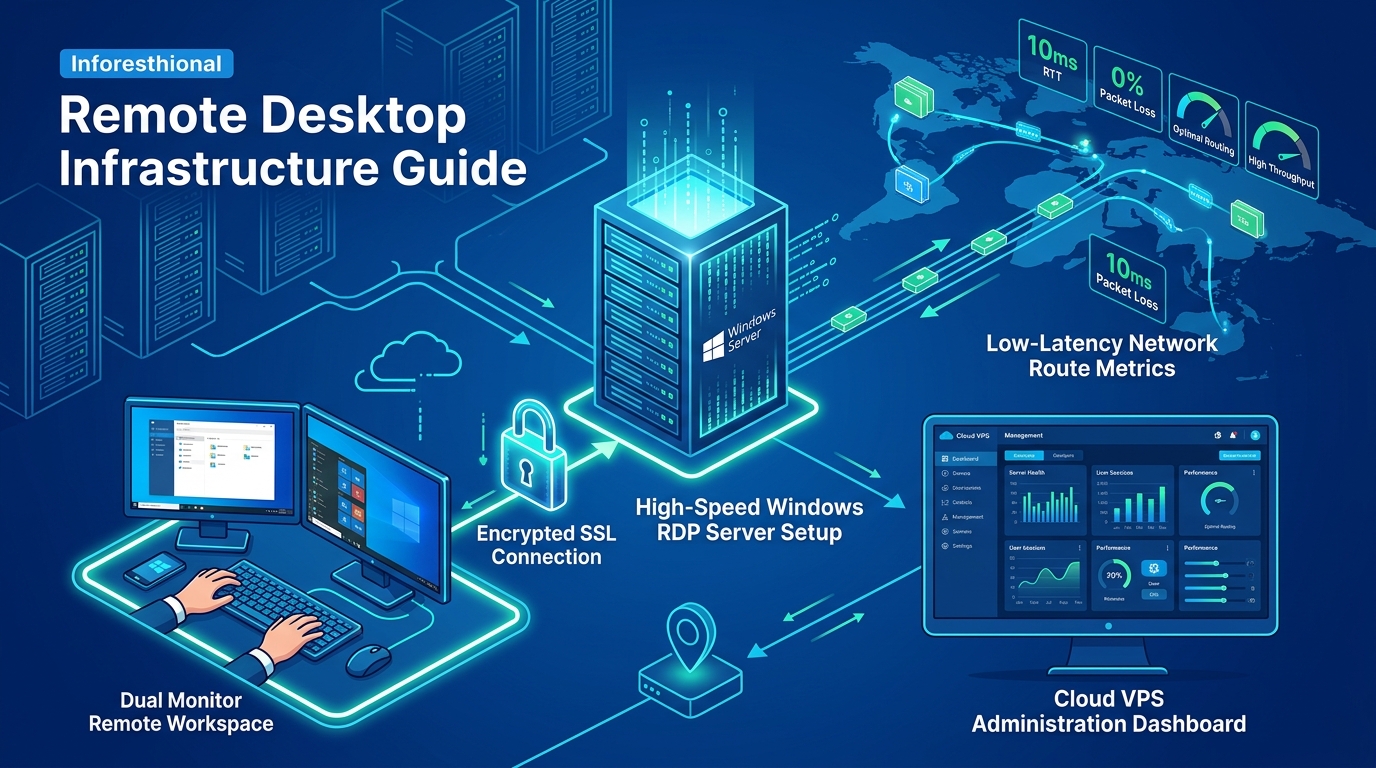
To achieve 24/7 uptime, ultra-low latency execution, and a stable environment for your algorithms, hosting your MetaTrader 4 (MT4) or MetaTrader 5 (MT5) terminal on a Windows Server RDP (Remote Desktop Protocol) is the industry standard.
In this comprehensive guide, we will walk you through everything you need to know to set up, optimize, and manage an automated MT4/MT5 forex trading terminal on a Windows RDP.
Why Host Your Trading Terminal on a Windows RDP?
When trading forex using EAs, your terminal must be connected to the broker’s server constantly. Here are the core benefits of migrating from a local PC to a Windows Server RDP:
- 100% Uptime and Stability: Forget about load-shedding or sudden ISP disconnects. Data centers provide redundant power and enterprise-grade internet connectivity.
- Ultra-Low Latency: Hosting your MT4/MT5 terminal on a server located physically closer to your broker’s data center (e.g., London or New York) reduces execution latency from hundreds of milliseconds to under 5ms, minimizing slippage.
- Hardware Independence: Free up your local computer’s resources while the RDP handles the continuous heavy lifting.
- Anywhere Access: Securely access your trading terminal via RDP from your smartphone, tablet, or laptop, anywhere in the world.
For larger institutional setups or traders running dozens of simultaneous MT4/MT5 terminals and intensive historical backtesting, standard VPS plans may hit resource limits. In such high-demand scenarios, you require the unmetered bandwidth, isolated resources, and multi-core power of bare-metal Dedicated Servers, or specifically Dedicated Servers in Pakistan if you prioritize local low-latency routing and localized IP addresses.
Step 1: Choosing the Right Windows Server RDP
To run MetaTrader smoothly, you need a robust Windows RDP with adequate specifications.
Minimum System Requirements for a Single Terminal:
- OS: Windows Server 2019 or 2022.
- CPU: 2 vCPU Cores.
- RAM: 2 GB to 4 GB RAM.
- Storage: 40 GB NVMe SSD (Avoid older SATA/HDD storage to ensure fast read/write speeds for log files).
Note: If you plan to run multiple terminals or extremely complex EAs, allocate approximately 1 GB of RAM and 1 CPU core per additional terminal.
Step 2: Accessing Your Windows RDP
Once you’ve purchased your Windows RDP, you will receive an IP Address, Username (usually Administrator), and a Password.
- On Windows: Open the Remote Desktop Connection app (search for
mstscin the Start menu). - On Mac: Download the Microsoft Remote Desktop app from the App Store.
- On Android/iOS: Download the Remote Desktop app by Microsoft.
Enter your server’s IP address, hit connect, and provide your credentials. You will now be greeted by a standard Windows desktop environment.
Step 3: Installing MT4 or MT5
- Download the Installer: Open Microsoft Edge or Google Chrome on your RDP and download the MT4/MT5 installer from your specific broker’s website. Using your broker’s branded terminal ensures optimal server pre-configuration.
- Run the Installer: Double-click the
.exefile. - Custom Installation (Optional but Recommended): If you plan to install multiple instances of MT4/MT5 (to trade different accounts simultaneously), click on Settings during the installation prompt. Change the installation folder name (e.g.,
C:\Program Files\MetaTrader 5 - Account 1).
Step 4: Configuring and Optimizing the Terminal
Running MetaTrader on a server is slightly different from a local desktop. You must optimize it to consume fewer resources, ensuring your EAs run flawlessly without system lag.
1. Disable Unnecessary Chart Features
Every open chart consumes CPU and RAM.
- Close all charts except the ones your EA is actively trading on.
- Press
F8to open Chart Properties. Disable Show OHLC, Show Ask Line, and Show Period Separators if your EA does not explicitly require them for visual confirmation.
2. Reduce Max Bars in History
By default, MT4/MT5 saves an enormous amount of historical data on your charts, which eats up RAM.
- Go to Tools > Options > Charts.
- Change Max bars in history and Max bars in chart from
100000to a much lower number like5000or10000. - Restart the terminal for changes to take effect.
3. Disable News and Audio Alerts
News updates and sound alerts are irrelevant for algorithmic trading and cause unnecessary network and CPU spikes.
- Go to Tools > Options > Server and uncheck Enable News.
- Go to Tools > Options > Events and uncheck Enable.
Step 5: Installing and Automating Your Expert Advisor (EA)
- Open your MT4/MT5 terminal.
- Go to File > Open Data Folder.
- Navigate to
MQL4 > Experts(for MT4) orMQL5 > Experts(for MT5). - Paste your EA file (
.ex4or.ex5) into this folder. - In the terminal’s Navigator panel, right-click on Expert Advisors and select Refresh. Your EA should now appear in the list.
- Drag and drop the EA onto your desired chart.
- Crucially, ensure the Auto Trading (MT4) or Algo Trading (MT5) button on the top toolbar is turned ON (the icon should have a green play symbol).
- In the EA’s settings popup, ensure Allow live trading and Allow DLL imports (if required by your EA) are checked.
Step 6: Ensuring Auto-Start After Reboots
While RDP servers have incredible uptimes, occasional restarts for mandatory Windows Server updates do happen. If the server reboots, your MT4/MT5 terminal will not automatically start, potentially causing you to miss trades.
To fix this, we will add the terminal to the Windows Startup folder:
- Press
Win + Ron the RDP, typeshell:startup, and press Enter. - Locate the shortcut for your MT4/MT5 terminal on your desktop.
- Copy the shortcut and paste it into the
Startupfolder you just opened. - Pro Tip: Configure your Windows Server to automatically log in the Administrator account upon boot using the
netplwizcommand, ensuring the startup folder executes without manual intervention.
Conclusion
Hosting your MT4/MT5 terminals on a Windows Server RDP provides the robust infrastructure needed to compete in modern financial markets. With ultra-low latency, 100% uptime, and complete isolation, your algorithmic trading bots will run exactly as intended, 24 hours a day, 5 days a week.
Whether you are testing a single EA on a basic RDP or running complex multi-account infrastructure on bare-metal servers, prioritizing server stability is the very first step toward automated trading profitability.
Related In-Depth Technical Guides & Reading
- Automated Crypto & Forex Trading Bots: Low-Latency RDP Architecture for Pakistani Traders – Detailed architectural analysis and best practices for rdp workloads.
- How to Run 24/7 Live Crypto Trading Bots (Gunbot/HaasOnline) on a Windows RDP – Detailed architectural analysis and best practices for rdp workloads.
- Why You Need a Low-Latency RDP for Forex Trading (MT4/MT5) in Pakistan – Detailed architectural analysis and best practices for rdp workloads.
Official Nextgen Windows RDP Server Pricing Plans
All Nextgen Windows RDP servers feature enterprise AMD EPYC and Intel Xeon high-frequency compute cores, enterprise NVMe SSD storage in RAID arrays, unmetered 1Gbps bandwidth, and direct local payment support via JazzCash, EasyPaisa, and bank transfer.
1. Global Admin Windows RDP Servers (Tier-1 International Routing)
Optimized for global freelance client work, international e-commerce platforms, automated trading bots, and heavy multi-threaded tools.
| Plan Name | vCPU Cores | Dedicated RAM | NVMe SSD Storage | Bandwidth | Monthly Price (PKR) | Order Link |
|---|---|---|---|---|---|---|
| RDP Basic | 2 vCPU | 4 GB ECC | 40 GB NVMe | 20 TB (1Gbps) | Rs. 4,489 /mo | Deploy RDP Basic → |
| RDP Power | 4 vCPU | 8 GB ECC | 80 GB NVMe | 20 TB (1Gbps) | Rs. 10,478 /mo | Deploy RDP Power → |
| RDP Ultra (Recommended) | 4 vCPU | 8 GB ECC | 160 GB NVMe | 20 TB (1Gbps) | Rs. 13,485 /mo | Deploy RDP Ultra → |
| RDP Pro | 8 vCPU | 16 GB ECC | 160 GB NVMe | 20 TB (1Gbps) | Rs. 17,670 /mo | Deploy RDP Pro → |
| RDP Mega | 8 vCPU | 16 GB ECC | 240 GB NVMe | 20 TB (1Gbps) | Rs. 21,499 /mo | Deploy RDP Mega → |
| RDP Max | 16 vCPU | 32 GB ECC | 320 GB NVMe | 20 TB (1Gbps) | Rs. 32,488 /mo | Deploy RDP Max → |
Review complete features and technical specifications on our Windows RDP Hosting page.
2. Domestic Pakistan Local RDP Servers (Karachi Datacenter)
Engineered for ultra-low 5ms domestic latency, local banking portal automation, FBR IRIS tax portal compliance, and sovereign regulatory data residency.
| Plan Name | vCPU Cores | Dedicated RAM | NVMe SSD Storage | Bandwidth | Monthly Price (PKR) | Order Link |
|---|---|---|---|---|---|---|
| RDP Basic (PK) | 1 vCPU | 2 GB ECC | 50 GB NVMe | 2 TB Bandwidth | Rs. 13,500 /mo | Deploy Basic (PK) → |
| RDP Plus (PK) | 2 vCPU | 4 GB ECC | 80 GB NVMe | 4 TB Bandwidth | Rs. 22,500 /mo | Deploy Plus (PK) → |
| RDP Ultra (PK) (Top Seller) | 4 vCPU | 8 GB ECC | 160 GB NVMe | 6 TB Bandwidth | Rs. 36,000 /mo | Deploy Ultra (PK) → |
| RDP Pro (PK) | 6 vCPU | 16 GB ECC | 350 GB NVMe | 8 TB Bandwidth | Rs. 72,000 /mo | Deploy Pro (PK) → |
Inspect domestic peering and routing details on our Pakistan RDP Servers page.
When Should You Upgrade to Bare-Metal Dedicated Servers?
For standard remote desktop tasks, virtualized RDP instances deliver exceptional performance.
However, if your business runs multi-user Android emulation farms, high-frequency algorithmic financial trading nodes, or heavy real-time 4K rendering pipelines, hypervisor context switching can introduce latency jitter.
In these demanding scenarios, you need raw hardware power. Deploying single-tenant Dedicated Servers and Dedicated Servers in Pakistan provides 100% physical ownership of bare-metal CPU cores, zero noisy-neighbor interference, and direct hardware GPU passthrough capabilities.
Upgrade Your Remote Productivity with Nextgen RDP
Deploy high-performance Windows RDP servers equipped with full administrator access, pure NVMe Gen4 storage, and 1Gbps unmetered network uplinks.
