
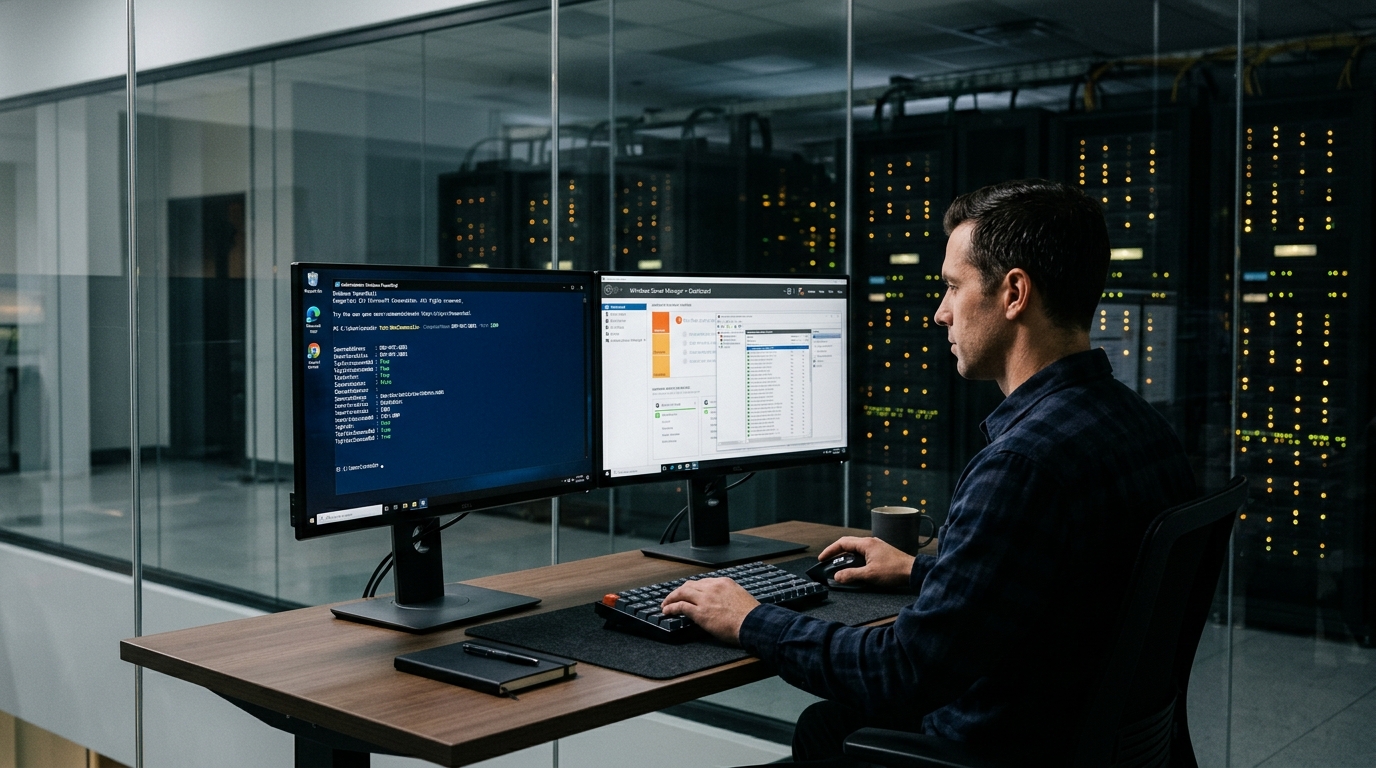
To fix Remote Desktop error 0x204 on Windows Server: Set fDenyTSConnections to 0 in HKLM:\SYSTEM\CurrentControlSet\Control\Terminal Server via PowerShell, enable the Remote Desktop firewall rule group with Enable-NetFirewallRule -DisplayGroup "Remote Desktop", set the network connection category to Private, and restart the TermService service.[1]
Follow this production runbook to systematically verify listening ports, firewall filtering, network interface profiles, and registry keys across Windows Server 2025, 2022, 2019, and remote client workstations.[2]
Understanding Remote Desktop Error Code 0x204
Remote Desktop error code 0x204 is a network-level disconnection error returned by the Microsoft Remote Desktop client (mstsc.exe, Microsoft Remote Desktop for macOS, iOS, or Android). The client issues the message: “We couldn’t connect to the remote PC. Make sure the PC is turned on and connected to the network, and that remote access is enabled. Error code: 0x204.”[1]
Unlike cryptographic authentication errors (such as CredSSP 0x80004005 or Internal Error 0x4), error 0x204 indicates an unestablished transport handshake. The initial TCP SYN packet sent to port 3389 timed out or was rejected with a TCP RST by the remote host, host firewall, or intermediary hypervisor virtual switch.[3]
+---------------------+         TCP SYN:3389          +------------------------+
| Remote Client       | ---------------------------> | Edge Router / Cloud WAF|
| (Windows, Mac, iOS) |                               | (Port Forward / NAT)   |
+---------------------+                               +------------------------+
           |                                                      |
           |                  No SYN-ACK / Dropped                v
           | <--------------------------------------- +------------------------+
           v                                          | Windows Server Host    |
   [ Error Code 0x204 ]                               | - TermService Stopped  |
   Connection Timed Out                               | - Port 3389 Blocked    |
                                                      | - fDenyTSConnections=1 |
                                                      +------------------------+
What causes Remote Desktop error 0x204 on Windows Server?
Remote Desktop error 0x204 occurs on Windows Server due to four primary underlying system configurations:
- Remote Desktop Services Disabled via Registry: The
fDenyTSConnectionsDWORD is set to1underHKLM:\SYSTEM\CurrentControlSet\Control\Terminal Server, preventing the server from accepting inbound remote desktop connections. - Windows Defender Firewall Inbound Drop: The inbound rules for the “Remote Desktop” display group are either disabled or restricted to Private/Domain profiles while the server’s network adapter is categorized as Public.[2]
- TermService Listener Failure: The Windows service
TermService(Remote Desktop Services) is stopped, disabled, or bound to a non-standard port while the client connects on port 3389. - Cloud Security Group or Hypervisor Network Security Group (NSG) Filters: An upstream cloud firewall (Azure NSG, AWS Security Group, or hypervisor software-defined network) discards inbound TCP/UDP packets destined for port 3389 before reaching the operating system.
Technical Diagnostic Matrix for Error 0x204
The following matrix compares common system states, root causes, and verification commands required to eliminate error 0x204:
| Diagnostic Layer | Common Root Cause | Expected Valid State | Verification Command | Corrective Action |
|---|---|---|---|---|
| Terminal Service Registry | fDenyTSConnections = 1 |
fDenyTSConnections = 0 |
Get-ItemProperty -Path 'HKLM:\System\CurrentControlSet\Control\Terminal Server' -Name fDenyTSConnections |
Set value to 0 via Set-ItemProperty |
| Listener Port Binding | Custom port assigned | PortNumber = 3389 (or known custom port) |
Get-ItemProperty -Path 'HKLM:\System\CurrentControlSet\Control\Terminal Server\WinStations\RDP-Tcp' -Name PortNumber |
Append :Port in client or restore default 3389 |
| Windows Firewall | Group disabled or Public profile active | State = Enabled (TCP/UDP) | Get-NetFirewallRule -DisplayGroup "Remote Desktop" | Select-Object Name, Enabled |
Enable-NetFirewallRule -DisplayGroup "Remote Desktop" |
| Network Interface Profile | Interface set to Public |
Category = Private or DomainAuthenticated |
Get-NetConnectionProfile | Select-Object InterfaceAlias, NetworkCategory |
Set-NetConnectionProfile -NetworkCategory Private |
| Service Status | TermService stopped or paused |
Status = Running |
Get-Service -Name TermService |
Start-Service -Name TermService |
Step-by-Step Runbook: How to Fix RDP Error 0x204
Follow these sequential steps in an administrative PowerShell session (via local console, KVM/IPMI, or cloud provider out-of-band serial console) to restore RDP connectivity.
Step 1: Enable Remote Desktop via Windows Registry
When remote desktop access is toggled off in Windows Server Settings or locked by a local security policy, the system sets fDenyTSConnections to 1. Execute the following command to enable connections:
# Check current connection policy
Get-ItemPropertyValue -Path 'HKLM:\System\CurrentControlSet\Control\Terminal Server' -Name 'fDenyTSConnections'

# Enable Remote Desktop connections (0 = allowed, 1 = denied)
Set-ItemProperty -Path 'HKLM:\System\CurrentControlSet\Control\Terminal Server' -Name 'fDenyTSConnections' -Value 0
Verify that Remote Desktop Users have logon privileges through Remote Desktop Services:
# Ensure Remote Desktop Users group has SeRemoteInteractiveLogonRight
net localgroup "Remote Desktop Users"
Step 2: How do I enable Remote Desktop port 3389 in Windows Firewall via PowerShell?
Windows Defender Firewall blocks port 3389 by default unless the predefined Remote Desktop rule group is enabled. Run the following commands to open TCP and UDP port 3389 across all active firewall profiles:[2]
# Enable all built-in Remote Desktop inbound rules
Enable-NetFirewallRule -DisplayGroup "Remote Desktop"

# Verify enabled state for TCP-In and UDP-In
Get-NetFirewallRule -DisplayGroup "Remote Desktop" | Format-Table Name, DisplayName, Enabled, Direction, Action
If custom firewall configurations have removed the default group, construct a dedicated inbound rule for port 3389:
# Create dedicated inbound TCP rule for RDP
New-NetFirewallRule -Name "Allow-RDP-TCP-3389" `
    -DisplayName "Remote Desktop (TCP-In 3389)" `
    -Description "Allows inbound RDP traffic over TCP 3389" `
    -Direction Inbound `
    -Protocol TCP `
    -LocalPort 3389 `
    -Action Allow `
    -Profile Any

# Create dedicated inbound UDP rule for RDP transport acceleration
New-NetFirewallRule -Name "Allow-RDP-UDP-3389" `
    -DisplayName "Remote Desktop (UDP-In 3389)" `
    -Description "Allows inbound RDP acceleration traffic over UDP 3389" `
    -Direction Inbound `
    -Protocol UDP `
    -LocalPort 3389 `
    -Action Allow `
    -Profile Any
Network Profile Inspection: If the network connection profile is categorized as Public, Windows Firewall applies strict inbound stealth rules that reject connection attempts even when Remote Desktop rules are enabled on Private profiles. Always check Get-NetConnectionProfile and assign Set-NetConnectionProfile -NetworkCategory Private for secure corporate environments.
Step 3: Verify the RDP Listening Port and Active Socket Binding
If an administrator previously altered the default RDP port for security obscurity, connection attempts to IP_Address without the explicit port suffix will yield error 0x204.
Query the listening port configured in the RDP-Tcp listener key:[3]
# Read configured RDP port number
$RdpPort = (Get-ItemProperty -Path 'HKLM:\SYSTEM\CurrentControlSet\Control\Terminal Server\WinStations\RDP-Tcp').PortNumber
Write-Host "Configured RDP Port: $RdpPort"
If the port is set to a custom value (e.g., 3390), either append :3390 in the client connection string or reset the listener to standard 3389:
# Reset listener to standard port 3389
Set-ItemProperty -Path 'HKLM:\SYSTEM\CurrentControlSet\Control\Terminal Server\WinStations\RDP-Tcp' -Name 'PortNumber' -Value 3389
Inspect active TCP sockets to verify that svchost.exe (hosting TermService) is actively listening:
# Confirm listener is actively bound on 0.0.0.0:3389 or [::]:3389
Get-NetTCPConnection -LocalPort 3389 -State Listen | Format-Table LocalAddress, LocalPort, State, OwningProcess
Step 4: Restart Remote Desktop Services and Dependencies
Restart the core services responsible for managing Remote Desktop protocol sessions:
# Restart Remote Desktop Services and UserMode Port Redirector
Restart-Service -Name TermService -Force
Restart-Service -Name UmRdpService -Force

# Verify service status
Get-Service -Name TermService, UmRdpService | Format-Table Name, Status, StartType
Ensure the startup type for TermService is set to Automatic:
Set-Service -Name TermService -StartupType AutomaticFixing RDP Error 0x204 on macOS and Mobile Remote Desktop Clients
When connecting from macOS, iPadOS, iOS, or Android devices using the modern Microsoft Remote Desktop app, error 0x204 is frequently reported due to client-side DNS caching, stale certificates, or Network Level Authentication (NLA) mismatches.
Why does error 0x204 occur when connecting from Mac or iPad to Windows Server?
On non-Windows clients, error 0x204 occurs when the client attempts to resolve a NetBIOS computer name without a fully qualified domain name (FQDN), or when local macOS network permission restricts the application from accessing the local subnet.
Client Connection String Comparison:
[ Incorrect ]: WIN-SRV01             ---> Fails with Error 0x204 (No WINS/LLMNR Resolution)
[ Correct ]:   192.168.10.50          ---> Direct IP Handshake (Bypasses NetBIOS)
[ Correct ]: srv01.corp.domain.com ---> Standard FQDN DNS A-Record Handshake- Use Static IPv4 or FQDN: In the Microsoft Remote Desktop client on macOS, edit the PC configuration. Replace simple hostnames (e.g.,
SERVER01) with the static IP address (192.168.1.100or public IP) or the FQDN (srv.example.com). - Grant Local Network Permission on macOS: Navigate to System Settings > Privacy & Security > Local Network. Verify that Microsoft Remote Desktop is enabled. If disabled, macOS blocks the client from discovering hosts on the local subnet.
- Remove Stale Certificates from Keychain: If the server was recently re-imaged or generated a new self-signed TLS certificate, open Keychain Access, search for the server’s IP or hostname under Certificates, and delete old untrusted certificates.
NLA Security Layer Discrepancies: If the client does not support modern CredSSP handshakes, the server drops the connection before reaching the login screen. On the Windows Server host, configure SecurityLayer to 1 (Negotiate) under HKLM:\SYSTEM\CurrentControlSet\Control\Terminal Server\WinStations\RDP-Tcp to permit fallback negotiation without compromising encryption.
How do I resolve registry fDenyTSConnections blocking RDP?
In managed enterprise networks, Group Policy Objects (GPO) may continuously re-apply fDenyTSConnections = 1 during background policy refreshes.
To prevent local or domain policies from reverting your configuration:
- Open the Local Group Policy Editor (
gpedit.msc). - Navigate to: Computer Configuration > Administrative Templates > Windows Components > Remote Desktop Services > Remote Desktop Session Host > Connections.
- Locate Allow users to connect remotely by using Remote Desktop Services.
- Set the policy to Enabled. Setting this to Enabled writes
fDenyTSConnections = 0toHKLM:\SOFTWARE\Policies\Microsoft\Windows NT\Terminal Services.[1] - Run policy update from the command line:
gpupdate /forceFor enterprises deploying mission-critical remote desktop workloads, high-frequency trading platforms, or resource-intensive applications, low network latency and deterministic physical hardware prevent protocol timeouts. Explore our enterprise bare-metal infrastructure with Dedicated Servers and locally hosted Dedicated Servers in Pakistan for optimized network routing and dedicated remote management.
Verifying Network Connectivity with Test-NetConnection
Before attempting a full graphical session, verify that TCP handshake packets reach port 3389 from the client workstation using PowerShell:[2]
# Run from client terminal to test port 3389 reachability
Test-NetConnection -ComputerName "203.0.113.10" -Port 3389
Expected successful diagnostic output:
ComputerName           : 203.0.113.10
RemoteAddress          : 203.0.113.10
RemotePort             : 3389
InterfaceAlias         : Ethernet
SourceAddress          : 192.168.1.15
TcpTestSucceeded       : True
If TcpTestSucceeded returns False, inspect upstream NAT forwarding rules on your perimeter router, cloud firewall access control lists (ACLs), or ISP port 3389 filtering.
Deploy High-Performance Remote Workstations & Windows Servers
Looking for ultra-low latency, rock-solid uptime, and high-performance remote desktop environments? NextGen provides enterprise-grade bare metal infrastructure with hardware RAID, NVMe storage, and dedicated IPv4 connectivity.
Explore Dedicated ServersDisclaimer: This post is for informational and educational purposes only, accurate to the best of our knowledge at publication. It does not constitute formal system administration advice. We do not guarantee accuracy or completeness and accept no liability for any system alterations or connectivity disruptions resulting from reliance on this content.
Sources & Official References
- Microsoft Corporation. "Troubleshoot Remote Desktop disconnected errors and 0x204 connection issues." Microsoft Learn Documentation, 2024. Available at: https://learn.microsoft.com/en-us/troubleshoot/windows-server/remote/remote-desktop-connection-faq
- Microsoft Windows Server Documentation. "Configure the Remote Desktop listening port and Windows Defender Firewall rules via PowerShell NetSecurity Module." Microsoft Learn, 2024. Available at: https://learn.microsoft.com/en-us/windows-server/remote/remote-desktop-services/troubleshoot/rdp-error-general-troubleshooting
- Internet Assigned Numbers Authority (IANA). "Service Name and Transport Protocol Port Number Registry: Port 3389 MS WBT Server (RDP)." IANA Port Assignments. Available at: https://www.iana.org/assignments/service-names-port-numbers/service-names-port-numbers.xhtml