
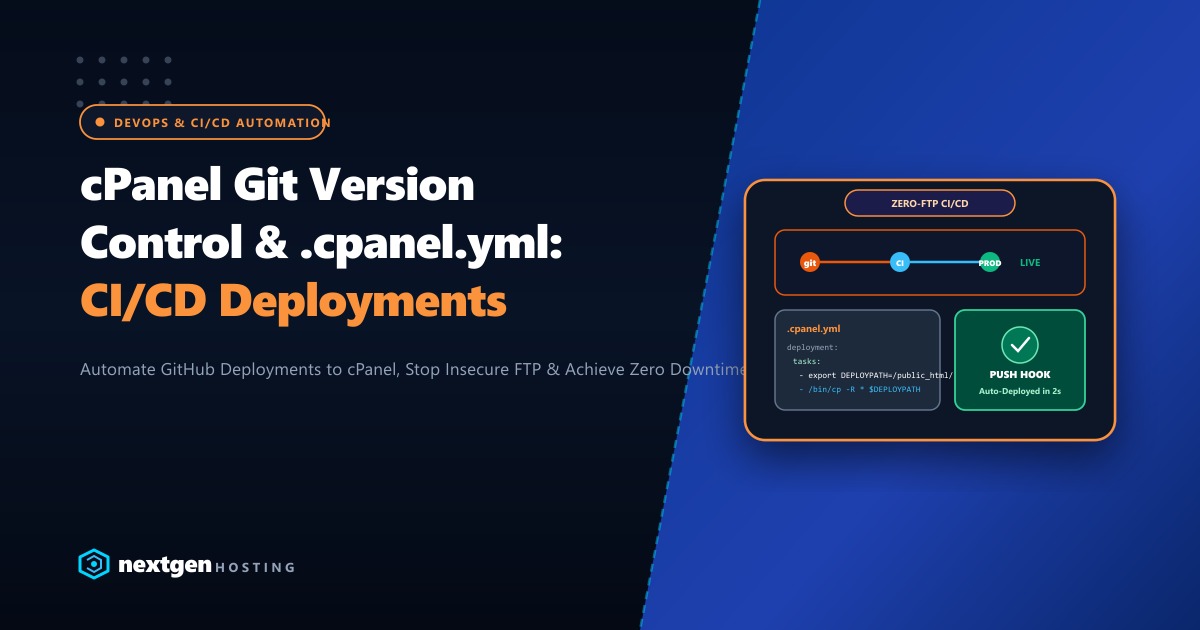
In 2026, web developers and digital agencies in Pakistan should never be deploying production code by dragging and dropping files over insecure, unencrypted FTP (FileZilla).
Manual FTP deployments are slow, error-prone, and inherently dangerous:
- An interrupted upload leaves your website in an inconsistent, broken state.
- Accidental file overwrites erase client edits with zero rollback history.
- FTP credentials transmitted in plaintext expose your server to credential theft.
Modern web workflows require Version Control and Automated Deployment.
Built directly into every modern cPanel account, the cPanel Git™ Version Control interface allows you to connect your private GitHub, GitLab, or Bitbucket repositories directly to your hosting server. By utilizing a simple declarative configuration file named .cpanel.yml, every git push to your main branch can automatically build assets, run migrations, and deploy clean code into your public_html directory in under 3 seconds.
Here is our complete production guide to setting up automated cPanel Git CI/CD deployments in Pakistan for 2026.
Executive Git Deployment Takeaways
- Why Ditch FTP: Git deployments transmit only compressed cryptographic delta differences over SSH. What took 10 minutes over FTP takes 2.5 seconds over Git.
- The Power of .cpanel.yml: This YAML recipe lives in your repository root and defines the exact automated bash instructions (copying files, compiling frontend assets, setting permissions) executed upon deployment.
- Automated Webhooks: By adding a cPanel webhook URL to your GitHub repository settings, code deploys automatically the moment your pull request is merged—zero manual cPanel logins required.
- Dedicated Infrastructure: Complex build pipelines (like running Composer, npm build, or database migrations) require adequate memory and CPU. Dedicated hosting ensures deployment tasks complete with zero server freezing.
1. Setting Up SSH Access and Deploy Keys in cPanel
To allow cPanel to pull private code securely from GitHub or GitLab:
Step 1: Generate an SSH Key Pair in cPanel
- Log into your cPanel Account.
- Navigate to Security > SSH Access.
- Click Manage SSH Keys > Generate a New Key.
- Set Key Name to
id_rsa_githuband enter a strong passphrase (or leave blank for passwordless automation). - Click Generate Key.
Step 2: Authorize Key and Copy Public Key
- In the Public Keys list, click Manage next to
id_rsa_githuband click Authorize. - Click View/Download on your public key and copy the entire
ssh-rsa AAAA...string.
Step 3: Add Deploy Key to GitHub
- In your GitHub repository, navigate to Settings > Deploy keys.
- Click Add deploy key.
- Paste your cPanel public key and give it a name like
cPanel-Production-Server. - Leave Allow write access unchecked (least privilege principle).
2. Cloning the Repository into cPanel
With authentication configured, clone your repository into your hosting account:
- In cPanel, navigate to Files > Git™ Version Control.
- Click Create.
- Configure the following:
- Clone a Repository: Toggle
ON. - Clone URL: Enter your SSH clone URL:
[email protected]:yourusername/your-repo.git - Repository Path: Enter an isolated folder outside
public_html(e.g.,/home/youruser/repositories/my-app). - Repository Name:
my-app-production.
- Clone a Repository: Toggle
- Click Create. cPanel will clone the repository cleanly over SSH.
3. Creating Your Automated .cpanel.yml Deployment Recipe
The magic of automated cPanel deployment happens via the .cpanel.yml file. Create this file in the root of your local Git repository:
---
deployment:
  tasks:
    # Define destination path
    - export DEPLOYPATH=/home/youruser/public_html/

    # Exclude git metadata and local dev files during copy
    - /bin/rsync -avz --exclude='.git*' --exclude='node_modules' --exclude='.env' * $DEPLOYPATH

    # Ensure correct file and directory permissions
    - /bin/chmod 755 $DEPLOYPATH
    - /bin/find $DEPLOYPATH -type d -exec chmod 755 {} +
    - /bin/find $DEPLOYPATH -type f -exec chmod 644 {} +
Commit and push this file to GitHub:
git add .cpanel.yml
git commit -m "feat: configure automated cPanel deployment recipe"
git push origin main
4. Automating Deployments with GitHub Webhooks (Zero-Touch CI/CD)
To trigger automated deployments without manually clicking “Deploy HEAD Commit” in cPanel:
Step 1: Obtain the cPanel Webhook URL
In cPanel under Git™ Version Control, click Manage next to your repository. Under the Basic Information tab, locate your repository’s unique webhook URL:
https://yourdomain.pk:2083/cpsessXXXXX/frontend/jupiter/git/deploy.live.pl?action=deploy&repo_name=my-app-productionStep 2: Add Webhook to GitHub
- In your GitHub repository, go to Settings > Webhooks > Add webhook.
- Paste the cPanel Webhook URL into the Payload URL field.
- Content type:
application/json. - Select Just the push event.
- Save Webhook.
Now, whenever anyone merges code into the main branch, GitHub sends an instant POST request to cPanel, triggering the .cpanel.yml deployment script automatically in 2 seconds!
5. Enterprise Infrastructure for Software Agencies & Developers
For modern software houses, SaaS startups, and digital agencies in Pakistan managing continuous development pipelines, staging sandboxes, and automated test runners, shared hosting quickly becomes a bottleneck.
Our high-performance global Dedicated Servers provide dedicated multi-core AMD EPYC processors, 64GB+ DDR5 memory, and high-speed NVMe storage, allowing you to run automated npm builds, Docker containers, and complex Git hooks with zero latency.
If your platform requires compliance with local Pakistani banking frameworks, domestic data protection mandates, and sub-10ms ping times across domestic ISPs, our enterprise Dedicated Servers in Pakistan provide local Karachi and Lahore co-location, unmetered domestic bandwidth, and local PKR billing with dedicated engineering account managers.
6. Verifying Deployment History & Rollbacks
In cPanel, click on the Deploy HEAD Commit history tab to verify your deployment log:
DEPLOYMENT TASK SUMMARY:
Task 1: export DEPLOYPATH=/home/youruser/public_html/ [OK]
Task 2: /bin/rsync -avz --exclude='.git*' * $DEPLOYPATH [OK]
Task 3: /bin/chmod 755 $DEPLOYPATH [OK]
Status: SUCCESS (Duration: 1.84s)
If a bug ever slips through to production, rolling back is as simple as reverting your Git commit locally and pushing:
git revert HEAD
git push origin main
Within 3 seconds, cPanel automatically deploys the previous stable state—keeping your client’s business safe, professional, and reliable!
Modernize Your Development Workflow with High-Speed Hosting
Say goodbye to slow, risky FTP uploads. Build, deploy, and scale with Git automation, WP Toolkit, and pure NVMe performance on Nextgen Hosting in Pakistan.
