
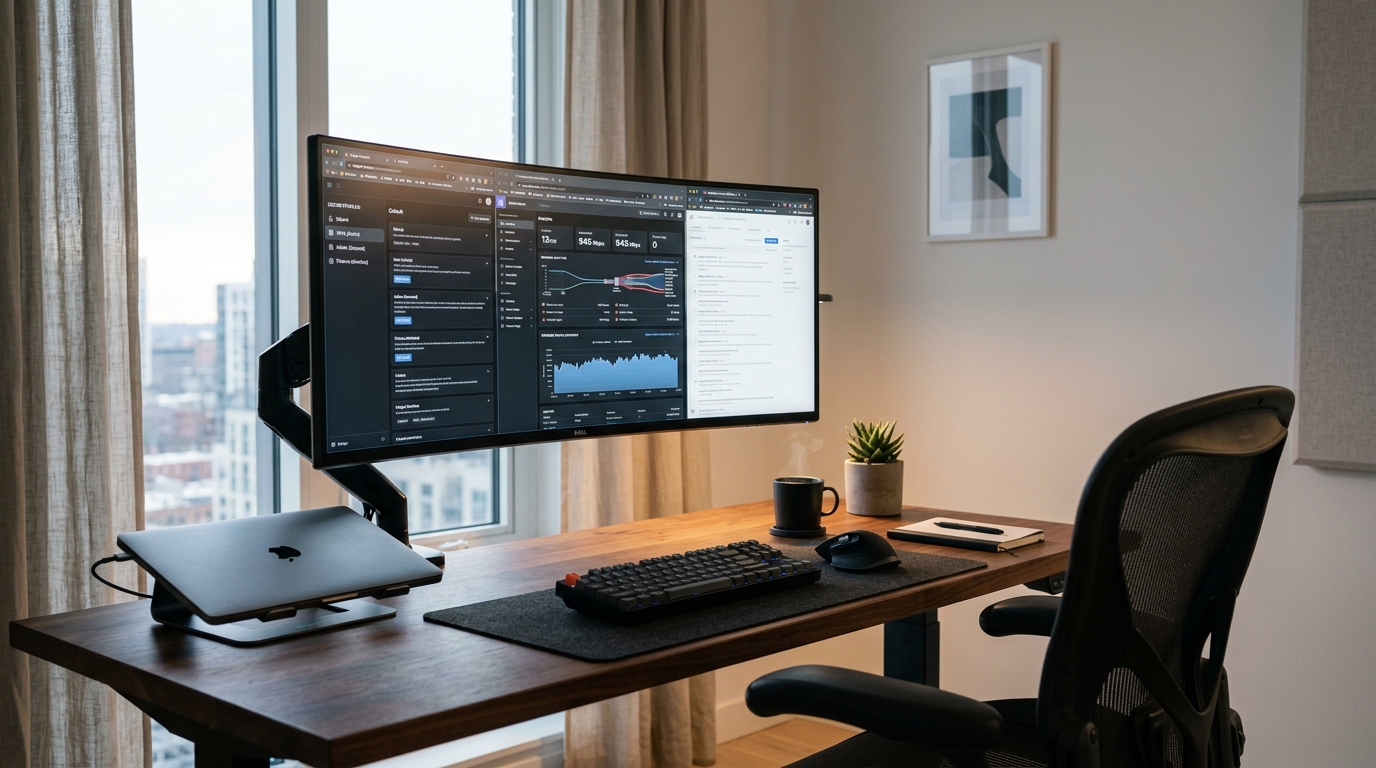
As enterprise organizations, IT outsourcing agencies, medical billing BPOs, and software development firms across Pakistan transition toward flexible remote work, managing client-side Remote Desktop software introduces substantial IT overhead. Distributing connection files, configuring thick desktop clients (mstsc.exe), and troubleshooting endpoint compatibility across heterogeneous operating systems—including macOS, Linux, ChromeOS, iOS, and personal Windows laptops—creates ongoing support friction and potential security blind spots.[1]
The official Microsoft Remote Desktop Web Client resolves these operational hurdles by delivering full Windows desktop sessions and published RemoteApp software directly inside modern HTML5 web browsers (Google Chrome, Microsoft Edge, Mozilla Firefox, and Apple Safari). Powered by high-speed WebSockets over HTTPS (port 443), the web client requires zero client software installation, eliminates standalone .rdp file downloads, incorporates built-in browser-based PDF printing, and enforces centralized security. This guide delivers a complete, production-tested deployment roadmap for configuring the HTML5 Remote Desktop Web Client on Windows Server 2019, 2022, and 2025.
1. Architectural Comparison: Legacy RDP vs. Modern HTML5 Web Client
Understanding the architectural transformation between traditional desktop protocols and browser-based delivery is essential for enterprise capacity planning:
| Architectural Metric | Classic Thick Client (mstsc.exe) |
Legacy RD Web Access (/RDWeb/Pages) |
Modern HTML5 Web Client (/RDWeb/webclient) |
|---|---|---|---|
| Client Requirement | Native Windows OS or third-party client app | ActiveX plugin (IE) or .rdp file handler |
Modern HTML5 browser (Edge, Chrome, Safari, Firefox) |
| Transport Protocol | RDP over TCP/UDP port 3389 or RD Gateway RPC | HTTP file download, launching port 3389 / 443 | Secure WebSockets over standard HTTPS (port 443) |
| Cross-Platform Support | Requires dedicated client app per OS | Poor (broken on Linux / ChromeOS / Mobile) | 100% universal clientless cross-platform |
| Local Endpoint Footprint | Saves credentials and .rdp profile files locally |
Saves downloaded .rdp files on client storage |
Zero disk footprint; session runs entirely in browser RAM |
| Document Printing | Redirects physical client printer drivers | Client printer redirection via spooler | Built-in Virtual PDF Printer (downloads PDF for printing) |
| Corporate Firewall Traversal | Often blocked on corporate networks (port 3389) | Mixed; requires secondary RDP gateway tunnel | 100% transparent through outbound port 443 proxies |
By tunneling all graphics, mouse clicks, keystrokes, and audio packets through an encrypted WebSocket connection, the HTML5 Web Client allows users to bypass strict corporate firewalls and ISP port blocks without requiring complex VPN setups.[2]
2. Infrastructure Prerequisites and Role Dependencies
Before deploying the HTML5 web client, your Windows Server Remote Desktop Services deployment must satisfy the following core requirements:
- Active RDS Deployment: An established RDS environment with the following roles installed:
- RD Web Access (
RDS-Web-Access): Serves the Internet Information Services (IIS) web interface. - RD Connection Broker (
RDS-Connection-Broker): Manages user authentication, session state, and collection routing. - RD Gateway (
RDS-Gateway): Tunnels incoming HTTPS and WebSocket traffic to internal session hosts. - RD Session Host (
RDS-RD-Server): Hosts the published desktops or RemoteApp applications.
- RD Web Access (
- Public FQDN & SSL/TLS Certificate: A valid, publicly trusted SSL/TLS certificate (such as Let’s Encrypt, DigiCert, or Sectigo) matching the external gateway domain (e.g.,
remote.yourcompany.com.pk). Self-signed certificates are rejected by modern browser WebSocket security policies. - PowerShell 5.1+ and Package Management: Modern PowerShell with administrative privileges and connectivity to the PowerShell Gallery.
3. Step-by-Step PowerShell Deployment Runbook
Microsoft distributes the web client as a modular package through the RDWebClientManagement PowerShell module. Execute the following steps on the server hosting the RD Connection Broker and RD Web Access roles.[3]
Step 1: Install the Management Module
Open an elevated PowerShell prompt (Run as Administrator) and install the official Microsoft management module:
# Set PowerShell Gallery to trusted repository
Set-PSRepository -Name "PSGallery" -InstallationPolicy Trusted

# Install the Remote Desktop Web Client Management module
Install-Module -Name RDWebClientManagement -Force

# Verify the module is loaded and view available cmdlets
Get-Command -Module RDWebClientManagement
Step 2: Download and Install the Latest Web Client Package
Fetch the latest compiled HTML5 web application bundle from Microsoft:
# Download and install the latest web client payload locally
Install-RDWebClientPackage
To verify the installed version and release metadata:
Get-RDWebClientPackageStep 3: Export and Bind the RD Connection Broker Certificate
The web client establishes a cryptographically signed trust relationship with the RD Connection Broker. You must export the Broker’s authentication certificate as a .cer file and import it into the Web Client configuration:
# Define certificate export directory
$certDir = "C:\Certs"
If (!(Test-Path $certDir)) { New-Item -ItemType Directory -Path $certDir -Force }

# Identify the certificate used by the RD Connection Broker
# If using an existing .pfx, extract the public key (.cer) via MMC or PowerShell:
$brokerCertPath = "$certDir\RDConnectionBroker.cer"

# Export the public key from the local machine store (or use your exported CA cert)
$cert = Get-ChildItem -Path Cert:\LocalMachine\My | Where-Object { $_.Subject -like "*remote.yourcompany.com.pk*" } | Select-Object -First 1
Export-Certificate -Cert $cert -FilePath $brokerCertPath

# Import the certificate into the RD Web Client configuration
Import-RDWebClientBrokerCert $brokerCertPath

Write-Host "RD Connection Broker Certificate successfully bound to Web Client." -ForegroundColor Green
Step 4: Publish the Web Client to Production
Once installed and bound to the broker certificate, publish the web application to the Internet Information Services (IIS) virtual directory under the default website:
# Publish the latest package directly to the production URL
Publish-RDWebClientPackage -Type Production -Latest
Step 5: Restart IIS Services
Restart the World Wide Web Publishing Service to ensure IIS reloads all virtual directory mappings and HTTP/WebSocket handler modules:
Restart-Service -Name W3SVC4. End-User Experience and Built-in Client Features
Once published, remote employees and contractors can immediately access the environment by navigating to:
https://remote.yourcompany.com.pk/RDWeb/webclient/index.htmlKey Operational Capabilities
- Clientless Single Sign-On (SSO): Users log in using standard Active Directory credentials (
DOMAIN\usernameor[email protected]). Once authenticated, they are presented with an elegant, responsive catalog displaying their authorized desktop pools and RemoteApp programs. - Multi-Tab Session Switching: Users can launch multiple RemoteApps simultaneously. Each application or desktop session runs in its own browser tab or window, allowing seamless multi-tasking across local and remote programs.
- Virtual PDF Printing: Traditional printer driver incompatibilities are completely eliminated. When a user prints a document inside the remote session, they select the Remote Desktop Virtual Printer. The server renders the document into an optimized PDF file and sends it over the WebSocket stream, automatically opening a native print dialog or downloading the file directly onto the local workstation.[4]
- Bi-directional Clipboard Synchronization: Users can copy and paste text between their local machine and the remote session using standard keyboard shortcuts (
Ctrl+C/Ctrl+V) or via an interactive slide-out clipboard side panel. - High-Definition Web Audio: Remote audio streams are decoded via the HTML5 Web Audio API, delivering crystal-clear playback for training webinars, audio playback, and notification sounds without client driver configuration.
5. Reverse Proxy Configuration for WebSockets (Caddy and Nginx)
In modern enterprise architectures, the RD Web Access server is frequently positioned behind an edge reverse proxy or Content Delivery Network (CDN) to provide DDoS mitigation, Web Application Firewall (WAF) inspection, and automated TLS certificate management.
Because the HTML5 web client relies on WebSockets for real-time graphics and input streaming, the reverse proxy must explicitly support HTTP connection upgrade headers.[5]
Caddy Reverse Proxy Configuration
Caddy natively supports WebSockets without additional configuration, making it the ideal lightweight reverse proxy:
remote.yourcompany.com.pk {
    encode zstd gzip

    # Proxy all traffic to the internal RD Web / Gateway server
    reverse_proxy https://192.168.10.50:443 {
        transport http {
            tls_insecure_skip_verify # Use if internal server uses self-signed backend cert
        }
    }
}
Nginx Reverse Proxy Configuration
When using Nginx, you must explicitly pass the Upgrade and Connection headers:
# Map WebSocket upgrade headers
map $http_upgrade $connection_upgrade {
    default upgrade;
    ''      close;
}

server {
    listen 443 ssl http2;
    server_name remote.yourcompany.com.pk;

    ssl_certificate /etc/letsencrypt/live/remote.yourcompany.com.pk/fullchain.pem;
    ssl_certificate_key /etc/letsencrypt/live/remote.yourcompany.com.pk/privkey.pem;

    # Set client buffer sizes for graphical streaming
    client_max_body_size 50M;

    location / {
        proxy_pass https://192.168.10.50:443;
        proxy_http_version 1.1;

        # Mandatory WebSocket upgrade headers
        proxy_set_header Upgrade $http_upgrade;
        proxy_set_header Connection $connection_upgrade;

        # Standard proxy headers
        proxy_set_header Host $host;
        proxy_set_header X-Real-IP $remote_addr;
        proxy_set_header X-Forwarded-For $proxy_add_x_forwarded_for;
        proxy_set_header X-Forwarded-Proto https;

        # Disable buffering for real-time interactivity
        proxy_buffering off;
        proxy_read_timeout 86400s;
        proxy_send_timeout 86400s;
    }
}
6. Enterprise Hardware Architecture for Multi-Tenant Web RDP in Pakistan
Deploying an HTML5 Remote Desktop Web Client fleet for dozens or hundreds of concurrent users requires robust bare-metal compute capacity. While traditional RDP relies on the local client GPU to render desktop vectors, HTML5 web streaming encodes and compresses desktop frames on the server side before transmitting them over WebSockets.
- Dedicated Physical Compute: In shared cloud virtual machines, multi-tenant CPU overcommit and hypervisor memory ballooning introduce frame dropping, choppy cursor movements, and WebSocket connection drops. Deploying on high-performance physical Dedicated Servers guarantees dedicated multi-core AMD EPYC or Intel Xeon processing, hardware-accelerated TLS termination, and unshared memory bandwidth for seamless browser rendering.
- Domestic Low-Latency Carrier Connectivity: For remote teams, digital agencies, and distributed enterprise branches operating across Karachi, Lahore, Islamabad, and Rawalpindi, hosting on Dedicated Servers in Pakistan delivers sub-15ms round-trip domestic ping. Direct fiber peering over the Pakistan Internet Exchange (PKIX) eliminates cross-border packet jitter, ensuring instantaneous keystroke responsiveness and smooth 60 FPS scrolling inside the web browser.
Deploy High-Speed HTML5 Web RDP on Dedicated Servers in Pakistan
Empower your remote workforce with instant, zero-install browser access. Deploy enterprise dedicated Windows Server hosts featuring enterprise PCIe 4.0 NVMe storage, dedicated hardware resources, unmetered domestic bandwidth, and customized RDS licensing across Tier-3 Karachi and Lahore facilities.
Sources & Official References
- Microsoft Learn. (2024). Set up the Remote Desktop Web Client for your users (Windows Server 2016, 2019, 2022, 2025). Microsoft Technical Documentation. https://learn.microsoft.com/en-us/windows-server/remote/remote-desktop-services/clients/remote-desktop-web-client-admin
- Internet Engineering Task Force (IETF). (2011). RFC 6455: The WebSocket Protocol. Internet Standards Organization. https://datatracker.ietf.org/doc/html/rfc6455
- PowerShell Gallery. (2024). RDWebClientManagement Module: PowerShell cmdlets for managing the Remote Desktop Web Client. Microsoft Corporation. https://www.powershellgallery.com/packages/RDWebClientManagement/
- Microsoft Technical Documentation. (2023). Remote Desktop Web Client Features: Virtual Printing, Clipboard Synchronization, and Multi-Monitor Handling. Microsoft Support Knowledgebase. https://learn.microsoft.com/en-us/windows-server/remote/remote-desktop-services/clients/remote-desktop-web-client
- Nginx Documentation. (2024). Using Nginx as a WebSocket Reverse Proxy: Connection Upgrades and Buffer Tuning. F5 Nginx Technical Docs. https://nginx.org/en/docs/http/websocket.html
Disclaimer: This post is for informational and educational purposes only, accurate to the best of our knowledge at publication. It does not constitute advice. We do not guarantee accuracy or completeness and accept no liability for any decisions or losses resulting from reliance on this content.
